EasyManua.ls Logo

Gainscha GI-2408T Series - User Manual

Default Icon
49 pages
Print Icon
To Next Page IconTo Next Page
Loading...
INTELLIGENT SERIES
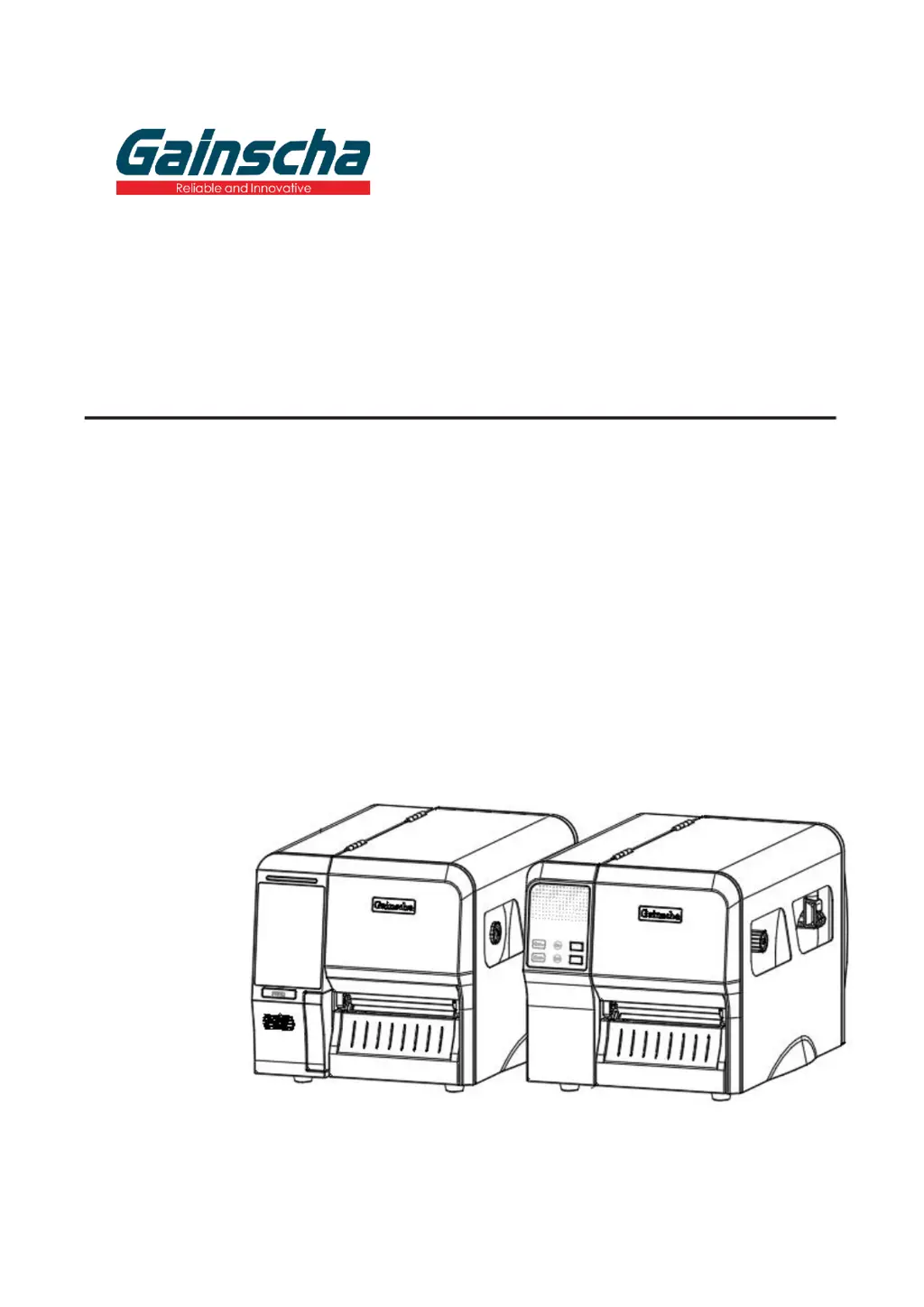
GI-2408T / GI-3406T / GI-2410TM / GI-3407TM Series
4" Industrial Thermal Transfer Barcode Printer
USER’S
MANUAL
Ver.1.0.1

Questions and Answers

  • D
    David ParkerAug 7, 2025
    What to do if my Gainscha GI-2408T Barcode Reader is unable to print?
    • E
      Emily CarterAug 7, 2025
      If your Gainscha Barcode Reader is unable to print, make sure the cable is securely connected to the serial, USB interface, or parallel port by reconnecting the cable to the interface. Also, check that the ribbon and media are compatible and verify the ribbon-inked side. Finally, ensure the print head’s harness connector is well connected with the printhead by turning off the printer and plugging it in.
  • J
    Justin JohnsonAug 13, 2025
    Why does my Gainscha GI-2408T have a paper jam?
    • S
      sanfordtimothyAug 13, 2025
      If you're experiencing a paper jam with your Gainscha Barcode Reader, it could be due to a few reasons. First, the gap or black mark sensor detection might be incorrect, so try recalibrating the label sensor. Second, the label size may be set incorrectly; ensure you set the correct label size. Finally, a label may be blocked inside the printer, so cleaning the inside of the printer might resolve the issue.
  • R
    Rebecca LopezAug 19, 2025
    What to do if my Gainscha Barcode Reader says 'Out of paper'?
    • A
      Amanda RosalesAug 19, 2025
      If your Gainscha Barcode Reader is out of paper, you should install new paper. Also, the paper installation path may be incorrect, so follow the steps for installing the paper to reinstall. If the issue persists, the gap or black mark sensor detection might be incorrect, and you should recalibrate the label sensor.
  • M
    Michele BrownAug 25, 2025
    What to do if my Gainscha GI-2408T is out of ribbon?
    • M
      mark83Aug 25, 2025
      If your Gainscha Barcode Reader is out of ribbon, you should install a new ribbon. Also, the ribbon installation path may be incorrect, so follow the steps for installing the ribbon to reinstall.
  • T
    Timothy JohnsonAug 31, 2025
    How to fix a Gainscha GI-2408T when the power indicator does not illuminate?
    • R
      Robert SandovalAug 31, 2025
      If the power indicator on your Gainscha Barcode Reader does not illuminate, the power cord might not be properly connected. Plug the power cord into both the printer and the outlet, and then switch the printer on.

Summary

Product Information

Product Introduction

Overview of the Gainscha bar code label printer's design and capabilities.

Standard Features

Details standard specifications for GI Series barcode printers.

Optional Features

Lists optional hardware modules available for the printers.

Operations and Printer Views

Unpacking and Inspection

Instructions for inspecting the printer and packaging upon receipt.

Front View Identification

Identifies external parts of the printer from the front for different models.

Interior View Identification

Details internal components of the printer with numbered labels.

Front View LED Indicators

Explains the function of the LED indicators on the printer's front panel.

Rear View Ports and Controls

Identifies and labels the ports and controls on the rear of the printer.

Printer Setup and Installation

Initial Printer Setup

Step-by-step guide to placing and connecting the printer for initial use.

Install Printer Driver

Instructions for downloading and installing the necessary printer driver software.

Ribbon and Media Handling

Loading the Ribbon

Detailed steps for correctly loading the thermal transfer ribbon into the printer.

Ribbon Loading Path

Visual diagram showing the correct path for threading the ribbon.

Loading the Media

Instructions for properly loading label media into the printer.

Media Loading Path

Visual diagram illustrating the correct path for threading the media.

Optional Attachments and Adjustments

Peeler Module Installation

Step-by-step guide for installing the optional peeler module.

Peeler Media Loading

Instructions for loading media when the peeler module is attached.

Print Head Pressure Adjustment

Explains how to adjust the print head pressure using adjustment knobs.

Vertical Position Adjustment

Guides on adjusting the vertical position knob for print quality.

Ribbon Wrinkle Prevention

Methods to fine-tune printer parts to prevent ribbon wrinkles.

Printer Functions and Utilities

Button Functions

Describes the functions of the Feed and Pause buttons in different printer modes.

Power-on Utilities

Explains how to access and use power-on functions for testing and configuration.

PrinterUtility Software

How to launch and navigate the Printer Utility software.

Printer Function Configuration

Using the utility to configure printer settings like speed, density, and media type.

LCD Menu Operations

Accessing the LCD Menu

Instructions on how to enter the main menu on the printer's LCD screen.

LCD Menu Overview

Explanation of the different categories within the printer's LCD menu.

Troubleshooting and Maintenance

Troubleshooting Common Problems

Lists common printer problems with possible causes and recovery procedures.

Printer Maintenance

Methods and materials for cleaning the print head, platen roller, and other parts.

Revision History

Document Update Log

Records changes made to the manual across different versions.

Gainscha GI-2408T Series Specifications

General IconGeneral
BrandGainscha
ModelGI-2408T Series
CategoryBarcode Reader
LanguageEnglish