GAINSCHA NETWORK INC.
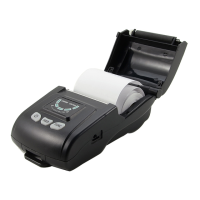
iSH58 Connect to Windows/Android/iOS Devices
Introduction
Gainscha iSH58 thermal receipt printer supports Windows PC, Android/iOS mobile phone and tablet devices connection
and receipt printing. This document will help you install Windows printer driver and help you connect Android/iOS devices.
Installing Windows Printer Driver
1. Turn off the printer, connect the USB cable, and turn on the printer.
2. Download and save the Windows printer driver in your PC: Driver_Install_AIIDrv(GBEN2_0_4_7).
2. Click the driver icon to start the installation
3. Select Driver name iSH58, Specify USB port and click Install.
4. After driver installation finished, go back to Printers and Scanners, you’ll find printer icon.
Note: To change and select correct USB port, please go to Printer Properties (USB001/USB002…), if you get windows
selftest page printed successfully, the driver is installed correctly. For further more settings, please go to driver Printing
Preferences.
Selftest Page
Turn off the printer, press and hold the FEED button to turn on the printer power, til the ERROR LED goes off and you
release FEED button, selftest page will be printed out, you’ll find printer default/current setting parameters.

 Need help?

 To Next Page
 General