GAINSCHA NETWORK INC.
Connect iSH58 to Android device
1. Take Selftest page to find your iSH58 printer Bluetooth name (eg. Printer_008B)
2. Enable Bluetooth feature on your Android device. Go to settings > Connections > Bluetooth and turn it on. Or swipe
down from the top of the screen to show the quick settings panel and tap the Bluetooth icon.
3. The Android device will automatically scan for the available devices. Select your printer Bluetooth name and connect to
it.
4. Open Android App ( eg.: Gprinter, LoyversePOS, Kyte, iReap, Pozool POS etc), click Settings to make printer connected.
Go to Print / Checkout/Sales transactions to do the receipts printing as per your need. Gainscha iSH58 supports standard
ESC/POS commands, barcode and multiple language printing, the software developer can use Gainscha Android SDK to
easily implement the printing function to the App.
Connect iSH58 to iOS device
1. Enable Bluetooth feature on your iOS device.
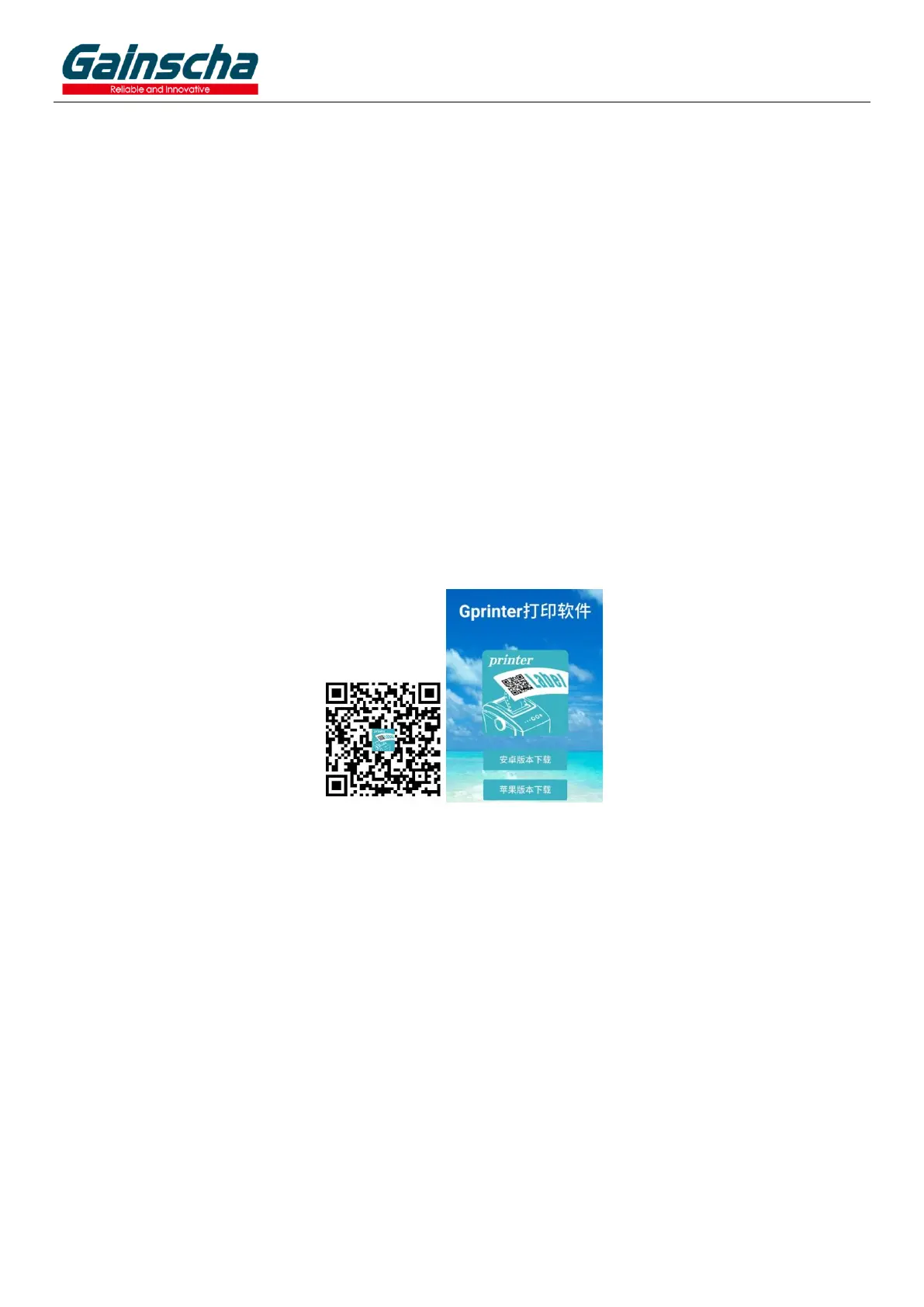
2. Scan below QR code or search Gprinter in App Store to download Gprinter Demo App, open App and go to Settings to
connect the printer Bluetooth name, go to create and edit the printing template for receipt printing.
3. The software developer can use Gainscha iOS SDK to easily implement the printing function to the App.


 To Previous Page
 Loading...