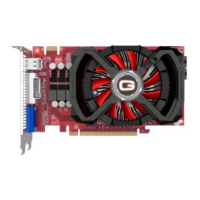
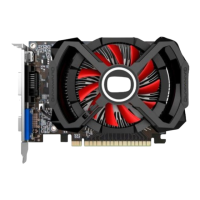
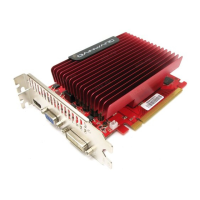
This document is a Quick Start Manual for a Gainward GeForce Series display adapter, version 8.2a, published in April 2013. It provides comprehensive instructions for installing and using the graphics card, along with technical specifications and troubleshooting tips.
Function Description:
The Gainward GeForce Series display adapter is a graphics card designed to enhance the visual performance of a computer. It supports various display devices and offers dual display functionality. The card is designed to work in a PCI Express bus slot in computers with Intel Pentium or compatible processors (AMD, Cyrix, VIA, etc.) and will not operate in PowerPC, Macintosh systems, or PCI bus slots. The manual emphasizes that the card requires a PCI Express compliant motherboard and a power supply unit (PSU) of at least 400W. Depending on the specific product series, it may occupy two or three slots in the PC and requires one or two 6-pin PCI Express power connectors (or one 8-pin and one 6-pin PCI Express power connectors). Some products may include a complementary power cable.
The manual also introduces EXPERTool™, a utility program for Windows that allows users to boost the performance of the graphics card and monitor GPU information. This tool is crucial for advanced users who wish to fine-tune their graphics card settings.
Important Technical Specifications:
The manual provides a "Graphics Modes and Refresh Rates" table, detailing supported resolutions and refresh rates for both 256-color/High color (16bits) and True color (32bits) modes.
- Resolutions: Ranging from 640 x 480 to 2560 x 1600.
- Refresh Rates (256color/High color):
- 640 x 480 to 1024 x 768: 60-240 Hz
- 1152 x 864 to 1360 x 768: 60-170 Hz
- 1600 x 900: 60-150 Hz
- 1600 x 1024 to 1680 x 1050: 60-120 Hz
- 1920 x 1080 to 1920 x 1200: 60-100 Hz
- 1920 x 1440 to 2048 x 1536: 60-85 Hz
- 2560 x 1600: 60 Hz
- Refresh Rates (True color):
- 640 x 480 to 800 x 600: 60-240 Hz
- 1024 x 768: 60-200 Hz
- 1152 x 864: 60-170 Hz
- 1280 x 768 to 1360 x 768: 60-150 Hz
- 1600 x 900: 60-120 Hz
- 1600 x 1024 to 1680 x 1050: 60-100 Hz
- 1920 x 1080 to 1920 x 1200: 60-85 Hz
- 1920 x 1440 to 2048 x 1536: 60-85 Hz
- 2560 x 1600: 60 Hz
- DVI Monitor Support: The table indicates DVI monitor support for various resolutions and refresh rates, including "Dual-Link" DVI monitor support for 1920 x 1440, 2048 x 1536, and 2560 x 1600 resolutions.
The "INFO (information)" section within EXPERTool™ provides detailed status reports, including:
- EXPERTool version: 8.9a
- OS version: Microsoft Windows 7 Ultimate Edition (example)
- Graphic chip: GeForce GTX 660 (example)
- Device ID: 10DE-11C0 (example)
- Subsystem ID: 0000-0000 (example)
- Driver version: 314.21 (example)
- CUDA Cores: 960 (example)
- Graphic base clock: 980 MHz (example)
- Graphic boost clock: 1032 MHz (example)
- Memory base clock: 3004 MHz (6008 MHz data rate) (example)
- Memory boost clock: 3004 MHz (6008 MHz data rate) (example)
- Memory Interface: 192-bit (example)
- Memory size: 2048 MB GDDR5 (example)
- Core base voltage: 0.937 V (example)
- Video BIOS version: 80.06.10.00.25 (example)
- Bus type: PCI Express x16 (example)
Usage Features:
The manual outlines a three-step installation process:
- Install the New Graphics Hardware:
- Disconnect AC power and other peripherals.
- Remove the PC case cover.
- Ground yourself by touching the metal case of the PC's power supply to discharge static electricity.
- Remove the screw on the mounting bracket of the old VGA display adapter card.
- Gently remove the old VGA display adapter card.
- Remove the new Gainward display adapter from its anti-static bag.
- Ground yourself again.
- Insert the new card into the appropriate PCI Express x16 slot, ensuring it is firmly seated without brute force.
- Re-attach the screw on the mounting bracket.
- Connect the 6-pin or 8-pin PCI Express power cable from the PC's power supply to the graphics card (if applicable). Supplementary power cables are provided for specific configurations (e.g., 4-pin HDD power to 6-pin, or 6-pin PSU to 8-pin).
- Replace the PC cover and tighten screws.
- Connect the monitor cable to the new display adapter.
- Reconnect the AC power cord to the PC.
- Connecting Display Devices:
- The card supports HDMI, DVI-I, and VGA connectors.
- VGA connector: For CRT or LCD monitors with VGA.
- DVI connector: For LCD monitors (DFP) with a digital connector.
- HDMI connector: For HDMI display devices.
- DVI-VGA converter: To support VGA connectors from DVI-I.
- Dual Display Functionality: The manual lists various display configurations, including single monitor setups (CRT/LCD with VGA or DVI-I, LCD with DVI port) and dual monitor setups (CRT + LCD, HDMI + LCD, HDMI + VGA). Note #1 specifies that for HDMI display devices, users simply connect the HDMI cable to the HDMI connector of the adapter.
- Software Installation:
- Important Note: Users are strongly recommended to remove old display drivers for system reliability.
- Turn on the computer and monitor, and boot the operating system. The OS will attempt to detect the new adapter and install generic drivers.
- Insert the Gainward DRIVER & UTILITY DISC. The CD-ROM has an auto-start feature that detects the OS version and installs necessary drivers and utility programs.
- During installation, users are asked to install EXPERTool™ and DirectX, which is highly recommended for full advantage of advanced features.
- After installation, the computer will prompt for a reboot.
- About DirectX: The DISC includes Microsoft's DirectX, a set of APIs for faster game and multimedia applications on Windows. It provides direct access to hardware services (DirectDraw, Direct3D, DirectSound, DirectPlay, DirectInput). The latest version is included, and users can choose to install it automatically or later via "Windows Update."
- Main Functions:
- FAN DUTY Adjustment: Adjust cooling fan speed. Users can increase fan duty for lower GPU temperature during gaming or decrease it for lower acoustic levels. "AUTO" mode automatically adjusts fan speed to keep GPU temperature safe (under 90°C).
- OVER-CLOCKING: Adjust GPU core clock and memory clock. Users can draw slider bars to modify "Graphics clock," "Memory clock," "Core Voltage," "Power Limit," and "Frame Rate Target." Higher clock settings lead to faster performance. For GTX 600 series, "Power Limit" can increase performance. For GTX 700 series (and above), "Power Target" and "GPU Temperature Target" can be adjusted separately; "Prioritize" allows GPU to run slower for lower noise. "Overvoltage" button allows manual GPU voltage increase, but users are warned that this may damage the GPU and impact long-term reliability. "Frame Rate Target" can be set to save power and maintain gaming quality.
- USER MODE: Store up to 5 different modes for various operation conditions. After adjusting fan duty, core speed, and memory speed, users can save their favorite mode by pressing "SAVE" and selecting a mode number (1-5).
- BIOS Loading: Load the VGA BIOS and save it to the system for future use. Users press the "BIOS" button, enter a file name, and the system copies the BIOS file.
- SETTING: Customize EXPERTool's original settings, such as loading EXPERTool at Windows startup, displaying "current clock speed" or "GPU base clock" (or 3D clock for 500 series), and enabling ToolTips.
- STATUS: Displays current values for core clock speed, memory clock speed, fan speed (duty cycle), core voltage, power usage, core usage, and memory usage.
- INFO (INFORMATION): Provides a detailed status report on the Gainward card's operating environment, including model, display settings, software, and driver versions. This information is useful for technical support.
- RESTORE: Resets all settings or adjustments to their original state.
- Others: Allows users to access NVIDIA CONTROL PANEL (by clicking NVIDIA LOGO), link to Gainward website (by clicking Gainward LOGO), and select different GPUs in multi-GPU configurations.
- Quit: Users can choose to "Restore default & Quit" to discard changes and run with factory settings, or "Keep current & Quit" to save changes.
Maintenance Features:
- Troubleshooting: The manual includes a "TROUBLESHOOTING" section for common issues:
- System doesn't boot, no display, PC beeps abnormally: This suggests the display adapter is not correctly seated. Steps include turning off the PC, reseating the card, re-attaching the monitor cable, and potentially trying the card in another PC.
- System boots normally, but no display on monitor: This indicates a monitor issue or incorrect connection. Steps include checking if the monitor is plugged in and turned on, reattaching the monitor's video cable, verifying the display adapter is seated, checking the monitor's indicator for video signal, and reinstalling the old display adapter to confirm monitor functionality.
- GPU Temperature: Users are advised to keep the GPU temperature under 90°C for any operation condition.
- Over-clocking Warning: Users are warned to change speed in small increments (5-10 MHz) and check game performance. Abnormal frames or "broken" 3D graphics indicate exceeding capabilities, requiring a revert to previous settings. Increasing GPU voltage may damage the GPU and impact long-term reliability.
Product Certification Statements:
- FCC Notice: The device complies with Part 15 of FCC Rules, ensuring it does not cause harmful interference and accepts received interference. It is a Class B digital device, tested to provide reasonable protection against harmful interference in residential installations. Users are advised on measures to correct interference (reorient antenna, increase separation, plug into different outlet, consult dealer). Shielded interface cables must be used. Unauthorized changes void user's authority.
- CSA Notice: The digital apparatus complies with Class B limits for radio noise emissions set out in the Radio Interference Regulations of the Canadian Department of Communications.
- CE Notice: The electronic device is designed for home and office use and complies with CE standards set forth by the European Community.

 Need help?
 General

 To Next Page