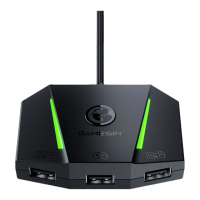
Go to PlayStation 4 “Accessories>Controllers>Communication Method>Use USB cable”
Note: Please replug the USB cable from your game console if VX AimBox doesn't work. Note: Please replug the USB cable from your game console if VX AimBox doesn't work.
CONNECT TO PlayStation 4 CONNECT TO PlayStation 5
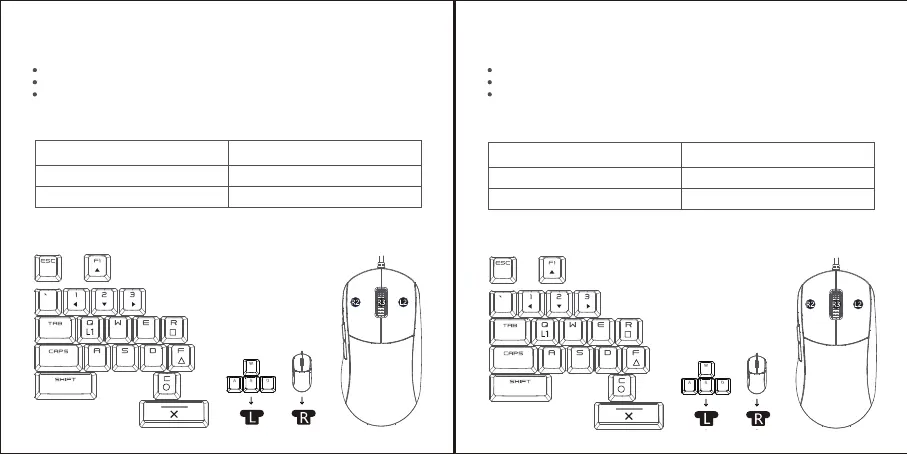
PlayStation 4 KEY VALUE DIAGRAM
PlayStation 5 KEY VALUE DIAGRAM
Indicator Explanation
phantom cycle Default light eect
Blue ashes 3 times Recognize to PlayStation 4 mode
Indicator Explanation
phantom cycle Default light eect
Blue ashes 3 times Recognize to PlayStation 5 mode
PS
SHARE
OPTIONS
TOUCHPAD
L3
R1
Only games that can be controlled using PlayStation4 game controllers are supported
PS
SHARE
OPTIONS
TOUCHPAD
L3
R1
Connect the ocial PlayStation 4 game controller to the controller connection interface
Connect the keyboard/mouse to the keyboard/mouse interface
Connect the VX AimBox to the USB port of PlayStation5 through the USB plug. After
the VX AimBox is started, the indicator light defaults to a phantom color cycle. When
the indicator light ashes blue 3 times, it means the recognition is successful and can
be controlled.
Connect the ocial PlayStation 4 game controller to the controller connection interface
Connect the keyboard/mouse to the keyboard/mouse interface
Connect the VX AimBox to the USB port of PlayStation4 through the USB plug. After
the VX AimBox is started, the indicator light defaults to a phantom color cycle. When
the indicator light ashes blue 3 times, it means the recognition is successful and can
be controlled.


 To Next Page
 Loading...