Note: Please replug the USB cable from your game console if VX AimBox doesn't work.
Indicator Explanation
phantom cycle Default light eect
Red ashes 3 times Recognize to Nintendo Switch mode
Light Eect
Color cycling (default)
Steady Blue
Steady Green
Steady Orange
Steady Purple
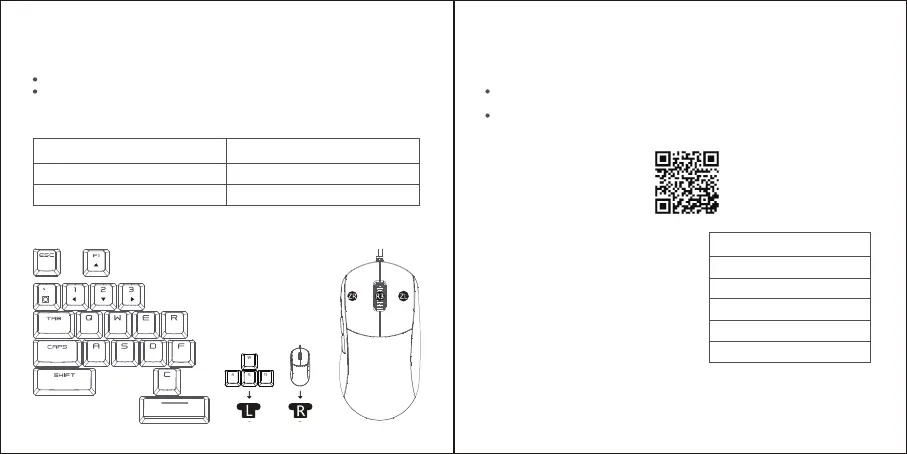
Nintendo Switch KEY VALUE DIAGRAM
CONNECT TO Nintendo Switch
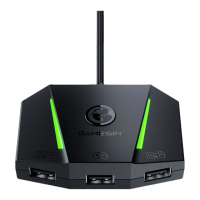
Connect the keyboard/mouse to the keyboard/mouse interface
Connect VX AimBox to the USB interface of Nintendo switch dock through USB plug.
After VX AimBox is turned on, the indicator light defaults to the phantom color cycle.
When the indicator light ashes red three times, it means the recognition is successful
and can be controlled.
Turn on the Bluetooth of the mobile phone, search the GameSir VX box in the Bluetooth
device, pair and connect.
Open up the GameSir app for a highly personalized setting.
Go to switch “System Settings> controller and sensors> Pro controller wired connection”,
and adjust it to the “on” state
CONNECT TO THE "GAMESIR" MOBILE APP
The GameSir mobile app oers multiple features that give you the exibility to
customize gamepad button mappings, sensitivity adjustments, and rmware version
upgrades, and other features when necessary.
SWITCHING THE LIGHTING EFFECT
Switch the light eect by pressing the LOGO
button at the top of the VX AimBox
SUPPLY POWER TO VX AIMBOX THROUGH TYPE-C INTERFACE
Please note that VX AimBox may not be able to provide the required power for some
keyboards/mouses. After power on, they may not work normally. In this case, please
try to input additional power to the Type-C interface on the VX AimBox to supply power.
Scan the QR code below to download the "GameSir" mobile application
HOME
L
R
Y
X
A
B
+
-
L3


 To Next Page
 Loading...