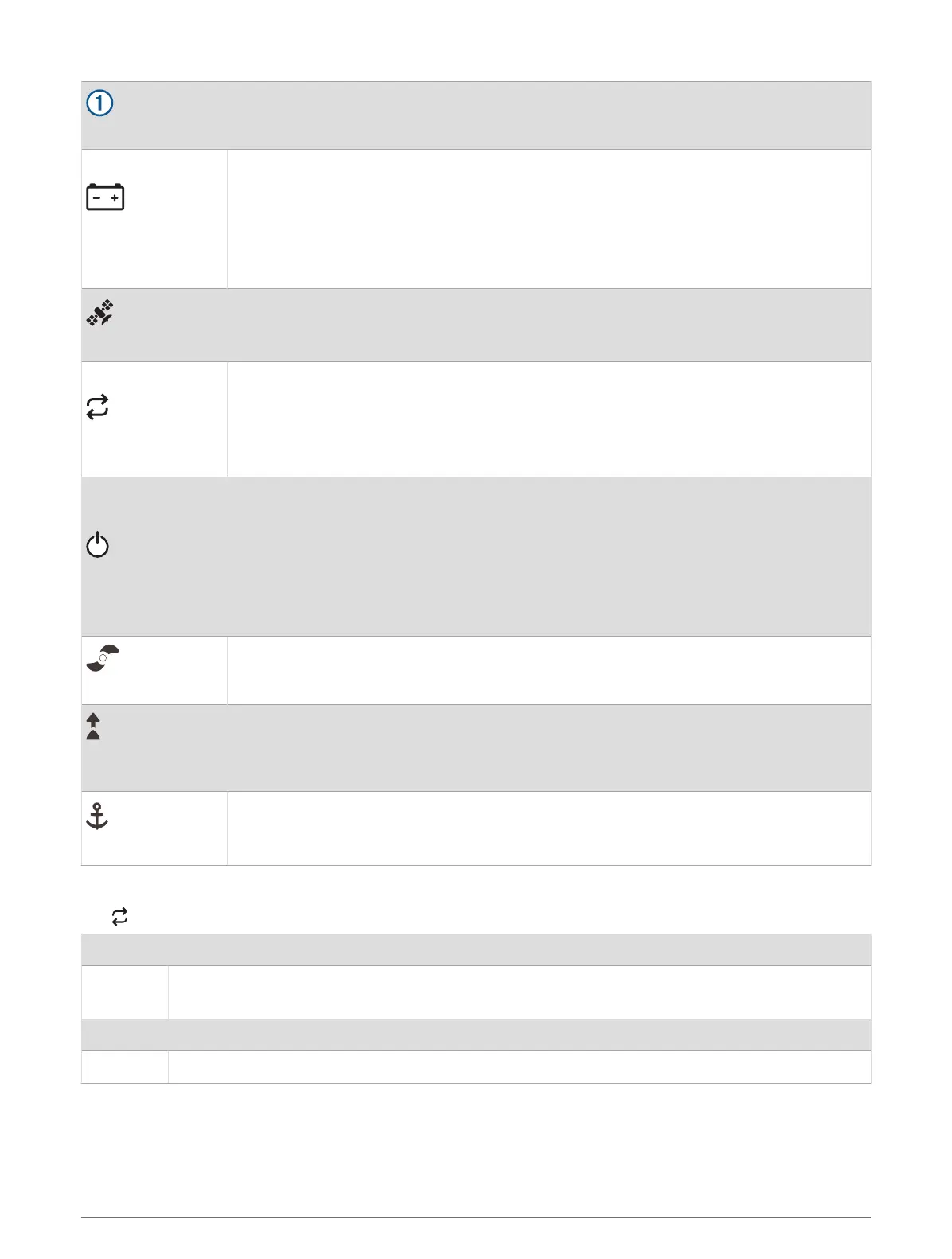
Speed
Shows the motor speed level (Adjusting the Speed of the Motor, page13).
Trolling motor
battery status
Green: the motor battery voltage is good.
Yellow: the motor battery voltage is low.
Red: the motor battery voltage is very low.
Flashing red: the motor battery voltage is critically low.
NOTE: This applies only when the motor is connected to a lead acid battery. Voltage
levels may not be accurate with lithium batteries.
GPS signal status
Green: the motor has a good GPS signal.
Yellow: the motor has a poor GPS signal.
Red: the motor does not have a GPS signal.
Motor status
Green: the motor is operating normally.
Red (solid): the motor software is starting up.
Red (blinking): there is a system error.
Blue: the motor is in pairing mode.
Yellow: the motor is in recovery mode (for software updates and recovery procedures).
Power
Hold to turn the motor off.
NOTE: By default, the trolling motor turns on automatically when it receives power. It
is not necessary to push this button to turn it on. This can be changed in the settings
(Trolling Motor Settings, page20).
The trolling motor turns off automatically when it is in the stowed position for two hours.
When the propeller is turning, press to stop the propeller.
Press three times to enter pairing mode.
Propeller status
Illuminates when the propeller is active (Turning the Propeller On and Off, page13).
Heading hold
status
Illuminates when heading hold is active (Maintaining Your Heading, page14).
Anchor lock status
Illuminates when anchor lock is active (Holding Your Position, page15).
Press to turn on anchor lock.
Hold to turn off anchor lock.
Status Indicator
The LED indicates the motor status.
Green Normal operation
Red
Solid: system booting
Blinking: system error
Blue Pairing mode
Yellow Recovery mode (for software updates and recovery procedures)
4 Getting Started


 To Next Page