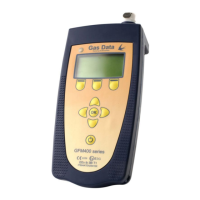
The Sample Point Setup is a screen for creating and deleting sample points.
A sample point can have up to three labels (IDs) each of which can be up to eight characters long
allowing for a three-layer labelling system for sample points.
For example, ID1 could be the project or customer, ID2 could be the site and ID3 could be the borehole
name or number.
The Up and Down Keys will scroll up and down and pressing the OK Key will enter the highlighted
option.
To set up a sample point click OK on ID1 to enter a label or use left/right to choose an entry that has
previously been used.
Pressing OK on an ID will bring up an on-screen keyboard which can be navigated using arrow buttons.
The characters available are displayed over 6 lines, of which only 3 are visible at any times.
When you have highlighted the required characters press the OK button and repeat the character
selection process until you have entered all the required characters. To correct a mistake, use the Right
Softkey (Del).
When this is completed, press the Left Soft Key (Accept) to save ID details and return to the previous
screen.
To return to the previous screen without saving any changes press the Middle Soft Key (Cancel).
You can repeat this procedure for ID2 and ID3.
When you have finished entering the ID details, use the down arrow to select "Create Sample Point" and
press OK. This creates the sample point details in the internal database within the instrument.
A popup will appear when you create your sample point which will say “ID created” or “ID already
existed” if there is already a saved sample point with the same IDs. This may take a few seconds,
dependent on the number of IDs stored within the instrument.
To delete an ID, and all the readings stored in it, select the sample point to delete by using the Left and
Right Keys on the ID fields. Scroll down using the Down Key and pressing the OK Key on Delete Sample
Point.
See the diagram on the following page for more information.


 To Next Page
 Loading...