Setting or Changing Your Personal Identification Number (PIN)
To protect your vehicle and your privacy, many Genesis Connected
Services features—and the Smart Phone Mobile App—require a secure
Personal Identification Number (PIN) to allow activation. You will set your
PIN during the Genesis Connected Services enrollment process.
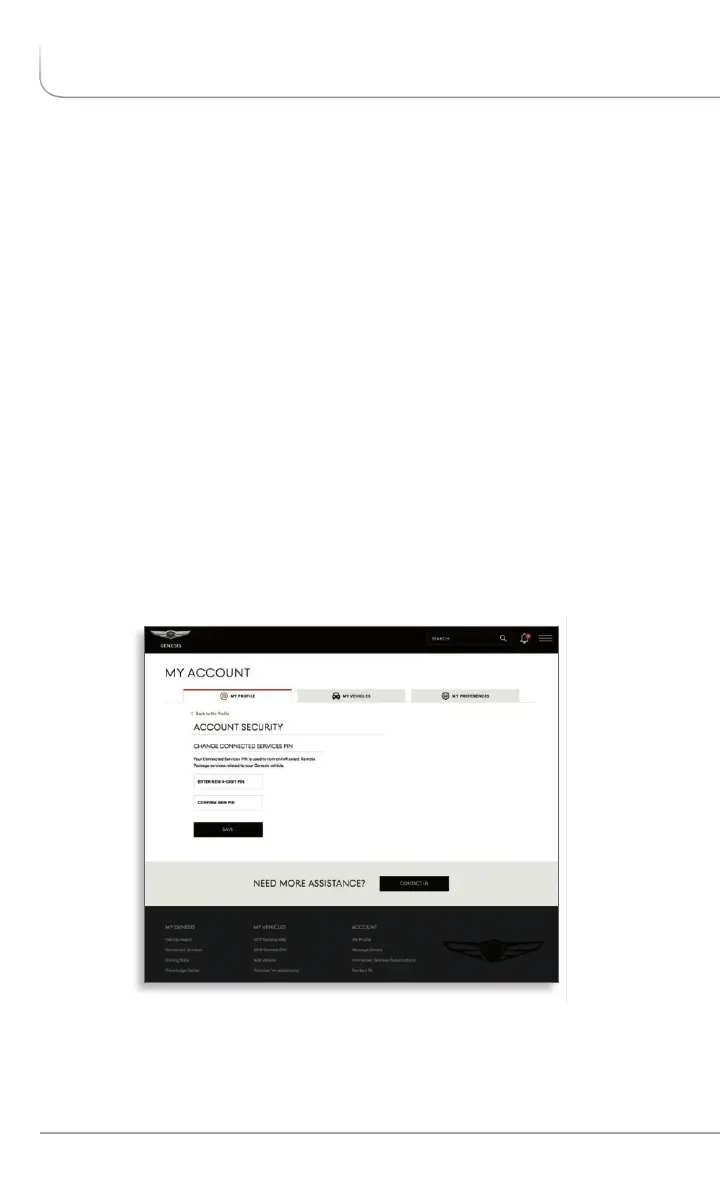
To change your PIN, visit My Account and select My Profile.
Personal Identification Number (PIN) Preferences screen
Select Account Security.
Input your Genesis Owner site account password, create a new PIN
and keep a record of it for later reference.
Your PIN should not begin with a zero (0).
You can also change your PIN from the Genesis Intelligent Assistant
smartphone app by going to the 'Utilities' menu, selecting ‘Settings'
and then selecting 'Change PIN'.
•
•
•
•
•
you can use your smartphone's biometrics such as finger print
reader or face-scanner to bypass entry of the PIN for every
remote command.
SETTING GENESIS CONNECTED SERVICES
PREFERENCES AND ALERTS
8 I Genesis Connected Services User’s Manual


 To Next Page
 Loading...