English
4
message below appears on the screen, press <DEL> Key to enter Setup.
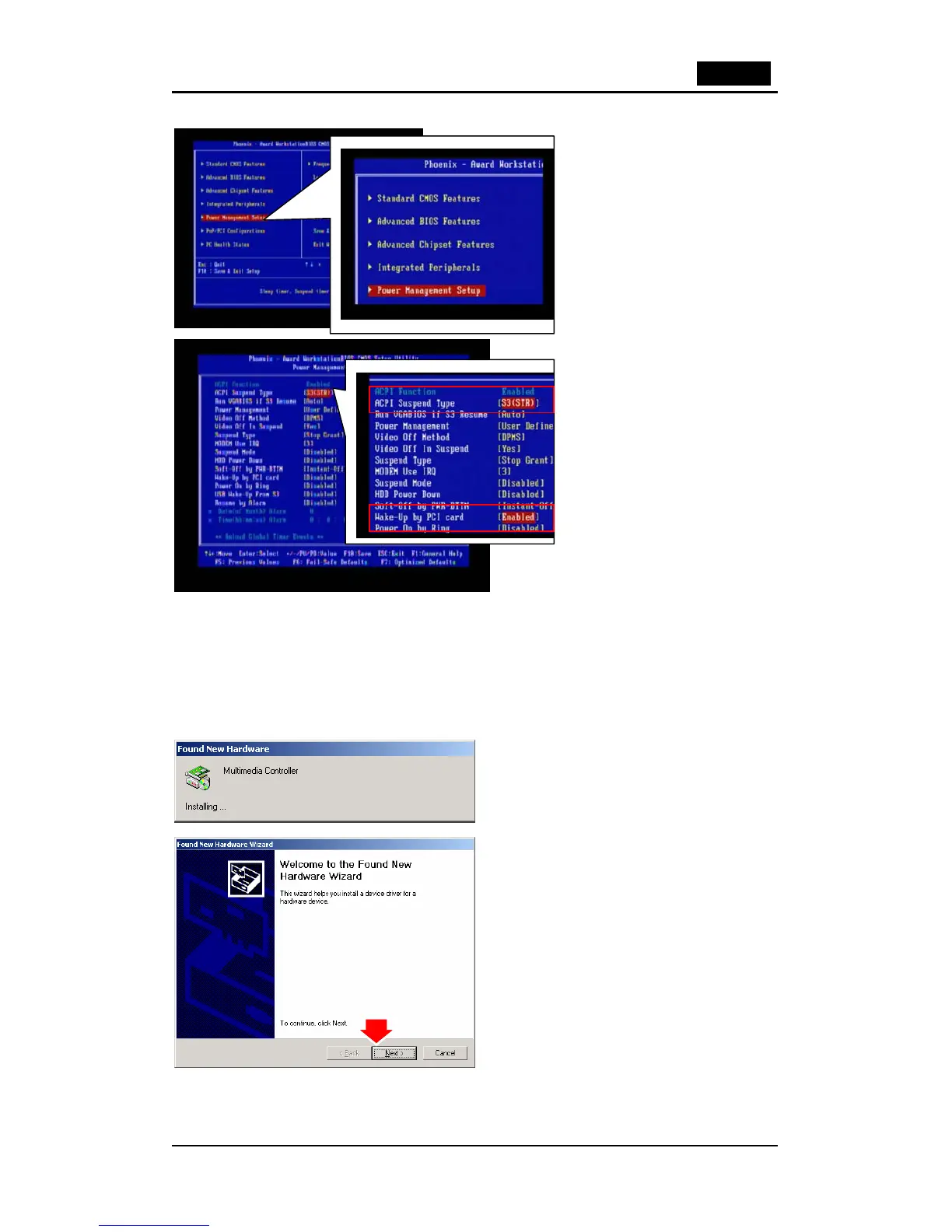
The Main Menu displays twelve
configurable functions and two
exit choices. Use arrow keys to
move among to “Power
Management Setup” and press
“Enter” to enter the sub-menu.
1. Set the “ACPI Suspend
Type” to “S3 (STR)” or “S5
(STD)”.
2. Set the “Wake-Up by PCI
card” to “Enabled”.
Remark: Auto boot recording
function is base on ACPI
Suspend Type “S3 (STR)” or “S5
(STD)” mode. If your computer
not supports it, then this function
does not work.
Caution: It is highly recommended, when the TVGo A11 card has been removed from the PC
system, we recommend you to restore the ACPI setting to original setting. Only after the TVGo
A11 PCI adapter been correctly plugged into the slot, will the BIOS setting be enabled.
2.3 Device Driver Installation
1. Place the CD software in the CD-ROM drive, and then prepare the driver installation.
2. Once you connect the TVGo A11 to the PCI slot, can just follow the system’s prompted
message to finish the driver installation.
3. When you insert the TVGo A11,
system will show “Found New
Hardware” dialogue box.
4. Click “Next” to start the installation.



 To Next Page