88
English
MARKER
Markers allow identifying points of interest and are stored in
the unit’s memory.
Inserting a marker
Move the cursor to the position desired, then
press the ENTER key. By the joystick, select
MARKER from the dialog box and confirm the
choice by ENTER.
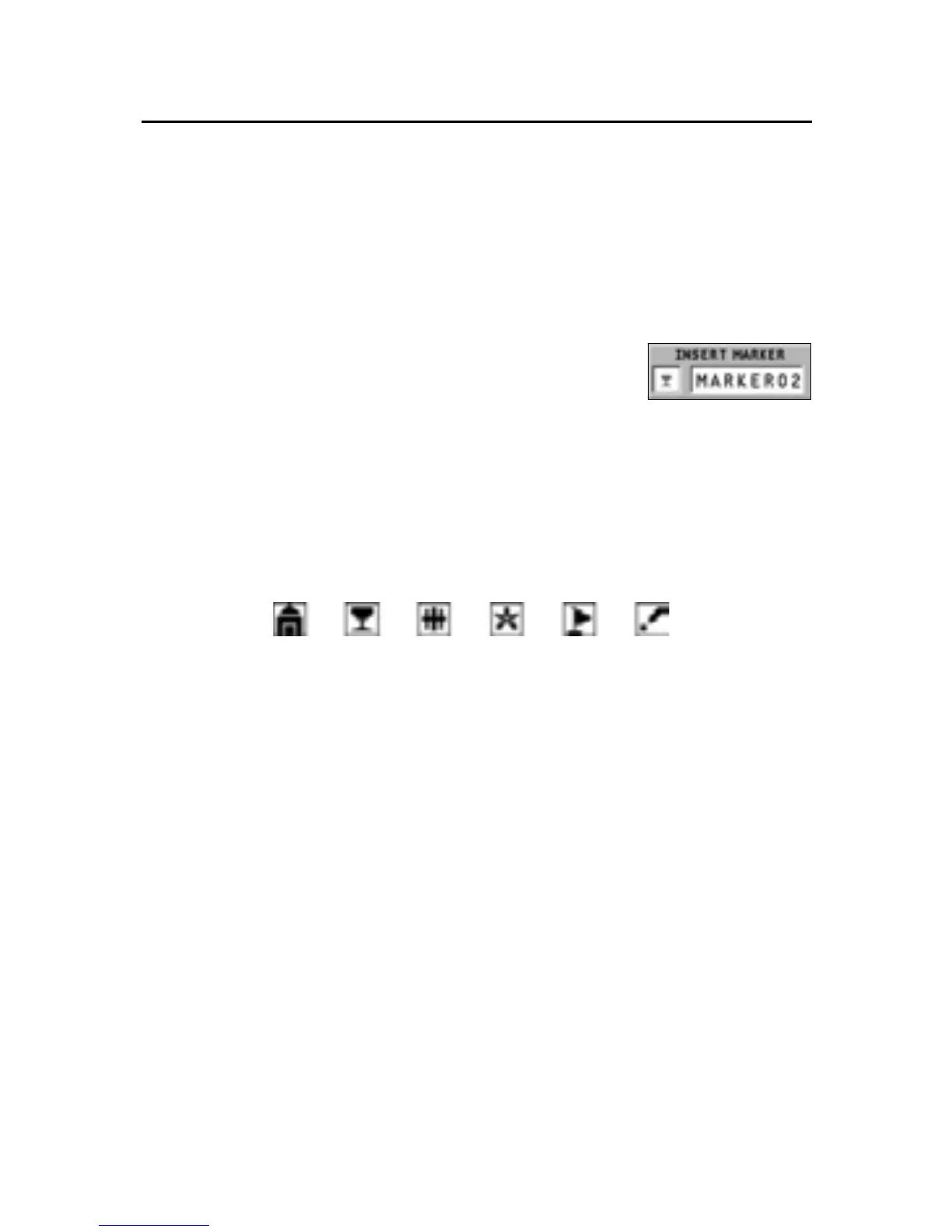
A window will allow defining the marker’s symbol and name.
Use the joystick to change the marker’s symbol as well as the
alphanumeric characters forming the marker’s name.
The symbols available are the following:
Menu marker
Press GOTO, then select the marker desired by the joystick.
After pressing ENTER, a window will allow defining the marker
as a Starting point or Destination by means of the joystick.
Confirm the operation by pressing ENTER.
If defined as Destination, the marker will be represented on
the map by a symbol for finish, whereas, if defined as a Start-
ing point, it will be represented by a flag.
NOTE: If a Starting point and Destination are present, the route will be calculated and
highlighted in green on the map.
Deleting a marker from the list
Press GOTO, then select a marker from the list by the joystick.
Press ENTER, select DELETE, then press ENTER again. Confirm
the deletion by pressing ENTER.
Marker


 To Next Page