EasyManua.ls Logo

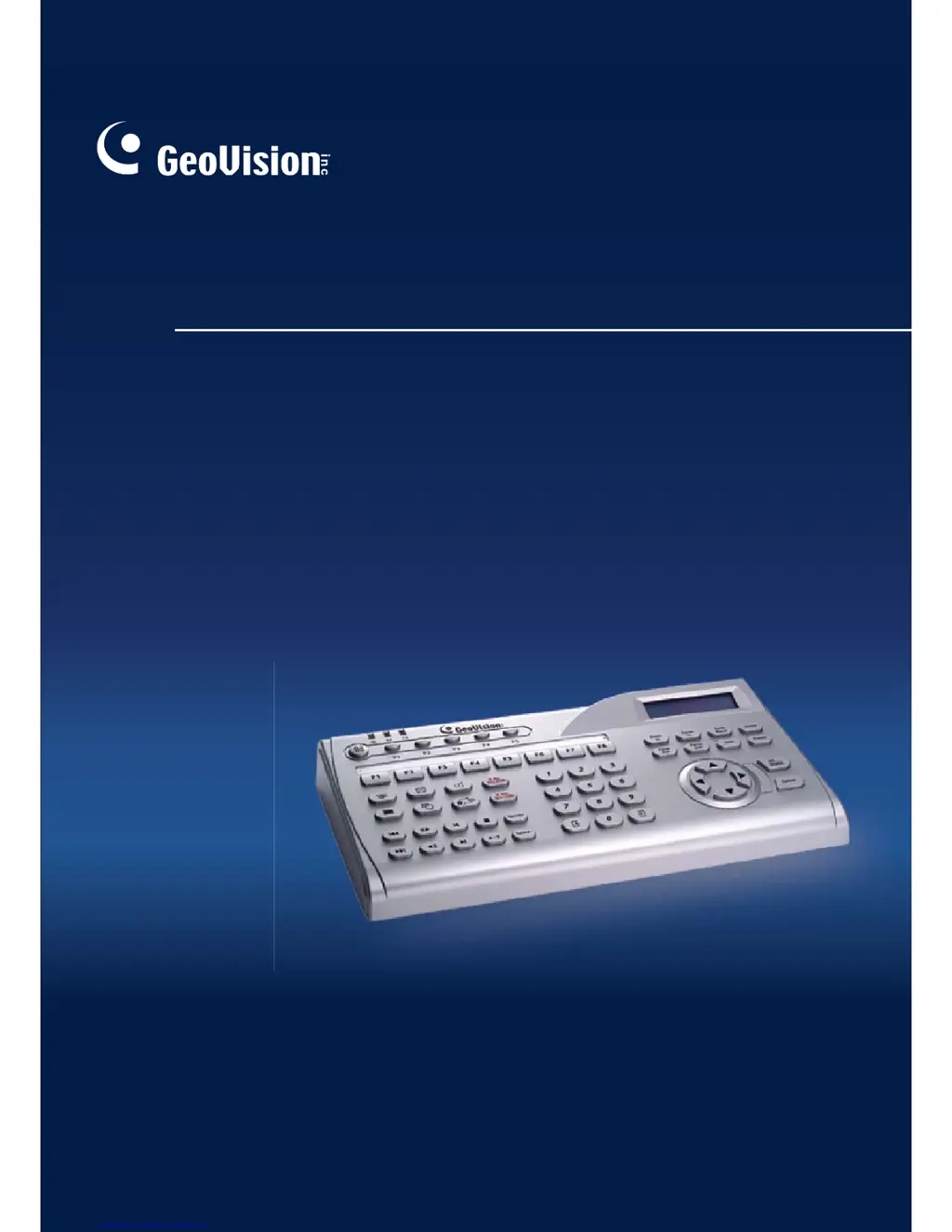
GeoVision GV-Keyboard V3 - User Manual

GeoVision GV-Keyboard V3
58 pages
Print Icon
To Next Page IconTo Next Page
Loading...
User's Manual
GV-Keyboard V3
Before attempting to connect or operate this product,
please read these instructions carefully and save this manual for future use.

Other manuals for GeoVision GV-Keyboard V3

Questions and Answers

  • B
    Brittany ThompsonAug 10, 2025
    What to do if message "Connect fail" displays on LCD of GeoVision Keyboard?
    • J
      Jerry MillerAug 10, 2025
      If the message "Connect fail" appears on the LCD of your GeoVision Keyboard, here are a few things to check: * Make sure the selected ID in Keyboard & Joystick Controller matches the DVR / CMS ID. * Verify that the COM port setting in Keyboard & Joystick Controller is correct. * If you're using multiple daisy-chained GV-Systems / GV-Control Centers, check the connections and turn on Terminal Resistance. * If you're using the wall terminal block, ensure the terminal screws are tight and the cables are properly attached.
  • H
    hufftraceyAug 15, 2025
    Why are the LEDs not visible on my GeoVision Keyboard?
    • M
      Maureen RiveraAug 16, 2025
      If the LEDs on your GeoVision Keyboard are not visible, here’s what you should check: * **Yellow POWER LED:** Verify the power source. * **Red RX LED:** Check the connection between the Keyboard and GV-System. * **Green TX LED:** Determine if the Keyboard is malfunctioning.
  • N
    Nancy RobertsAug 21, 2025
    What to do if GeoVision Keyboard has power but does not respond?
    • E
      Edward LopezAug 21, 2025
      If your GeoVision Keyboard has power but isn't responding to button presses, check if the Keyboard is locked.
  • L
    Luis NelsonAug 28, 2025
    How to troubleshoot no power to GeoVision Keyboard?
    • P
      Patrick LongAug 28, 2025
      If your GeoVision Keyboard isn't getting any power, try these steps: * Check the USB connection. * If you're using the RS-485 port, ensure the power adapter is connected.
  • T
    Troy RhodesSep 3, 2025
    What to do if GeoVision Keyboard responds to some but not all buttons?
    • M
      Mrs. Megan HunterSep 3, 2025
      If your GeoVision Keyboard responds to some buttons but not all, check if the Keyboard keys are conflicting with other applications.

Summary

Chapter 1 GV-System

1.4 Advanced Settings

Configuration options for function keys and multiple system/monitor setups.

1.6 Shortcut Key Conflict Test

Procedure to test and resolve keyboard shortcut conflicts.

Chapter 2 GV-Control Center

2.4 Advanced Settings

Configuration options for function keys and multiple system/monitor setups.

Chapter 3 Direct Connection to PTZ Cameras

PTZ Control Keys

Highlights the keys used for direct PTZ camera control.

3.1 Installing PTZ Cameras

Instructions for connecting PTZ cameras using RS-485 or RS-422 wiring.

3.2 Setting up PTZ Cameras

Steps to configure camera number, type, baud rate, and PTZ ID.

Chapter 4 Upgrading the Firmware

Chapter 5 Wall Terminal Block

Chapter 6 Basic Programming and Operation

Password Management

How to change the keyboard's password.

Troubleshooting

No Power or Unresponsive Buttons

Checklist for resolving power and button responsiveness issues.

Connect Fail Message

Steps to troubleshoot "Connect fail" errors on the LCD.

Partial Button Response

Checklist for issues with partial button responsiveness.

Invisible Keyboard LEDs

Checklist for diagnosing issues with keyboard LEDs.

Appendix

Supported PTZ Protocols and Brands

Lists PTZ protocols and camera brands compatible with the keyboard.

GeoVision GV-Keyboard V3 Specifications

General IconGeneral
ModelGV-Keyboard V3
TypePTZ Keyboard Controller
ConnectivityRS-485, USB
Function KeysYes
Joystick3D Joystick
Power SourceUSB Power Supply