This document is a user manual for the AORUS 17X (X7XF) notebook, providing instructions on its initial setup, features, and system recovery.
Function Description
The AORUS 17X (X7XF) is a high-performance notebook designed for gaming and demanding tasks. It features a robust design and a range of connectivity options, making it suitable for various applications. The notebook is equipped with an operating system that requires initial configuration upon first use, and it includes a system recovery feature to restore the device to factory default settings if needed.
Important Technical Specifications
Power Adapter Information:
- Input Voltage: 100-240Vac
- Input Frequency: 50-60Hz
- Rating Output Voltage: 19.5V, 16.92A
Ports and Interfaces:
The AORUS 17X offers a comprehensive set of ports for connectivity and peripherals:
- Microphone: For audio input.
- Webcam: For video conferencing and capture.
- Display Panel: The primary screen for visual output.
- Light Sensor Area: Automatically adjusts screen brightness.
- Power Button: To turn the notebook on or off.
- Keyboard: For text input and system control.
- Touchpad: For navigation and interaction.
- USB 3.2 Port (Type-A): Multiple ports for connecting USB devices.
- Audio Combo Jack: For connecting headphones or external speakers.
- Thunderbolt 4 Port (Type-C): High-speed data transfer and display output.
- USB 3.2 Port (Type-A): Additional Type-A USB ports.
- Power Input Port (DC): For connecting the AC adapter.
- HDMI 2.1 Port: For connecting to external displays.
- Mini DisplayPort 1.4: Another option for external display connectivity.
- Ethernet Port (LAN): For wired network connection.
- Battery Reset Hole: A feature for resetting the battery.
- Speaker: For audio output.
Display:
- The system adjusts the brightness of the screen automatically according to the ambient light, but users can also manually control it using hotkeys.
Power Adapter:
- The notebook requires a grounded power adapter for initial startup.
- The socket outlet should be easily accessible when operating in power adapter mode.
- It is crucial to match the input/output mark on the notebook with the power adapter's rating information. Some models may have varying output currents.
Usage Features
Initial Setup:
- Connect Power: Connect the power cord to the AC adapter, then the AC adapter to the DC-in jack of the notebook, and finally the power cord to a power outlet.
- First Boot: Upon turning on the notebook for the first time, do not turn it off until the operating system configuration is complete. Audio volume will not function until Windows® Setup is finished.
Hotkeys:
The AORUS 17X includes a range of hotkeys (Fn key combinations) for quick access to various functions:
- Fn+ESC: Maximize Fan Speed (Increases fan speed to 100%).
- Fn+F1: Sleep (Puts the computer in Sleep mode).
- Fn+F2: Wireless LAN (Enables/disables the Wireless LAN function).
- Fn+F3: Brightness Down (Decreases screen brightness).
- Fn+F4: Brightness Up (Increases screen brightness).
- Fn+F5: Display Toggle (Switches display output between the display screen and an external monitor, if connected).
- Fn+F6: Screen Display Lock (Locks your PC or switch accounts).
- Fn+F7: Speaker Toggle (Turns the speaker on and off).
- Fn+F8: Volume Down (Decreases the sound volume).
- Fn+F9: Volume Up (Increases the sound volume).
- Fn+F10: Touchpad Toggle (Turns the internal touchpad on and off).
- Fn+F11: Airplane Mode (Enables/disables Airplane Mode function).
- Fn+F12: AI Mode (AI Mode Switch).
- Fn+Space: Keyboard Backlight Toggle (Turns the keyboard backlight on and off).
Battery Reset:
- To perform a battery reset, power off the notebook, remove the AC power, use a straightened paperclip to insert it into the hole for 4 seconds, wait for 15 seconds, and then connect the AC power. Finally, power on the notebook.
Maintenance Features
System Recovery:
The notebook includes a preinstalled system recovery feature that allows users to restore the operating system to factory default settings. This is useful if the operating system encounters issues.
Steps for System Recovery:
- Restart Laptop: Turn off and restart the laptop.
- Launch Recovery Tool: During the laptop's startup process, press and hold the F9 key to launch the recovery tool.
- Choose "Troubleshoot": Select "Troubleshoot" to enter the recovery settings. (Alternatively, "Continue" can be chosen to exit recovery and proceed to the system for file backup).
- Recovery Options:
- Reset this PC: Allows users to choose whether to keep or remove their files before reinstalling Windows.
- Smart Recovery: Restores PC settings to factory default. Caution: All personal data and files will be lost with this option.
- Start Recovery: Once "Smart Recovery" is selected, click "Yes" to start the process.
- Caution: Personal data and files will be deleted, and the operating system will be reset to factory defaults.
- A progress bar will indicate the recovery status.
- Important: Ensure the AC adapter is plugged in and do not turn off the laptop during recovery.
- Shutdown: After recovery is complete, click "Shutdown."
Advanced Recovery Options:
The recovery menu also provides "Advanced options" for more specific troubleshooting:
- System Restore: Uses a restore point to revert Windows to an earlier state.
- System Image Recovery: Recovers Windows using a specific system image file.
- Startup Repair: Fixes problems that prevent Windows from loading.
- Command Prompt: Uses the Command Prompt for advanced troubleshooting.
- UEFI Firmware Settings: Changes settings in the PC's UEFI firmware.
- Startup Settings: Changes Windows Startup behavior.
Important Notes for Recovery:
- If the storage has been switched or the partition deleted, the recovery option may not be available, requiring a recovery service.
- The recovery function is only available on devices with preinstalled operating systems; devices with EFI SHELL do not have this function.
General Safety and Maintenance:
- Battery: Do not remove the built-in lithium battery. For any battery needs, contact your local GIGABYTE Authorized Service Center.
- Placement: Do not install the notebook PC on a slant or a place prone to vibration to avoid damage. Avoid installing the notebook PC in a location that for a long time, this increases the risk of malfunction or damage.
- Temperature: Do not store and use the notebook PC in direct sunlight or where temperatures exceed 112°F (45°C) such as inside a car. This can cause the battery to expand.
- Ventilation: Do not use the notebook PC in a badly ventilated location such as on bedding, on a pillow or cushion, etc., and do not use it in a location such as a room with floor heating as it may cause the computer to overheat. Ensure that the notebook PC's vents are not blocked in these environments. If the vents are blocked, it may be dangerous and cause the notebook PC to overheat.
Warranty & Service:
FAQ:

 Need help?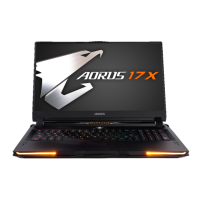





 To Next Page
 General