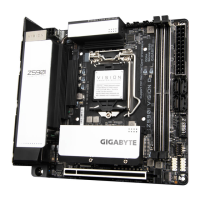
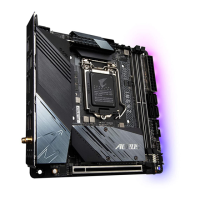
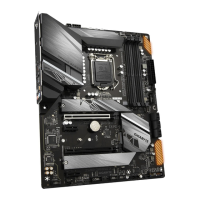
This manual describes the process of configuring a RAID set and installing Intel® Optane™ Memory and Storage Management on a Z590 Series motherboard. The primary function of this device, when configured as described, is to provide enhanced data storage solutions, including data redundancy, improved performance, or a combination of both, through RAID (Redundant Array of Independent Disks) technology. Additionally, it supports the integration of Intel® Optane™ Memory to accelerate system and data drive performance.
Function Description
The core function of this device, as detailed in the manual, revolves around managing and optimizing storage. It enables users to create various RAID levels (RAID 0, RAID 1, RAID 5, RAID 10) by combining multiple hard drives or SSDs. Each RAID level offers distinct advantages:
- RAID 0 (Striping): This level focuses on performance, distributing data across multiple drives without redundancy. It requires a minimum of two drives and offers no fault tolerance. The array capacity is the sum of the capacities of all drives, multiplied by the size of the smallest drive.
- RAID 1 (Mirroring): Designed for data redundancy, RAID 1 duplicates data across two drives. It requires exactly two drives and provides fault tolerance, meaning if one drive fails, data remains accessible on the other. The array capacity is limited to the size of the smallest drive.
- RAID 5 (Striping with Parity): This level balances performance and redundancy. It stripes data across multiple drives and dedicates one drive's worth of space for parity information, which can reconstruct data if one drive fails. It requires a minimum of three drives and offers fault tolerance. The array capacity is calculated as (Number of hard drives - 1) * Size of the smallest drive.
- RAID 10 (Striping and Mirroring): Combining the benefits of RAID 0 and RAID 1, RAID 10 stripes data across mirrored pairs. It requires a minimum of four drives and provides both performance and fault tolerance. The array capacity is (Number of hard drives / 2) * Size of the smallest drive.
Beyond RAID configuration, the device supports Intel® Optane™ Memory, which acts as a high-speed cache to accelerate frequently accessed data on slower SATA-based storage devices (hard drives or M.2 SATA SSDs). This acceleration significantly improves system responsiveness and application load times. The Optane™ memory must have at least 16 GB capacity and be equal to or smaller than the accelerated drive. It cannot accelerate existing RAID arrays or M.2 PCIe SSDs.
Usage Features
The manual outlines a clear, step-by-step process for setting up and managing these storage features, making them accessible to users.
Configuring SATA Controllers and RAID Array:
- Hardware Installation: Users begin by physically installing SATA hard drives or SSDs into the Intel® Chipset controlled connectors on the motherboard and connecting power.
- BIOS Setup: The BIOS (Basic Input/Output System) plays a crucial role. Users must enter BIOS Setup during POST (Power-On Self-Test) and navigate to "Settings\IO Ports\SATA And RST Configuration." Here, SATA Controller(s) must be enabled, and "SATA Mode Selection" must be set to "Intel RST Premium With Intel Optane System Acceleration." For PCIe SSDs, "RST Control PCIe Storage Devices" should be set to "Manual," and the corresponding "PCIe Storage Dev on Port XX" to "RST Controlled."
- UEFI RAID Configuration: After saving BIOS settings and rebooting, users re-enter BIOS Setup and go to "Settings\IO Ports\Intel(R) Rapid Storage Technology."
- Creating a RAID Volume: Within this menu, users select "Create RAID Volume," provide a name, choose the desired RAID level (0, 1, 5, or 10), and then select the hard drives to be included in the array. Selected drives are marked with an "X."
- Stripe Block Size and Capacity: Users can set the stripe block size (from 4 KB to 128 KB) and define the volume capacity.
- Volume Creation: Finally, selecting "Create Volume" initiates the RAID array creation.
- Viewing RAID Volume Info: Once created, the new RAID volume appears under "RAID Volumes," where users can view detailed information like RAID level, stripe block size, array name, and capacity.
- Deleting a RAID Volume: The manual also provides instructions for safely deleting a RAID array, emphasizing that all data on the volume will be lost.
Installing RAID Driver and Operating System:
- Driver Preparation: If the operating system does not natively include the RAID driver, users need to prepare it. This can be done by copying the "IRST" folder from the motherboard driver disc to a USB thumb drive or by downloading the "Intel SATA Preinstall driver" from the GIGABYTE website and unzipping it to a USB thumb drive.
- OS Installation: During Windows OS installation, when prompted to load a driver, users select "Browse," insert the USB thumb drive, navigate to the driver location, select "Intel(R) Chipset SATA/PCIe RST Premium Controller," and click "Next" to load the driver and continue the installation.
Installing Intel® Optane™ Memory and Storage Management:
- Software Installation: After the OS is installed and the Internet connection is active, users install the "Intel® Rapid Storage Technology driver" and "Intel® Optane™ Memory and Storage Management application." This can be done via the motherboard driver disc ("Xpress Install") or the GIGABYTE APP Center.
- BIOS Configuration for Optane™: Before enabling Optane™ memory, users must ensure that "RST Control PCIe Storage Devices" in BIOS is set to "Manual," and the "PCIe Storage Dev on Port XX" corresponding to the Optane™ memory's M.2 connector is set to "RST Controlled."
- Enabling Optane™ Memory: Once back in the operating system, users launch the "Intel® Optane™ Memory and Storage Management" application from the Start menu. They select the Optane™ memory module (if multiple are installed) and the SATA drive to be accelerated. Clicking "Enable Intel® Optane™ Memory" will erase all data on the Optane™ memory, so a backup is advised.
- Pinning Function: For system drive acceleration, the "Intel® Optane™ Memory Pinning" function allows users to select specific folders, files, or applications for acceleration (requires at least 32 GB Optane™ capacity).
Maintenance Features
The manual highlights a key maintenance feature: Rebuilding an Array. This process is crucial for fault-tolerant RAID levels (RAID 1, RAID 5, RAID 10) when a drive fails.
- Drive Replacement: If a drive in a fault-tolerant array fails, the user must first power off the computer and replace the failed hard drive with a new one of equal or greater capacity.
- Initiating Rebuild: After restarting the computer and entering the operating system, the user launches the "Intel® Optane™ Memory and Storage Management" utility.
- Rebuild Process: Within the "Manage" menu, the user selects "Rebuild" for the affected volume and then chooses the new drive to rebuild the RAID. The utility displays the rebuild progress under the "Status" item, which will show "Normal" once completed.
Important Considerations for Usage and Maintenance:
- Data Backup: The manual implicitly emphasizes the importance of data backup, especially before deleting a RAID volume or enabling Optane™ memory, as these actions involve data erasure.
- Optimal Performance: For RAID arrays, using hard drives or SSDs with identical models and capacities is recommended for optimal performance.
- Optane™ Memory Handling: Users are warned not to abruptly remove Optane™ memory, as this will cause the operating system to stop functioning correctly. If removal or change is necessary, it must be disabled first using the "Intel® Optane™ Memory and Storage Management" application.
- BIOS Settings Persistence: After enabling Optane™ memory, the related BIOS settings will remain even after a BIOS update, simplifying future maintenance.
- System Requirements: Specific system requirements for Intel® Optane™ Memory, such as Windows 10 64-bit (or later) and GPT formatted drives, ensure proper functionality.
In summary, this device, through its detailed configuration options and management tools, provides robust storage solutions for users seeking enhanced performance, data redundancy, or both, with clear guidelines for installation, setup, and essential maintenance tasks.

 Need help?
 General



 To Next Page