EN
EN
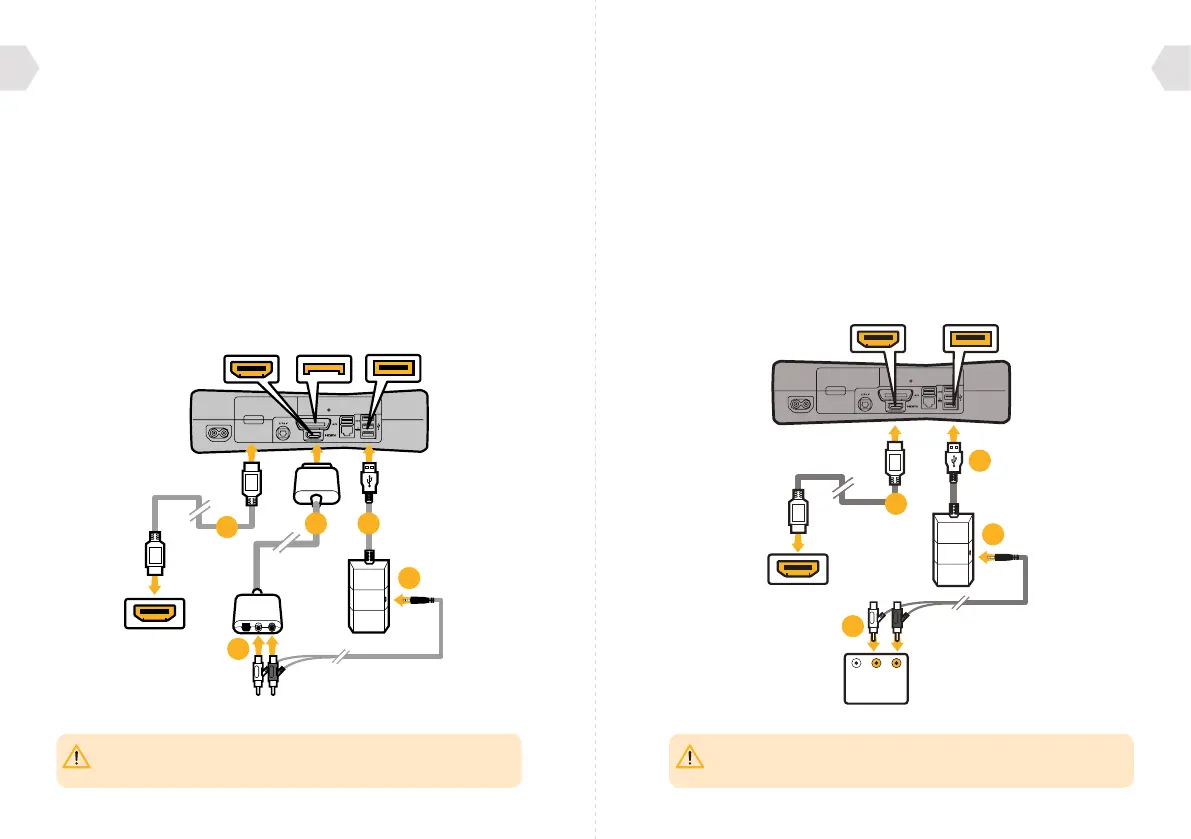
IMPORTANT: The AV cable supplied with the Xbox 360 does not allow for simultaneous
use with a HDMI cable, as the shape of the AV connector covers the HDMI socket.
You will need to purchase one for this set up method.
PLEASE NOTE: Your TV/Monitor will need to have Audio Out (RED/WHITE) sockets.
Most, but not all TVs/Monitors have RED/WHITE Audio IN and YELLOW Video IN sockets
but not all TV’s, and even fewer monitors have RED/WHITE Audio OUT sockets.
HDMI CABLE
(NOT SUPPLIED)
TV/MONITOR
HDMI INPUT
AV RCA CABLE
(NOT SUPPLIED)
AV MULTI OUT USB PORTHDMI OUTPUT
05
04
03
02
01
RED
WHITE
HDMI CABLE
(NOT SUPPLIED)
TV/MONITOR
HDMI INPUT
TV / MONITOR
AUDIO OUT
USB PORTHDMI OUTPUT
04
01
03
02
109
XBOX SET UP : WITH HDMI (OPTION A)
1] Connect the HDMI (not included) between the Xbox and TV/Monitor.
2] Connect the AV RCA Adaptor Cable (not included) into the Xbox.
3] Connect the RED/WHITE connectors from the RCA to Audio cable into
the corresponding inputs of the AV RCA Adaptor Cable (not included).
4] Connect the the wireless transmitter into an available
USB port on the front of your Xbox console.
5] Connect the audio cable into the wireless transmitter.
6] Turn on your Xbox and make sure that your controller is wirelessly
connected to your console (do not leave the controller charging
or it will transfer electrical noise into your headset).
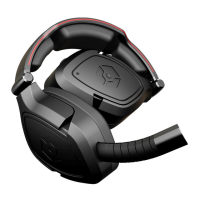
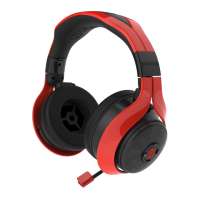
7] Turn your Headset ON by pressing the Power Button. Pairing with the
wireless transmitter should happen automatically. However, if pairing is
unsuccessful, please refer to the Pairing section in ‘Getting Started’.
8] Make sure that microphone mute is OFF.
9] Go to chat set up.
XBOX SET UP : WITH HDMI (OPTION B)
1] Connect the HDMI (not included) between your Xbox and TV/Monitor.
2] Connect the RED/WHITE connectors from the RCA to Audio cable
into the Audio OUT RED/WHITE sockets on your TV/Monitor.
3] Connect the the wireless transmitter into an available
USB port on the front of your Xbox console.
4] Connect the audio cable into the wireless transmitter.
5] Turn on your Xbox and make sure that your controller is wirelessly
connected to your console (do not leave the controller charging
or it will transfer electrical noise into your headset).
6] Turn your Headset ON by pressing the Power Button. Pairing with the
wireless transmitter should happen automatically. However, if pairing is
unsuccessful, please refer to the Pairing section in ‘Getting Started’.
7] Make sure that microphone mute is OFF.
8] Go to chat set up.



 To Next Page