EN
EN
02
01
CONNECT INTO
PC/MAC/CONSOLE
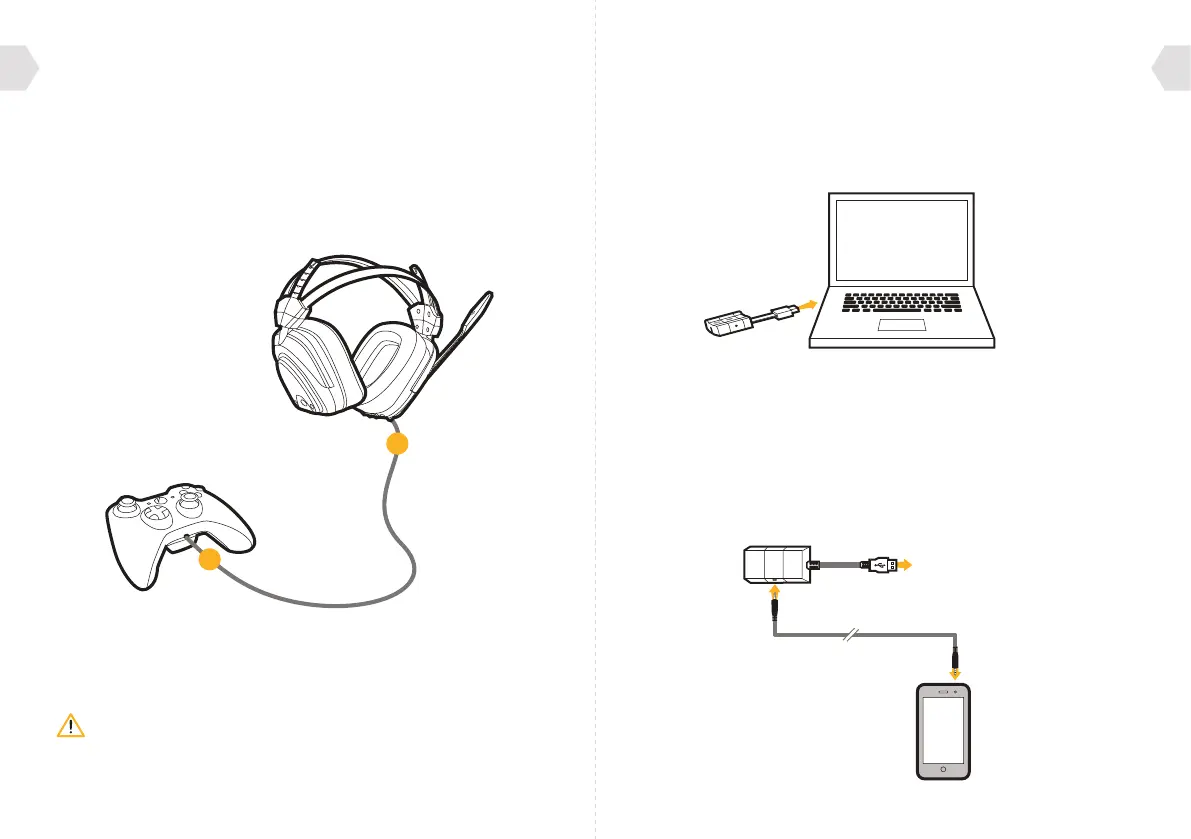
PC, MAC SET UP
1] Plug the USB cable into an available port on your PC or Mac.
2] Your PC (windows 7) will automatically find the Headset
and assign it as the device for audio output.
3] For Mac, open system preferences and go to sound. (You can then
assign the audio output to the Gioteck EX-05s Headset.)
4] Make sure the microphone is not set to mute.
HANDHELD DEVICE SET UP
1] Plug the USB cable on the wireless transmitter into an available port
on your console/computer/or any other device with a USB port.
2] Plug one end of the audio cable into your handheld device (mobile phone,
ipod, mp3 player etc.) and the other end into the wireless transmitter.
3] You can now listen to music on the move!
1211
XBOX LIVE : CHAT SET UP
1] Connect the mini jack cable between your headset and Xbox controller.
2] Go to Settings > Preferences > Voice. Voice Output: Play through Headset.
3] Set the desired volume for Game Sound and Voice.
(You should now hear sound from your console through your headset.)
4] To test the microphone go to messages then record and play back
a message.
It is important to do this in the correct order so that the console connects
to the headset’s microphone.



 To Next Page