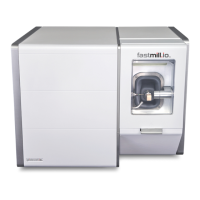
The Glidewell Dental fastmill.io In-Office Unit is a compact, in-office milling system designed for dental restorations. It integrates with fastdesign.io software and CloudPoint Mill Control Panel for streamlined patient case management and milling operations.
Function Description:
The fastmill.io unit is an in-office milling machine used for fabricating dental restorations from various materials, including Sintered Zirconia (BruxZir® NOW), Glass Ceramics (Obsidian®), and Polymer, Composite or Hybrid materials (CAMouflage NOW®, BioTemps® NOW). It receives patient cases from fastdesign.io software, allowing for the selection and milling of restorations directly in the dental office. The system features a machining chamber where the milling tool processes material blocks, guided by a sophisticated control system. Coolant is sprayed onto the milling tool and material during operation to ensure optimal performance and prevent overheating. The mill includes a self-check sequence upon startup to verify the functionality of motion control and other systems. It also has a sleep mode to conserve energy and a warm-up cycle for the spindle during off-hours.
Important Technical Specifications:
- Power Input Voltage: 120V
- Power Input Frequency: 60 Hz
- Max Power: 350-450W
- Power Input Fuse: 6.0A 250V
- Operating Temperature Range: 18 °C to 32 °C (stabilize for 1 hour at operating temperature after cold storage)
- Storage Temperature Range: -18 °C to 60 °C
- Operating and Storage Humidity Range: 0% to 85% (Non-Condensing Relative Humidity)
- Water Ingress: Non-immersion, with the exception of the machining area; damp wipe only on the outside.
- Weight: ≤ 115 lbs.
- Dimensions (W,D): 18 inches x 18 inches
- Coolant: Glidewell Dental Mill Coolant Concentrate (AmberCut™ 389K), diluted to 4.8-6.3%. Trough capacity is 1500 mL.
Usage Features:
- Initial Setup: Requires two or more people to lift and place the mill on a sturdy surface capable of supporting 150 lbs, with at least a four-inch clearance on all sides. Power cords for the mill, computer, and monitor must be connected to easily accessible grounded outlets. The computer connects to the mill via a USB cable. Coolant is prepared and poured into the trough up to the MAX fill line (1500 mL). The trough slides into the mill until it locks.
- Loading a Patient Case: After turning on the computer and mill, the CloudPoint® Mill Control Panel opens. The mill performs a self-check. Patient cases from fastdesign.io software download to the control panel, where a case can be selected and initiated.
- Loading Material: The mill prompts the user to load the correct material. The mill door is opened, and the mandrel with the material block is inserted into the material holder with the dimple facing up. A torque driver is used to tighten the retaining screw until it clicks, ensuring the material is securely held. Over-tightening should be avoided to prevent damage.
- Loading the Tool: The system prompts for tool changes. The mill door is opened, the current tool is removed, and a new tool for the selected material is inserted into the tool holder (collet). The mill door is then closed.
- Milling Process: Milling begins automatically after the door is closed. A timer on the control panel indicates the elapsed time and estimated completion. The process can be paused at any time.
- Post-Milling: Once a job is finished, the user clicks "OK," loosens the retaining screw with the torque driver, and removes the restoration.
- Sleep Mode and Warm-up: The mill can enter a sleep mode after all jobs are completed for the day. It will "wake up" and warm up the spindle for about fifteen minutes during off-hours at a scheduled time.
- Safety Precautions: Always keep a tool or collet pin in the tool holder to prevent damage to the collet. Avoid pushing the torque driver into the boot behind the material holder to prevent punctures or tears. Keep hands out of the milling chamber while the spindle is running.
Maintenance Features:
- Coolant Management: The Mill Control Panel prompts for coolant changes when the coolant life expires. To change coolant, the "CHANGE COOLANT" button is clicked, which releases the trough. The trough is pulled out, and the main filter, splash guard, and coolant filter cover are removed and rinsed. The trough and internal filter are thoroughly rinsed (without unplugging the internal filter). The internal filter is placed back with the curved spring up, followed by the main filter. Freshly prepared coolant (1500 mL) is poured into the trough. The trough is then carefully reinserted into the mill until it clicks into place.
- Weekly Cleaning:
- External Surfaces: Clean with a lint-free cloth or paper towel and water.
- Internal Machining Chamber: Wipe down the inside of the door with a lint-free cloth or paper towel and water. The milling area should be sprayed with water and brushed with a toothbrush to prevent buildup, then wiped down.
- Basin: With gloves on, carefully remove glass fragments from the drain holes and rinse the basin thoroughly.
- Spindle Maintenance (Monthly or as needed): Using the Spindle Maintenance Kit, the spindle collet is cleaned.
- Click "CHANGE TOOL" and "OK" to lock the spindle shaft and release the collet.
- Use the collet wrench to loosen and remove the collet from the shaft.
- If a tool is broken inside the collet, use the tool pin to push it out.
- Wipe the collet surface clean.
- Insert the brush into the tool end of the collet and brush the inside while turning.
- Brush the three slits on the outside of the collet.
- Insert the taper cleaning tool into the tapered spindle shaft, applying light pressure while rotating to clean the shaft.
- Apply a small dot of lubricant to the collet and smear it over the outside.
- Reinstall the collet into the spindle shaft by hand, gently twisting until it stops.
- Insert a tool and tighten the collet with the wrench for a snug fit (do not over-tighten).
- Click "OK" to "Please load a new Grinding Tool" to lock the collet onto the tool.
- Fuse Replacement:
- Disconnect the power cord.
- Pull up the black fuse cover on the Power Entry Module.
- Use a screwdriver to draw out the red fuse holder, noting its position.
- Remove the broken fuse from the holder, noting its position.
- Place the new fuse in the same position.
- Reinsert the red fuse holder into the Power Entry Module.
- Close the black cover.
- Repair Policy: The system is not designed for customer repair. Attempting to disassemble any part of the system may void the warranty. Technical Support should be contacted for product failures.


 To Next Page
 General