Mac OS X Formatting Instructions
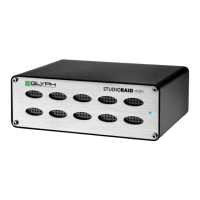
Since your StudioRAID comes pre-formatted for Macintosh you don’t need to format them on installation. If
you decide to reformat or partition your drive at a later date, use Disk Utility (supplied with the Mac OS X
operating system).
Caution: This procedure will destroy any data currently on the drive. Before formatting a drive, save any important
data it contains.
1. Open Disk Utility:
-Double click on your internal hard drive mounted on the desktop
-Open Applications Folder > Utilities Folder > double click on Disk Utility
2. Select your StudioRAID drive from the list on the left. The top entry represents the device and the entry un-
derneath it represents the volume associated with that device. Click on the top device which will say some-
thing like “XXXGB Glyph Technologies”.
3. Click the “Partition” tab on the right side of the screen.
4. Change "Current" to "One Partition" (recommended).
5. Choose the desired volume format from the drop-down list. Glyph recommends the default “Mac OS Ex-
tended (Journaled)”.
6. Click in the “Name” field and type the desired name for the drive. This name will identify the drive on the
desktop.
7. Click the “Install Mac OS 9 Disk Driver” button (if applicable) if you would like your drive to be compatible
with OS 9.
8. Click the "Options" button. Select "GUID Partition Table". Click "OK".
9. Click the “Partition” button to partition your drive. Click "Partition" in the dialogue box that appears. Your
new drive should automatically mount on the desktop as a Glyph volume.


 To Next Page