
 Need help?
Do you have a question about the GMC SIERRA 1500 2024 and is the answer not in the manual?
Operation of the touchscreen, home screen, and apps.
Unlocking and locking the vehicle without removing the key fob.
Steps for starting and stopping the engine using the button.
Safety feature preventing shifting without seatbelt.
How to operate the electronic gear shift lever.
Operating the touchscreen, apps, and home screen.
Details on satellite radio, Google services, and phone connectivity.
Connecting and managing phones via Bluetooth.
System for maintaining speed and distance to other vehicles.
Driver-selectable modes for varying road conditions.
Engaging and using the 4WD system.
Automatic braking for vehicles and pedestrians.
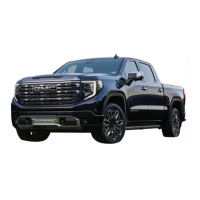
The 2024 GMC Sierra 1500 is a full-size pickup truck designed for both work and leisure, offering a blend of robust performance, advanced technology, and driver-assistance features. This quick reference guide provides an overview of its key functionalities.
The instrument panel features a comprehensive layout for easy access to vehicle controls. On the steering wheel, you'll find buttons for HUD Controls (behind the wheel), Cruise Control, Forward Collision Alert, Super Cruise, and Heated Steering Wheel. The Turn Signal/Windshield Wipers Lever also incorporates IntelliBeam control. The Driver Information Center (DIC) displays various vehicle messages and system information, controlled by buttons and a thumbwheel on the right side of the steering wheel. These controls allow you to navigate through menus, highlight options, open menus, select/reset items, and scroll through lists.
To the left of the steering wheel are controls for Power Mirror/Window, Electric Parking Brake, 4WD/Traction Select, and Exterior/Instrument Panel/Cargo Lamp. On the back of the steering wheel, Audio Next/Previous Favorite Station controls and Audio Volume controls are conveniently placed. The Power Steering Wheel Adjustment Control is located on the steering column.
The infotainment system, centrally located, includes a Power-Volume Control/Home Page Button and a touchscreen. Below the touchscreen are Climate Controls, Driver's & Passenger's Heated & Ventilated Seat Buttons, and the Upper Glove Box Release. Further down, you'll find the Engine Start/Stop Button, Lane Keep Assist, Park Assist, Auto Engine Stop-Start Disable, Power Release Tailgate, Hazard Warning Flashers, Electronic Precision Shift Lever, USB Ports, Traction Control-StabiliTrak Off, Hill Descent Control, Power Windows, and Locking Front & Rear Axle Buttons.
The Remote Keyless Entry transmitter (key fob) allows for locking/unlocking all doors and the tailgate, remote window operation, remote mirror folding, vehicle locator/panic alarm, power release tailgate, and remote vehicle start. For remote window operation, press and hold the Unlock button until windows are fully open; enable this feature via Settings > Vehicle > Remote Lock, Unlock and Start. Remote mirror folding can be toggled in Settings > Vehicle > Comfort and Convenience. The vehicle locator/panic alarm flashes exterior lamps and chirps the horn three times (press and release) or activates the alarm (press and hold). The power release tailgate is lowered by pressing the button twice. Remote vehicle start is activated by pressing the button twice and canceled by pressing and holding until parking lamps turn off.
The Keyless Access System enables door and tailgate operation without removing the key fob, provided it's within 3 feet. To unlock, press the button on the driver's or passenger's door handle, or the lower button on the tailgate. To lock, press the button on any door handle with the ignition off, key fob removed, and doors closed. Passive Locking can be enabled in Settings > Vehicle > Remote Lock, Unlock and Start for automatic locking after a delay.
Keyless (Push-Button) Start requires the key fob to be in the vehicle. To start the engine, ensure the transmission is in Park or Neutral, press and hold the brake pedal, and then press the ENGINE START/STOP button. A green indicator will illuminate. If the key fob battery is weak, place the fob in the center storage compartment or console cupholders. To stop the engine, shift to Park and press the ENGINE START/STOP button. Accessory Mode is activated by pressing the ENGINE START/STOP button without applying the brake pedal (amber indicator). Holding the button for several seconds enters Service Mode.
The fuel-saving Auto Engine Stop/Start system automatically turns off the engine (Auto Stop) when the vehicle is at a complete stop and the brake pedal is pressed, under specific operating conditions. The tachometer will show AUTO STOP. Releasing the brake or pressing the accelerator restarts the engine. The system can be disabled by pressing the Auto Stop button on the instrument panel, which turns off the button indicator.
Buckle to Drive prevents shifting out of Park if the engine is running, the brake pedal is pressed, and the driver's seat belt is unbuckled. Buckle the seat belt to shift immediately, or wait several seconds if unbuckled. This feature can be toggled in Settings > Vehicle > Buckle to Drive.
The electronic transmission shift lever starts in a center position, with the selected gear illuminating in red. To shift into Park, press the P button (A) on top of the lever. To shift out of Park, press the brake pedal and hold the shift lock button (B) while selecting the desired gear. Reverse is engaged by pressing the brake pedal and holding the shift lock button (B) while moving the lever fully forward past the detent. Neutral is engaged by moving the lever forward to the detent, but the vehicle will automatically shift to Park after a period. Drive is engaged by moving the lever rearward. Low gear is engaged by moving the lever rearward from Drive, and paddle shifters on the steering wheel can be used for upshift/downshift.
The DIC displays various vehicle messages and system information. Mid-level and uplevel DIC controls on the right side of the steering wheel allow navigation through menus using the thumbwheel and buttons. To select Info Pages, open the Info or Options menu, scroll to Info Page Options, press the thumbwheel, scroll through items, and press the thumbwheel to select/deselect.
The HUD projects operating information onto the windshield. Controls on the left side of the instrument panel include HUD Position (lift/press down to adjust image), INFO (press to select display views), and Brightness (lift/press down to dim/brighten, hold down to turn off).
Memory positions can be set for the driver's seat and power outside mirrors. With the vehicle in Park, adjust positions, press and release SET, then immediately press and hold button 1 or 2 until two beeps sound. An Exit button can be used similarly to store a seat position for clearance when exiting. Memory positions can be recalled by pressing and holding button 1, 2, or Exit. Automatic recall can be enabled in Settings > Vehicle > Seating Position > Seat Entry Memory and Seat Exit Memory. Massage features are controlled via a feature select knob (A) on the side of the seat to view settings on the infotainment screen, and a small button (B) activates the most recent setting.
The climate control panel includes Driver's Heated/Ventilated Seat/Heated Steering Wheel Controls, Driver's Temp. Control, Defrost Mode/Rear Window-Heated Outside Mirror Defog, AUTO/Air Delivery Modes/SYNC (automatic operation/defog, vent, floor modes/synchronize all settings to driver's setting), Fan Speed/On/Off, AC/Air Conditioning/Recirculation Mode, and Passenger's Temp. Control/Heated/Ventilated Seat Controls. Below these are buttons for Lane Keep Assist On/Off, Park Assist On/Off, Auto Engine Stop/Start Disable, Press to lower the tailgate, Hazard Warning Flashers On/Off, Traction Control/StabiliTrak On/Off, Hill Descent Control On/Off, and Power Windows.
Many features can be customized via the Settings menus on the infotainment screen, including Remote Start, Auto Heated/Ventilated Seats, Mirror Folding, and Power Running Boards. To customize, select Settings on the Home page, choose the desired menu, select the feature and setting, then press Back to exit.
The infotainment system provides access to various functions: Power/Volume/Mute, Home Page, Applications Tray (shortcuts), Applications (touch icon to access), and Additional Pages (swipe to display). It supports Bluetooth and USB connections for compatible devices like smartphones and iPods, offering hands-free voice control. Visit gmc.com/support for more information.
Press the Home button, then touch and hold an icon to enter edit mode. Drag the icon to the desired position and release.
Radio stations (AM, FM, SiriusXM) can be stored. Tune to a station, select a favorite button page, then touch and hold a favorite button until a beep is heard.
Offers over 200 channels of ad-free music, sports, comedy, talk, and news, plus On Demand shows. Requires a SiriusXM subscription and Connected Access plan. See siriusxm.com and onstar.com.
Provides access to Google Assistant, Google Maps, and Google Play. Google Assistant offers hands-free help for directions, media, and vehicle functions (say "Hey Google" or tap the icon/Push to Talk button). Google Maps provides real-time traffic and personalized maps. Google Play allows downloading apps. Sign in with your Google Account for personalized services.
Available via compatible phones. Connect wirelessly by pairing via Bluetooth and enabling wireless CarPlay/Android Auto in phone settings, or wired via USB data port with a USB cable. Follow on-screen instructions. The icon illuminates when connected. Press the Home button to exit, or press and hold to return.
Pair a phone by pressing the Push to Talk button and saying "Pair my phone," or via Phone icon > Manage Phones > Add Phone on the infotainment screen. Start pairing on the phone, select the vehicle's name, and follow instructions. The system connects to the phone set as "First to Connect" (Phone icon > Settings > Connected Phone or Options).
Supports up to 7 devices (smartphones, tablets, laptops) with high-speed internet. Retrieve name and password via Wi-Fi Hotspot icon or Settings > Connections > Wi-Fi Hotspot. Visit gmc.com/support.
Located in the center console. Vehicle must be On or have Retained Accessory Power. Remove objects from the pad, place the phone screen up. The charging symbol appears on the infotainment screen. If not charging, remove the phone for 3 seconds and rotate 180 degrees. Visit gmc.com/support for compatibility.
Lamp controls rotate to activate exterior lamps: Off/On, AUTO (automatically activates based on outside lighting), Parking Lamps, Headlamps, Fog Lamps (press to turn on/off), Instrument Panel Brightness (press and hold +/- to adjust), Task Lighting (press to turn forward-facing outside mirror lamps on/off), Cargo Lamp (press to turn cargo bed/hitch lamps and/or rear-facing mirror lamps on/off in Park, Reverse, or Neutral).
Automatically turns high-beam headlamps on/off based on traffic conditions at night when the lamp control is in AUTO or D position and activated (green ≡Ⓐ on instrument cluster). Blue ≡▷ appears when high-beams are on. To toggle, press the ≡Ⓐ button on the turn-signal lever with lamp control in AUTO or D. Activates above 25 mph; fog lamps must be off.
Maintains a driver-selected following gap by accelerating or braking automatically. Press and hold the Cancel button to switch between regular Cruise Control and Adaptive Cruise Control. Use RES+ and SET- to adjust speed. Press and release the Following Gap button to select Far, Medium, or Near gap settings. Refer to the Super Cruise guide for Super Cruise functionality.
Traction Select (Driver Mode) settings adjust vehicle control systems based on driving preferences, weather, and road conditions, displayed on the DIC. Rotate the control knob (A) to select:
Four-Wheel Drive buttons (B) on the left side of the instrument panel shift into/out of 4WD. DIC displays transfer case status.
Provides a wider, less-obstructed field of view.
Up to 8 cameras and 14 views for hitching and towing.
Use Locking Axle switches on instrument panel for additional off-road traction. Vehicle must be stopped to lock either axle. Transfer case must be in 4 Low for front axle lock. Do not drive on pavement with axles locked.
Maintains vehicle speed (1–14 mph) descending steep inclines in forward/reverse gear. Vehicle speed must be below 31 mph to enable. Press Hill Descent Control button on instrument panel; current speed becomes set speed. Symbol illuminates on instrument cluster. Adjust speed with accelerator/brake pedal or Cruise Control +/- buttons. Symbol flashes when system is actively applying brakes.
(!) Low Tire Pressure warning light illuminates when tire is significantly underinflated. Fill to proper pressures listed on Tire and Loading Information label. Current pressures viewable on DIC. Tire Fill Alert provides visual/audible alerts for inflation (horn sounds, turn signals change from flashing to solid when recommended pressure reached).
The tailgate has 6 functional positions:
Open Inner Gate: Press upper button (A) on tailgate. Do not lower inner gate with primary gate open if hitch ball/trailer attached. Enable/Disable Inner Gate: Press and hold upper button (A) for 3 seconds to disable/enable. Open Primary Gate: Press lower button (B) on tailgate. Press Power Tailgate button twice on key fob.
1-888-881-3302 (TTY Users: 1-888-889-2438). New GMC owners are automatically enrolled for 5 years/60,000 miles. Toll-free number staffed 24/7 for light services (fuel delivery, jump start, flat tire, lock out) or towing to nearest GMC dealer. OnStar® Roadside Assistance: If current OnStar Safety & Security plan, press blue OnStar button or red Emergency button for help. Advisor uses GPS to pinpoint vehicle location. Learn more at onstar.com or 1-888-4-ONSTAR.
Download on compatible smartphones/devices. Start/turn off engine, lock/unlock doors, view diagnostic info, see parking location. Available on Apple/Android devices. Service availability, features, functionality vary. Data connection required. Visit onstar.com.
View plans, services, rewards. Access online Owner's Manual, how-to videos, service history, warranty status, manage OnStar/Connected Services, review Vehicle Diagnostics report. Create account at gmc.com/owners.
 General
| Brand | GMC |
|---|---|
| Model | SIERRA 1500 2024 |
| Category | Automobile |
| Language | English |




 To Next Page