EasyManua.ls Logo

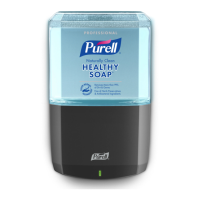
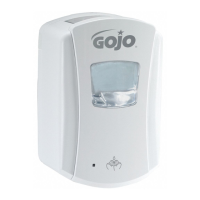
Gojo Purell Smart Dispenser - User Manual

Gojo Purell Smart Dispenser
2 pages
Print Icon
To Next Page IconTo Next Page
Loading...
PURELL
®
/ GOJO
®
Smart Dispenser
Installation Instructions
Install. Activate. Simplify.
Step 1
Install your PURELL or GOJO Smart Dispenser
* visit http://www.dispenserhelp.com/ for video instruction
6”
15.24 cm
When installing above a countertop, be sure
at least 6” clearance is provided.
Open dispenser by pushing on one of
the dual side latches until it releases.
Clean installation surface with an
alcohol pad. Allow surface to dry
for 60 seconds. Peel paper off
installation tape.
seconds. For maximum adhesion,
Tape Installation
Using back plate as a template, press a
pencil through the installation tape to
mark the holes. Drill holes. Install with #10
x 1 anchors and Type A #10 x 1 screws.
Screw Installation
IMPORTANT: You must complete steps 2 & 3 (located on back page) before using your dispenser.
The dispenser will remain in set-up mode (blue blinking status light) for 4 hours.
Reference the FAQ section of the App for dispenser reset instructions.
Close dispenser. Status light will blink blue to
indicate there is power to the dispenser and
to indicate the dispenser is in set-up mode.
To activate battery pack, remove pull tab as
indicated by red arrow.
featuring
See Reverse Side for Continued Instructions
Question and Answer IconNeed help?

Do you have a question about the Gojo Purell Smart Dispenser and is the answer not in the manual?

Overview

The PURELL® / GOJO® Smart Dispenser is an innovative device designed for efficient and intelligent dispensing of soap or sanitizer, primarily in commercial and public settings. This smart dispenser integrates with Amazon Dash Replenishment, automating the reordering process for refills and ensuring a continuous supply.

Function Description

The primary function of the PURELL / GOJO Smart Dispenser is to provide a hygienic and convenient way to dispense soap or sanitizer. Its "smart" capabilities extend beyond simple dispensing, incorporating features that streamline maintenance and supply management. The device is designed to be user-friendly, with clear indicators for status and easy refill mechanisms.

Usage Features

Installation of the dispenser is straightforward and can be completed in a few steps. For screw installation, the process involves using the device as a template to mark drill holes. The manual specifies using #10 anchors and Type A #10 x 1 screws. Once mounted, the dispenser is ready for use.

The device is designed for easy opening by pushing on one of the dual side latches until it releases. For refilling, the cap from the refill pump must be removed. The manual advises against removing the E-key from the refill pump, as it is essential for proper function. The refill is then inserted into the dispenser, ensuring the E-key is properly seated in the back plate.

A key usage feature is the integration with the GOJO Smart Dispenser App. This app allows users to activate and register their dispenser, connecting it to Amazon Dash Replenishment. Through the app, users can:

  • Activate your Smart Dispenser: Download the GOJO Smart Dispenser App from the Google Play Store or Apple App Store. The app guides users through the process of connecting their dispenser to their Wi-Fi network and registering it.
  • Register for Amazon Dash Replenishment: Within the GOJO Smart Dispenser App, users can register for Amazon Dash Replenishment. This involves linking their Amazon account, specifying shipping and billing information, and activating Amazon One Click.
  • Monitor Dispenser Status: The app provides a centralized view of all registered dispensers, allowing users to manage and monitor their devices online.

The dispenser itself provides visual cues for its status. A solid blue light indicates that the dispenser is in set-up mode, while a blinking green light signifies that the refill is properly loaded. A blinking red light indicates that the dispenser is empty and needs a refill.

Maintenance Features

Maintenance of the PURELL / GOJO Smart Dispenser is designed to be simple and efficient. The device's smart capabilities contribute significantly to proactive maintenance.

  • Refill Management: The dispenser's integration with Amazon Dash Replenishment automates the reordering of refills. When the dispenser detects a low product level, it can automatically trigger an order for a new refill, ensuring that supplies are replenished before they run out. This minimizes the need for manual inventory checks and reduces the risk of running out of soap or sanitizer.
  • Status Indicators: The dispenser features clear visual indicators for its status. A blinking red light on the dispenser indicates that it is empty and requires a refill. This allows for quick identification of dispensers needing attention.
  • App-Based Monitoring: The GOJO Smart Dispenser App provides a comprehensive overview of all registered dispensers. This allows facility managers or maintenance staff to remotely monitor the status of multiple dispensers, identify which ones need refilling, and manage their inventory more effectively. The app's "Your Dispensers" section displays the named dispensers and their current status.
  • Cleaning: For cleaning, the manual recommends using an alcohol pad to wipe down the surface. It also advises against using paper towels, which can leave lint. For optimal performance, the dispenser should be allowed to air dry for 10 seconds. The manual also specifies that the device should not be submerged in water and should not be left out in the rain for 24 hours.
  • Troubleshooting: The manual includes a section on frequently asked questions (FAQ) regarding the app and smart dispenser set-up and maintenance. This resource helps users troubleshoot common issues and find solutions. For example, if the dispenser is not working, the first step is to ensure that the dispenser is in set-up mode (blue blinking status light) for 4 hours. If the issue persists, users are directed to the FAQ section of the app for dispenser reset instructions.

Important Technical Specifications

While specific technical specifications like battery life or sensor types are not explicitly detailed in the provided excerpts, the manual highlights several key aspects:

  • Connectivity: The dispenser requires an An Android Wi-Fi and Bluetooth® enabled device (e.g., smartphone or tablet) for initial setup and app interaction. It connects to a Wi-Fi network (2.4 GHz only) with a password for internet access, enabling its smart features. An active e-mail account is also necessary for Amazon Dash Replenishment.
  • Installation: The dispenser is designed for screw installation, requiring #10 anchors and Type A #10 x 1 screws.
  • Refill Mechanism: The dispenser uses specific refills that incorporate an "E-key" for proper function and secure fit.
  • Status Lights: The device uses LED indicator lights to communicate its status:
    • Solid blue light: Set-up mode.
    • Blinking green light: Refill properly loaded.
    • Blinking red light: Empty, needs refill.

The PURELL / GOJO Smart Dispenser represents a significant advancement in hygiene solutions, combining reliable dispensing with intelligent supply management and user-friendly maintenance through its app integration and Amazon Dash Replenishment capabilities.

Gojo Purell Smart Dispenser Specifications

General IconGeneral
BrandGojo
ModelPurell Smart Dispenser
CategoryDispenser
LanguageEnglish

Related product manuals