22
Caddy Lite User Guide - Version 1.0 2007
Registering your Caddy Lite
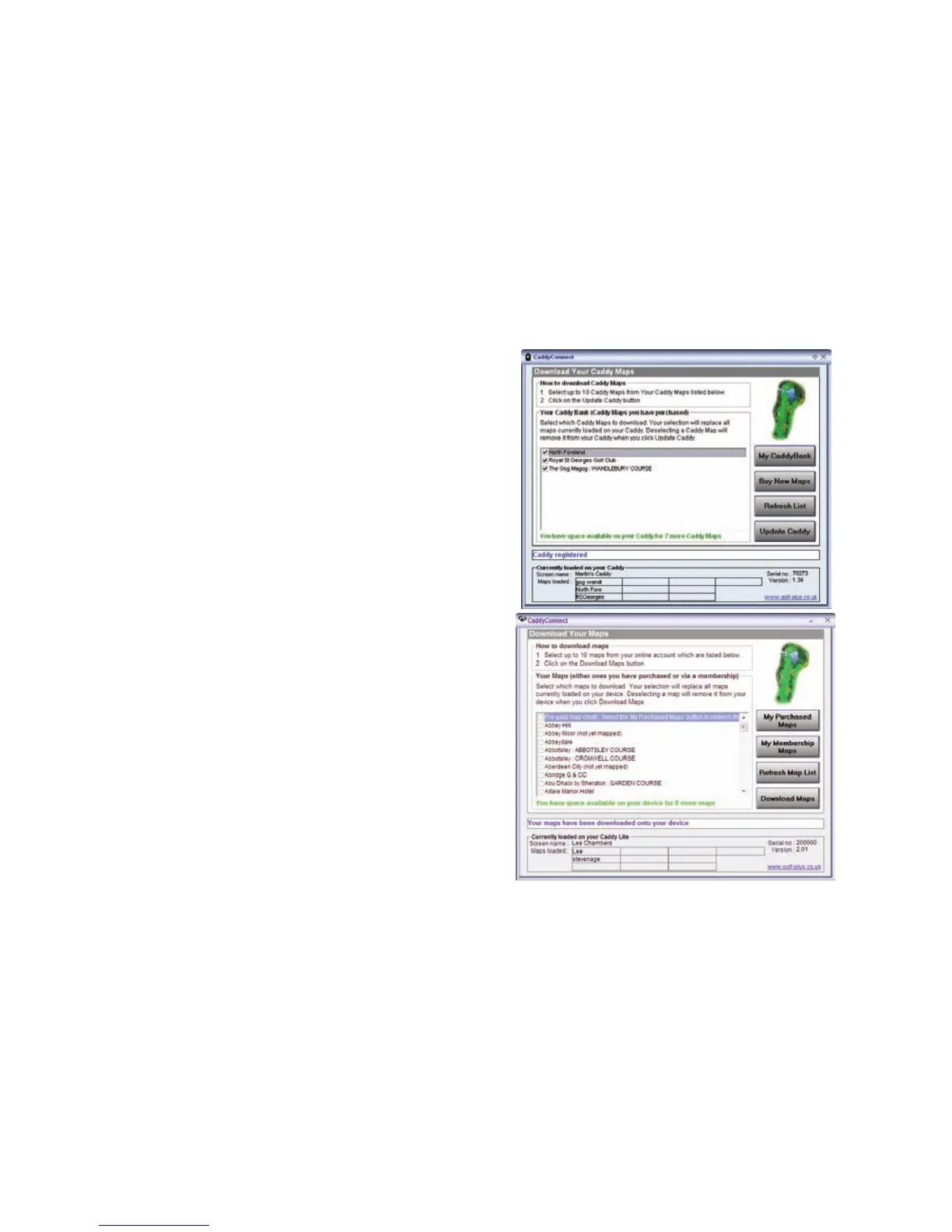
When your registration is accepted (this may take a few minutes) you
will see the Download Your Maps window.
From here you can access your purchased and membership maps,
update your course list and download maps to your Caddy Lite.
Download Your Maps
To load maps onto your Caddy Lite, select your maps in the list by
clicking on the checkbox adjacent to the course name.
The number of maps that you can load onto your Caddy Lite is shown
below the list.
To unload a map from your Caddy Lite, uncheck the checkbox in the list
adjacent to the course name you wish to remove. This does not remove
the map from your online account.
Click on the Download Maps button to update your Caddy Lite with
your map selection.
When updating your Caddy Lite, maps that are not ticked in your
map list will be removed from your Caddy Lite.
Click on the My Purchased Maps button to purchase or add maps
(redeem map credits) into your online account via the Golf Plus web site.
Click on the My Membership Maps button to add maps into your
online account as part of your Golf Plus membership (if applicable) via
the Golf Plus web site.
Click on the Refresh Map List button to refresh the list of maps shown.


 To Next Page