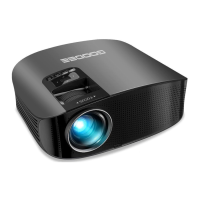
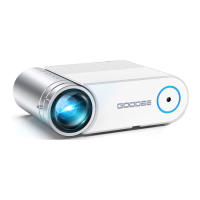
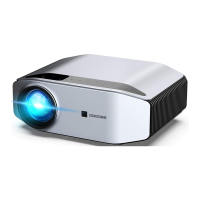
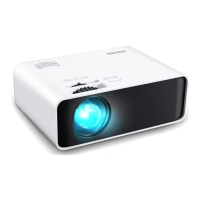
This document provides a user manual for a compact projector, outlining its safety notices, interface, remote control functions, media connection options, and setup menu. The projector is designed for ease of use and portability, making it suitable for various entertainment and presentation needs.
Function Description
The projector serves as a versatile display device, capable of projecting images and videos onto a screen or white wall. It supports a range of input sources, including HDMI, USB, Micro SD, and AV, allowing users to connect various devices such as computers, smartphones, tablets, and media players. The primary function is to enlarge and display content from these sources, offering a larger viewing experience than traditional screens. It features a manual focus adjustment to ensure a clear image and includes basic audio output capabilities through an earphone jack. The device is equipped with an internal battery, providing the flexibility of portable use without constant reliance on a power outlet. Its compact design, often accompanied by a small tripod holder, emphasizes its portability and ease of setup in different environments.
Usage Features
The projector is designed with user-friendliness in mind, offering straightforward operation through both on-device controls and a remote control.
- Power and Basic Controls: The device has a power switch for turning it on and off, along with dedicated buttons for volume control (Vol+, Vol-) and play/pause functions. A separate switch manages the battery's power, indicating its ability to operate independently from a wall outlet.
- Input Source Selection: Users can easily switch between different input sources such as HDMI, USB, Micro SD, and AV. This is managed through the "Input Source" option in the main menu, allowing seamless transitions between connected devices.
- Media Playback: When a USB drive or Micro SD card is connected, the projector can directly play various media files, including movies, music, photos, and text documents. The "Media" section of the menu provides categories for selecting the desired content type. Supported audio formats include MP3, WMA, OGG, AAC, FLAC, APE, and WAV. Image formats supported are JPEG, BMP, and PNG. Video playback is compatible with 3GP, AVI, MKV, FLV, MOV, MP4, MPG, VOB, RMVB, and RM. Text files in TXT format can also be displayed.
- HDMI Connectivity: The HDMI input allows connection to a wide array of devices, including laptops, desktop computers, gaming consoles, and other HDMI-enabled media players. This provides a high-quality digital connection for both audio and video. Once connected, the user selects "HDMI" as the input source.
- AV Connectivity: For older devices or those without HDMI, the AV input provides an analog connection using a 3-in-1 cable. This is suitable for devices like DVD players or older video game consoles, supporting NTSC and PAL formats. The "AV" input source must be selected for this connection.
- Audio Output: A 3.5mm audio jack allows users to connect external headphones or speakers, enhancing the audio experience, especially in larger rooms or when privacy is desired.
- Image Focus: A manual focus ring or slider on the projector allows users to adjust the clarity of the projected image. This is crucial for ensuring sharp visuals, especially when changing the projection distance or screen size. The manual suggests adjusting focus until the image is clearly visible, optionally using a video or menu display to aid the adjustment.
- Remote Control Operation: A dedicated remote control provides comprehensive control over the projector's functions from a distance. This includes power on/off, play/pause, volume adjustment, fast forward (FF), fast reverse (FR), navigation (UP, DOWN, LEFT, RIGHT, OK), return, and access to the menu and signal source selection. The remote enhances convenience, particularly when the projector is placed out of immediate reach.
- Setup Menu: The projector features a "Setting" menu accessible from the home page. This menu is divided into "Picture Setting" and "System Setting."
- Picture Setting: Allows users to customize projection mode, image scaling, aspect ratio (e.g., 16:9 or 4:3), and overall picture mode to optimize the visual output based on content and environment.
- System Setting: Provides options for OSD (On-Screen Display) language selection, software updates, factory reset, and auto-sleep settings, enabling users to personalize the projector's operational behavior and maintain its software.
- Smartphone Connectivity (Indirect): While direct USB cable connection to phones is not supported, the projector can connect to smartphones via HDMI screen mirror devices.
- iPhone/iPad: Requires a Lightning to HDMI adapter. After connection, the device prompts for trust, and once confirmed, screen mirroring can begin.
- Android Phones: Requires a Micro USB/Type C to HDMI adapter. Upon connection, a QR code for EZCast software download appears, and projection starts after the software installation. This indicates a reliance on third-party adapters and software for smartphone integration.
Maintenance Features
Proper maintenance is crucial for extending the lifespan of the projector and ensuring optimal performance. The manual outlines several key safety and maintenance guidelines:
- General Safety: Users are advised to read the manual carefully before use. It emphasizes using national standard power cables and cords with proper grounding, and ensuring the power voltage matches the projector's specifications. Opening the projector is discouraged, as it voids the warranty.
- Eye Protection: Direct eye contact with the projector lens while it's operating should be avoided to prevent eye damage.
- Ventilation: To prevent overheating and clogging, the projector's vents should not be covered with cloth, carpet, or other materials. Adequate airflow is essential for cooling the internal components.
- Moisture Protection: The projector is not waterproof and must be kept away from rain, moisture, and liquids (e.g., vases, cups) to prevent electrical hazards and damage.
- Power Management: If the projector is not in use for an extended period, the power supply should be disconnected to conserve energy and prevent potential issues.
- Transportation: For safe transportation, it is recommended to use the original foam packaging or other unit-shock material to protect the projector from physical damage.
- Troubleshooting and Support: In case of problems, users are advised to contact the supplier directly rather than attempting self-repair, which could further damage the device or void the warranty.
- Usage Breaks: To extend the projector's lifespan and protect user eyesight, it is suggested to take a break after 3-4 hours of continuous use. This helps prevent component fatigue and reduces eye strain.
- Warranty Information: The product comes with a 1-year factory warranty. The manual clarifies that the warranty service typically does not cover the frame, manual, package, or subjective aspects related to video, sound, or image quality. For detailed warranty information, users should contact the supplier.
- Remote Control Battery Care: To prevent battery leakage and corrosion, especially if the remote control will not be used for a long time, the batteries should be removed. When replacing batteries, it is important not to mix old and new batteries to avoid power shortages. For effective remote control operation, the signal transmitter should be aligned with the projector's infrared signal reception window.

 Need help?
 General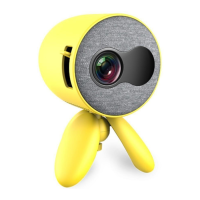

 To Next Page