

EasyManua.ls Logo

Goodmans Module - User Manual

Goodmans Module
2 pages
Print Icon
To Next Page IconTo Next Page
Loading...
MODULE
DID YOU KNOW...
ONLINE MUSIC STREAMING
NETWORKED MUSIC
PLAYER CONTROLSPLAY MUSIC
Touch the player you wish
to send music to. You can
choose to play music from:
Your local library
(IOS or Android device)
Music you have stored
on a network device such
as a NAS or media server
Music services available
to stream online
1. Select a track from your library.
2. Add to playlist or play now.
Now Playing screen
This button toggles between
‘Now Playing’ and the Playlist
Album art and track info
Volume
This button toggles
the Volume bar on/off
This button takes you to
the Music selection screen
Your Goodmans Module enabled with Qualcomm®
AllPlay™ technology can stream online Music Services
like Spotify Connect, Tidal, Napster and many more.
You may need to register for these Music Services
prior to using them through the Qualcomm®
AllPlay™ Jukebox app and there may be charges
for their use. These services are subject to change
and there will be more added as AllPlay develops.
The AllPlay Jukebox app gives you access to music
stored on your network (e.g. NAS or media server)
through the AllPlay speaker system.
1. Once your smart device has connected to your home Wi-Fi network
(wait 1 minute), go to the AllPlay Jukebox app.
2. When connected, your named Module will appear in the player list.
MULTI ROOM/MULTI ZONE
Multi Room lets you connect two or more AllPlay
devices together playing the same music through
the AllPlay Jukebox app. Multi Zone lets you play
different music to each speaker.
Find out more www.goodmans.co.uk/support
1. On your smart device, open Wi-Fi Settings.
2. From the list of Wi-Fi networks locate and select your Module
(Module XXXXXX_AJ). Android users may need to ‘swipe down’
and connect Module via Notifications.
1. You can now give your Module a name.
2. In the drop-down menu, select your home Wi-Fi network.
3. Then enter your password.
4. Your Module is now connecting to your Wi-Fi.
GET CONNECTED
Qualcomm AllPlay is a product of Qualcomm Atheros, Inc.
Question and Answer IconNeed help?

Do you have a question about the Goodmans Module and is the answer not in the manual?

Summary

Getting Connected

Connect to Wi-Fi

Connect the module to your home Wi-Fi network using the AirPlay Jukebox app.

Play Music

Select music sources and play tracks from your library.

Player Controls

Control playback, adjust volume, and view track information.

Module Features

Online Music Streaming

Access online music services via the AirPlay Jukebox application.

Networked Music Access

Access music stored on your network through the AirPlay Jukebox app.

Multi Room Audio

Connect multiple modules for synchronized audio playback across different rooms.

Setup and App Download

Download the App

Instructions for downloading the AirPlay Jukebox app on Apple and Android devices.

Physical Connections

Connect the module's audio output and power supply for operation.

Additional Information

In the Box Contents

List of included accessories with the module, such as cables and adapters.

Required Items

Essential items required for setup, including Wi-Fi and a compatible smart device.

Full User Manual

Information on accessing the complete user manual for further details.

Overview

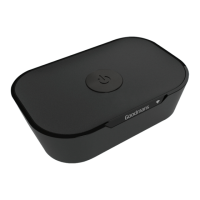
The Goodmans Module is a versatile audio device designed to integrate seamlessly into a home audio system, offering a range of features for streaming and playing music. It leverages Qualcomm® AllPlay™ technology to provide a multi-room, multi-zone audio experience.

Function Description:

The Goodmans Module serves as a central hub for streaming music from various sources to your existing audio setup. It connects to your home Wi-Fi network and allows you to control music playback using a dedicated "AllPlay Jukebox" app on your smart device (iOS or Android). The module supports online music streaming services like Spotify Connect, Tidal, and Napster, as well as local music libraries stored on your smart device, network-attached storage (NAS), or media servers. Its multi-room/multi-zone capabilities enable you to connect multiple AllPlay devices to play the same music simultaneously or different music in various rooms.
Important Technical Specifications:

  • Connectivity: Wi-Fi (for network connection and streaming), Audio Out (3.5mm jack), Optical Out, Line In (3.5mm jack), Optical In.
  • Power Input: DC IN 5V-1A.
  • Technology: Qualcomm® AllPlay™ for networked audio and multi-room functionality.
  • Control: Via "AllPlay Jukebox" app on iOS and Android smart devices.
  • Status Indicators: LED light with different colors/flashing patterns to indicate device status:
    • Red light: Standby mode.
    • Flashing yellow: Module device starting up.
    • Flashing white: Wi-Fi setup mode.
    • White light: On mode.

Usage Features:

  • Easy Setup: The setup process involves connecting the module to your existing Hi-Fi or speaker system via Audio Out or Optical Out, connecting it to power, and then configuring its Wi-Fi connection using your smart device. The app guides you through naming the module and connecting it to your home Wi-Fi network.
  • Wireless Connectivity: Connects to your home Wi-Fi network, eliminating the need for physical audio cables between your smart device and the module for streaming.
  • Music Source Versatility:
    • Online Music Streaming: Access popular services like Spotify Connect, Tidal, Napster, Rhapsody, and SomaFM. Note that registration and potential charges may apply for these services, and their availability may change.
    • Local Library Playback: Stream music directly from your smart device's local library (iOS or Android) or from network devices like NAS or media servers.
  • Multi-Room/Multi-Zone Audio:
    • Multi-Room: Group two or more AllPlay devices to play the same music simultaneously across different rooms.
    • Multi-Zone: Play different music to individual AllPlay speakers or groups of speakers in various zones.
  • Intuitive App Control: The "AllPlay Jukebox" app provides comprehensive control over music playback, including:
    • Selecting players and grouping them.
    • Browsing music by artists, albums, genres, composers, playlists, songs, and podcasts.
    • Creating and managing playlists (Play Now, Play Next, Play Last).
    • Controlling playback (Play, Pause, Skip, Repeat, Shuffle).
    • Adjusting volume.
    • Switching between "Now Playing" screen and the Playlist.
    • Accessing music services and network sources.
  • Audio Output Flexibility: Connects to a wide range of audio systems using either a 3.5mm Audio Out cable or an Optical Out cable, ensuring compatibility with various Hi-Fi systems and powered speakers.
  • Input Options: Features a Line In and Optical In, allowing external audio sources to be connected to the module, potentially integrating them into the AllPlay system.
  • Reset Functionality: A "RESET" button is available on the device, likely for troubleshooting or re-initiating the setup process.

Maintenance Features:

  • Firmware Updates: While not explicitly detailed in the provided manual excerpts, devices with network connectivity often receive firmware updates to improve performance, add features, or address bugs. Users would typically be notified via the app or a dedicated support page.
  • Troubleshooting: The LED indicators provide immediate visual feedback on the device's status, aiding in basic troubleshooting (e.g., identifying Wi-Fi connection issues). The reset button can be used to resolve software-related problems.
  • Online Support: Goodmans provides online support and a full user manual at www.goodmans.co.uk/support, offering resources for detailed troubleshooting, feature explanations, and general assistance.
  • Cleaning: As with most electronic devices, it is recommended to keep the module clean and free from dust to ensure optimal performance and longevity. Specific cleaning instructions would typically be found in the full user manual.
  • Safety: Users are advised to read the Guarantee & Safety booklet before starting, which would contain important information regarding safe operation and maintenance.

Goodmans Module Specifications

General IconGeneral
BrandGoodmans
ModelModule
CategoryTV Tuner
LanguageEnglish