NEXUS 7 (2013) GUIDEBOOK USE THE KEYBOARD 28
Basic editing
• Move the insertion point. Touch where you want to type.
The cursor blinks in the new position, and a blue tab appears
below it. Drag the tab to move the cursor.
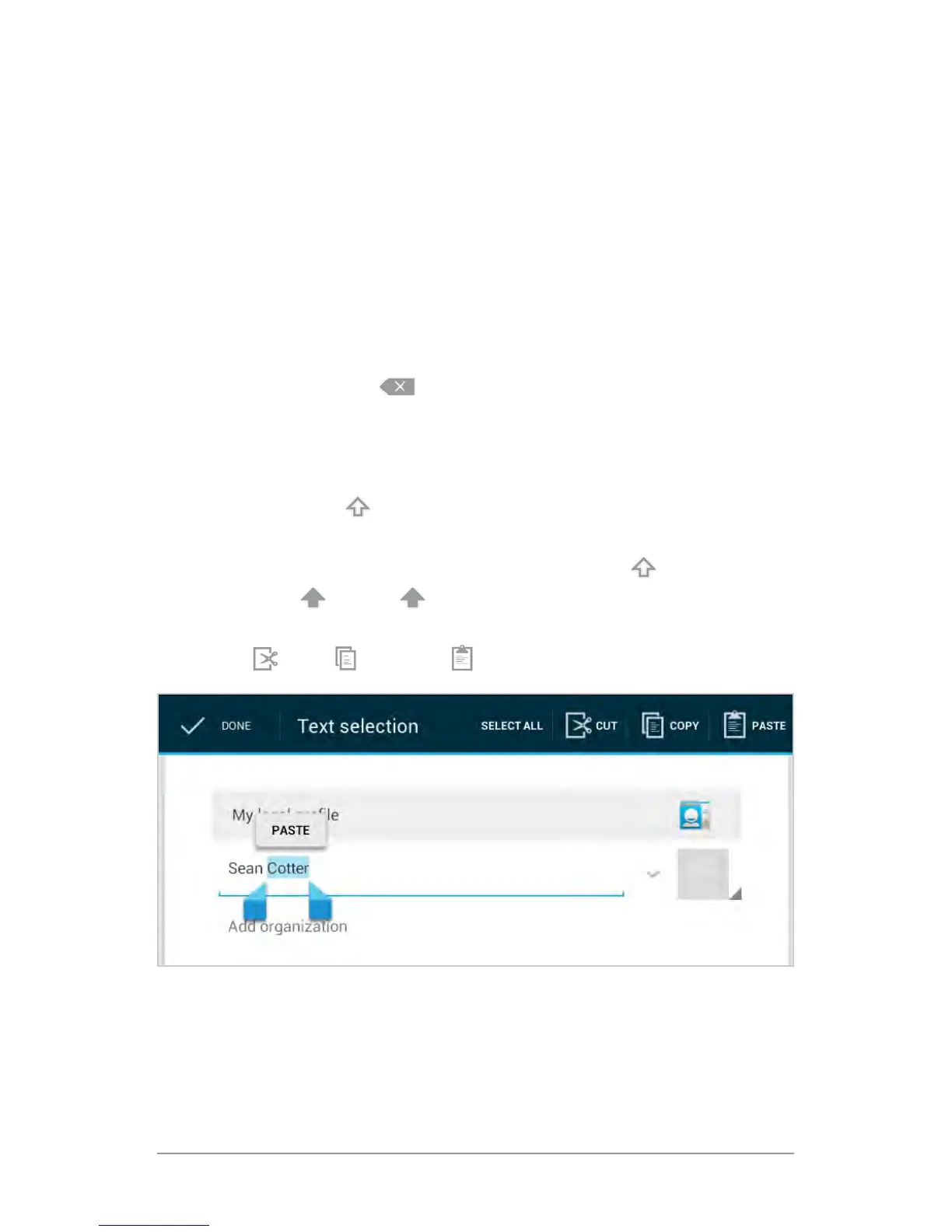
• Select text. Touch & hold or double-tap within the text.
The nearest word highlights, with a tab at each end of the se-
lection. Drag the tabs to change the selection.
The tab disappears after a few moments. To make it reappear,
touch the text again.
• Delete text. Touch
to delete selected text or the charac-
ters before the cursor.
• Type capital letters. Touch the Shift key once to switch to cap-
ital letters for one letter.
Or touch & hold
Shift key while you type. When you release
the key, the lowercase letters reappear.
• Turn caps lock on. Double-tap or touch & hold
Shift key, so it
changes to
. Touch Shift key again to return to lowercase.
• Cut, copy, paste. Select the text you want to manipulate. Then
touch
Cut, Copy or Paste button:



 To Next Page