GoVision User Guide 05
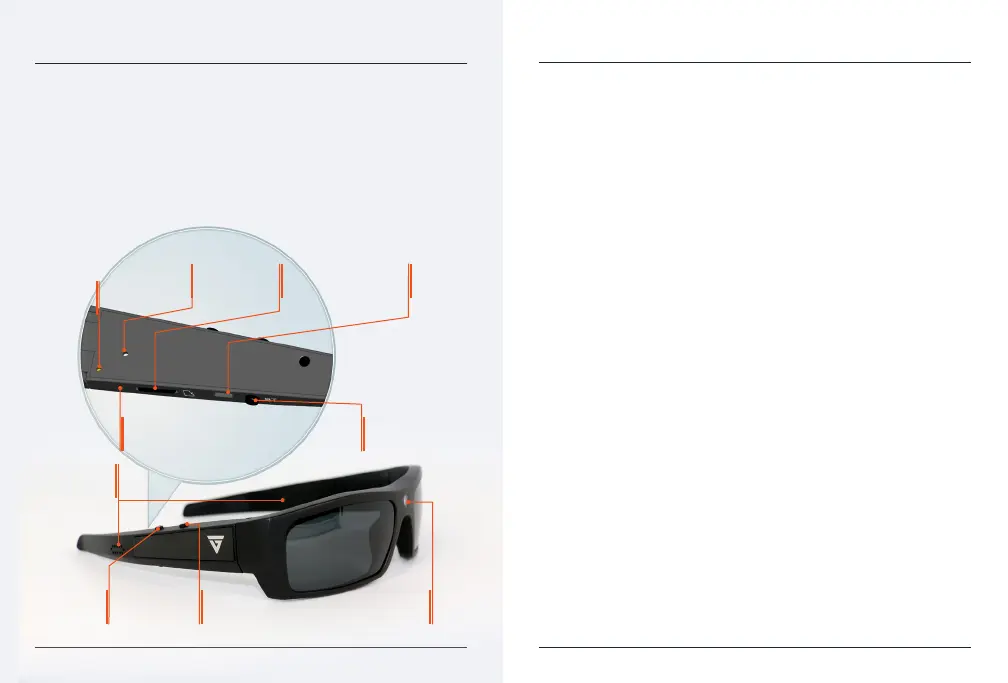
GoVision SOL PRODUCT PREVIEW
CAMERA LENS
ON/OFF/PAUSE VIDEO
RECORDING BUTTON
BLUETOOTH
CONTROLBUTTON
RESET BUTTON |
CHARGING LED LIGHT
MICRO SD
CARD SLOT
8PIN USB
PORT
LEFT & RIGHT
SPEAKERS
CAMERA
BUTTON
LED
INDICATOR
MICROPHONE
01. Camera Lens
02. Left /Right Speaker
03. Bluetooth Control Button
04. On/O/Pause Video
Record Button
05. Camera Button
06. Micro SD Card Slot
07. 8pin USB Port
08. Reset Button/Charging LED Indicator
09. RED LED Power Indicator Light/Blue LED
Bluetooth Pairing/Connection Indicator
10. Microphone
01
02
09
10
0303
06 07
04
08
05
ON/OFF
Press the on/off button to turn GoVision on and the
LED light indicator will turn red. GoVision will automatically enter
video record mode once the glasses have been tuned on and the
red light begins to flash. To power off the glasses, hold down the
on/off button for 3 seconds. The glasses will automatically save the
video file and shut down.
RECORDING VIDEO
Power on the glasses by pressing the on/off button. Once powered
on the glasses automatically enter into video record mode. To stop
recording, press the on/off button.The LED light indicator will stop
flashing and turn solid red. The system will automatically save
video files in 10 minutes increments.
In order to ensure good sound quality, make sure you do not block
the microphone. The glasses have a 3 minute automatic shut off
when not in use.
TAKING PICTURES
When the glasses are powered on, stop the video recording by
pressing the on/off button. The glasses will enter into camera
mode when the LED light indicator is solid red. Press the camera
button once to take pictures and save images. The glasses have a 3
minutes shut off if
a picture is not taken within this time frame.
Note: Make sure there is adequate light when taking pictures and the
glasses are upright and stable.
VIDEO AND PICTURE USER GUIDE
04 GoVision User Guide



 To Next Page