Customer Support: 1-888-999-4215 13
Connecting Other Devices
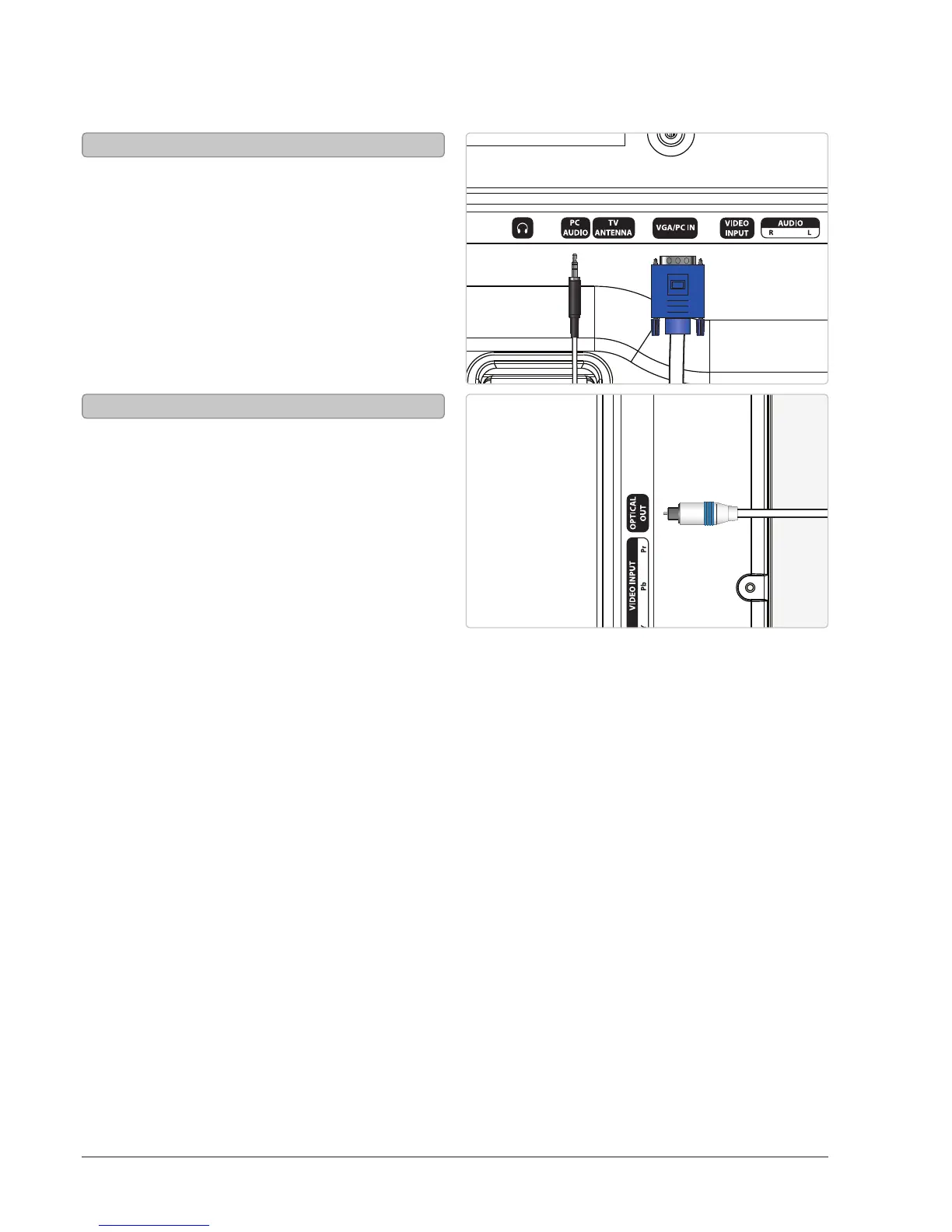
You will need: a PC with a VGA output,
and a VGA cable (not included).
1. Connect the computer’s VGA output to
the VGA/PC Input on the television.
2. Power the television on and press the
Source button to switch to the PC Mode.
3. Audio from the connected PC can be input to
the television through the TV’s PC Audio Input
by using a 3.5mm audio cable (not included).
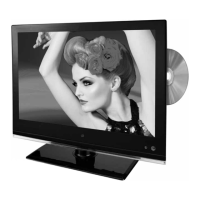
You will need: a (home theater) with
an Optical Audio Input and a Digital
Optical Audio Cable (not included).
1. Connect the Digital Optical Audio Cable to the
(home theater system) and the television.
2. Adjust the settings on your (home
theater) to play audio from the
connected Optical Audio Input.
Please note: home theater systems may label
the Optical Audio Input source dierently,
such as “PCM”, or “Digital Audio Input”. Please
consult your home theater system’s user manual
in order to select the correct input source.
3. Audio from the television will now be played
through the connected (home theater system).
Connecting a Computer
Using the Optical Audio Out



 To Next Page