6 7
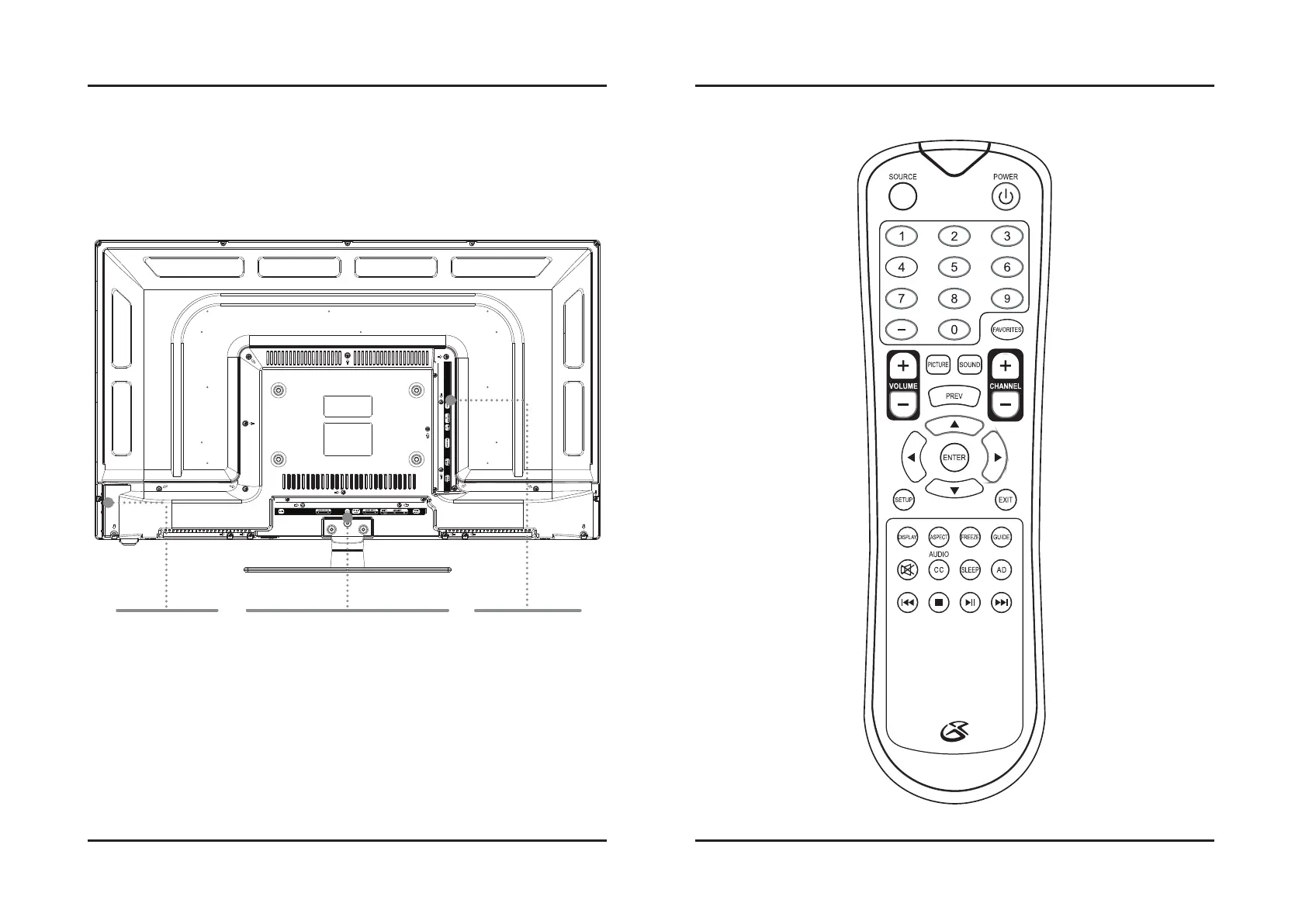
Remote FunctionsTV Controls & Inputs
Orientation
Source
Press and use the Arrow/Enter
buttons to select the source.
Number Keypad
Picture
Press to adjust the picture
between STANDARD, SOFT, USER,
and DYNAMIC. The user mode
can be customized by accessing
Picture Settings in the menu.
Prev
In TV mode, press to switch
to the previous channel.
Arrows/Enter
Press to make selections in
the on screen menus.
Setup
Press to view the television
setup menu.
Display
Press to view the on-
screen display.
Aspect
Press to adjust the aspect
ratio between ZOOM, WIDE,
CINEMA, and NORMAL.
Mute
Press to mute the volume.
CC/Audio
For TV play, press to turn
closed captioning ON or OFF.
For DVD play, press to adjust
audio settings for the DVD.
Skip Back/Forward
Press to skip between
chapters or tracks.
Stop
Press to stop an individual
chapter or track during play.
Power
Press to power the
television off or on.
Favorites
Press to access your
saved channels.
Sound
Press to adjust the sound
between STANDARD, MUSIC,
USER, MOVIE, and SPORTS.
The user mode can be
customized by accessing
Sound Settings in the menu.
Channel ±
Press to adjust the
television channel.
Prev
In TV mode, press to switch
to the previous channel.
Exit
Press to exit the current
on-screen menu.
Freeze
Press to freeze or unfreeze the
current frame in TV mode.
Guide
In TV mode, press to view the
on-screen television guide.
Sleep
Press to set the sleep timer.
After the set time has
expired the television will
automatically power OFF.
AD
Press to enter the Audio
Description settings menu
(intended for hearing and
visually impaired users).
Play/Pause
Press to play or pause an
individual chapter or track.
Stereo Audio
Output
Headphone Jack
Optical Audio
Output
Stereo Audio Input
Composite
Video Input (Y)
Component
Video Input
(Y/Pb/Pr)
HDMI 1
USB
TV Antenna/
Cable Input
PC Audio Input
(3.5mm)
VGA/PC
Video Input
HDMI 3
HDMI 2
Volume -/+
Channel -/+
Setup/Source
Play/Pause/Eject
Power



 To Next Page