Emergency PIN
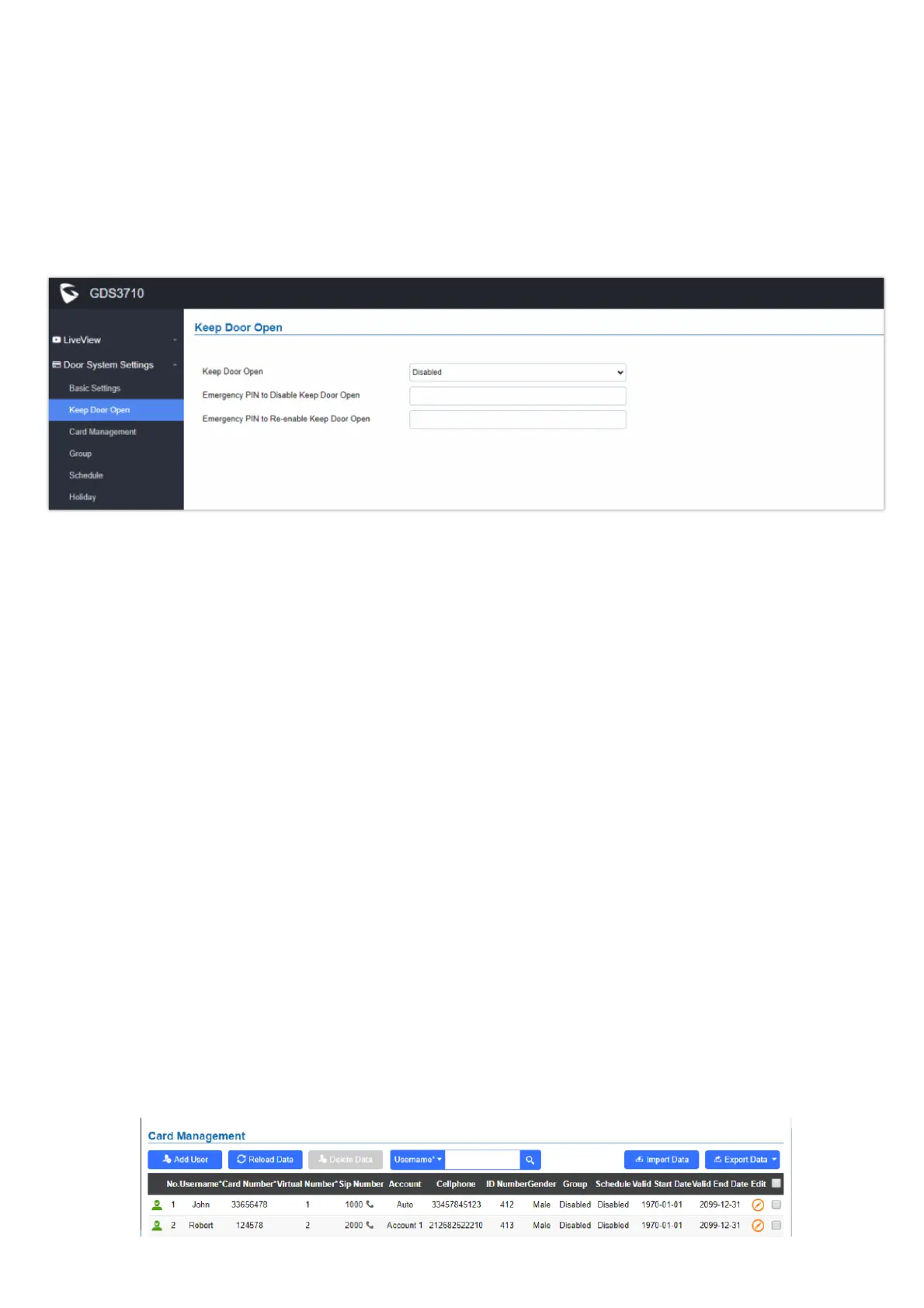
Keep Door Open – Emergency PIN
When Keep Door Open option is set to “Disabled”, user is offered the possibility to force closing the door from the device keypad by dialing the
Emergency PIN set to be used.
Example:
1. Fill in the password in Emergency PIN to Disable Keep Door Open, in our example: 2018
2. Open the door using either Immediate/Scheduled Keep Door open
3. enter the following Emergency Password sequence: *2018#
4. After entering the sequence *Emergency PIN to disable#, the GDS will close the door, and when entering the web GUI, the Keep Door Open
section is switched automatically to “Disabled” Option.
5. Incase the user wants to re-enable the keep door open option, he can enter the sequence *Emergency PIN to re-enable#, in our example it will
be *2019#, the GDS will re-enable the open door when the PIN is provided.
Card Management
This page allows users to add information about RFID cards, two options are possible either add RFID cards manually or automatically.
Card Management
Note
A variety of schedules can be configured on the “Keep door open” settings, and users can choose which schedule they prefer to use.
Note
This configuration is exclusive to the GDS3710 Model.
Note
When ALMOUT1 Feature is set to Open Door then separated Keep Door Open features would be available on this page for each door.
Note
This configuration is exclusive to the GDS3710 Model.


 To Next Page
 Loading...