EasyManua.ls Logo

GROM Audio GROM-BTD - User Manual

GROM Audio GROM-BTD
4 pages
Print Icon
To Next Page IconTo Next Page
Loading...
GROM Bluetooth Dongle (GROM-BTD)
Installation and operation instructions
Chapter 1 – Getting Started
1.1 Subject
GROM Audio Bluetooth Dongle will provide seamless Bluetooth integration into many factory car stereos.
When connected to the extension port one (EXT1) of GROM-USB2P / GROM-IPD3 (AUX3) / GROM-MST3
adapters, the dongle provides wireless hands-free operation with accept/reject call features. GROM-BTD also
enables wireless A2DP playback with AVRCP control.
1.2 Introduction
Thank you for purchasing GROM Audio Bluetooth Dongle. With the Bluetooth Dongle you will be able to:
use your phone in your car hands free;
stream your MP3 or internet radio music and control it where applicable with the stereo buttons;
hear GPS voice announcements and more (when applicable).
To ensure that your Bluetooth module performs correctly in your car or truck, we recommend that you read
this entire manual before attempting install and use the GROM Bluetooth dongle.
1.3 Precautions
Proper mounting location
Securely install the interface in a location that is free from heat, humidity, moving parts, or direct sunlight.
Avoid the hot airflow from your vehicle’s climate control system. We recommend securing the interface to a
suitable location that is free of sharp metal edges using double-sided tape, Velcro, or wire ties.
1.4 Disclaimer
This product is not affiliated with any OEM manufacturers.
The purchase of this product carries with it no warranties, either expressed or implied.
While every care has been taken to provide a quality product, we cannot guarantee that GROM Bluetooth
Dongle will function correctly if installation or operation of the unit is not done according to the instructions
provided in this guide.
Keep your eyes on the road while driving!
We are not liable for the misuse of this product. Misuse includes improper installation, damage to the
product and its parts while trying to install it, and the illegal use of the product.
This system will not operate or may operate improperly with some Bluetooth devices.
Grom Audio cannot guarantee the compatibility of all mobile phones with the GROM-BTD.
Audio streaming may or may not resume after telephone interrupt as this is dependent on mobile phone.
1.5 Included in set
GROM Bluetooth Dongle set consists of:
rev. 1.5 Copyright©GROM Audio, 2008-2013 1
Question and Answer IconNeed help?

Do you have a question about the GROM Audio GROM-BTD and is the answer not in the manual?

Summary

Chapter 1 - Getting Started

1.1 Subject

Describes the GROM Audio Bluetooth Dongle's function and integration capabilities.

1.2 Introduction

Thanks the user for purchase and lists key features and benefits of the Bluetooth Dongle.

1.3 Precautions

Provides guidance on selecting a proper mounting location for the interface, avoiding hazards.

1.4 Disclaimer

States product affiliation, warranty, liability, and compatibility limitations.

1.5 Included in set

Lists the components included in the GROM Bluetooth Dongle package.

Chapter 2 - General Installation

2.1 Installation location

Details connecting the GROM-BTD module and positioning the microphone for optimal performance.

2.3 Pairing with the Phone

Explains the one-time process of pairing a mobile phone with the GROM-BTD unit.

2.4 Operating with more than one playing source connected

Describes how the GROM-BTD interacts with other audio sources like USB or AUX.

2.5 Using your phone in the hands-free mode

Details how to answer, reject, end calls, and use voice dialing with the Bluetooth dongle.

2.6 Streaming your music wireless and using A2 DP Audio Controls

Explains wireless music streaming and controlling playback via car stereo buttons.

5. Troubleshooting and support

Lists common issues like pairing failures and sound problems with their solutions.

Overview

The GROM Bluetooth Dongle (GROM-BTD) provides seamless Bluetooth integration for many factory car stereos, enhancing the in-car audio experience with hands-free calling and wireless music streaming. When connected to the EXT1 port of compatible GROM adapters (GROM-USB2P, GROM-IPD3 (AUX3), or GROM-MST3), the dongle enables a range of functionalities.

Function Description:

The GROM-BTD primarily offers two core functions:

  1. Wireless Hands-Free Operation: This allows users to make and receive calls without physically interacting with their phone. It includes features like accepting and rejecting calls directly from the car stereo controls.
  2. Wireless A2DP Playback with AVRCP Control: Users can stream music from their mobile phones wirelessly to the car's stereo system. The Advanced Audio Distribution Profile (A2DP) ensures high-quality audio streaming, while the Audio/Video Remote Control Profile (AVRCP) allows control over music playback (e.g., track selection) using the car stereo or steering wheel buttons. Additionally, the dongle can facilitate hearing GPS voice announcements and other audio from the connected phone, where applicable.

Important Technical Specifications:

  • Connectivity: The dongle connects to the 8-pin EXT1 port of GROM-USB2P, GROM-IPD3 (AUX3), or GROM-MST3 interfaces.
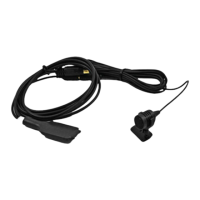
  • Cables: It comes with a 5-foot wiring cable for GROM adapter interfaces and an omnidirectional microphone with a mount and a 10-foot cable.
  • Microphone Connection: The microphone connects to a 3.5mm female audio plug on the GROM-BTD module.
  • Bluetooth Discoverability: The GROM-BTD becomes discoverable for 3 minutes upon vehicle ignition, requiring pairing within this interval.
  • Automatic Connection: Once paired, the phone will automatically connect to the GROM-BTD upon ignition start.
  • Audio Muting: When GROM-BTD is in use for hands-free calls or A2DP streaming, it will mute other audio sources. For GROM-USB2P or GROM-MST3, it mutes AUX audio players. For GROM-IPD3, AUX audio players need to be turned off manually. USB drives and Android phones are automatically muted.
  • Voice Dialing: Initiated by pressing the SCAN button twice within 3 seconds in GROM mode, but only when no music is streaming over Bluetooth.

Usage Features:

  • Hands-Free Calling:
    • Answering a Call: Press "next track" or "track up" on the stereo.
    • Rejecting/Ending a Call: Press "previous track" or "track down" on the stereo.
    • Call Waiting: To answer a second call, press "next track" or "track up."
    • Making a Call: Dial the number on the phone; the car stereo will mute, and dialing tones will be heard.
  • Music Streaming (A2DP):
    • Playback: Music from the mobile phone streams directly to the car stereo.
    • Control: Use "track up" and "track down" buttons on the car stereo or steering wheel to control track selection. Note that some apps may not support track control via AVRCP.
    • Pausing: Changing the car radio mode to anything other than GROM-USB2 / IPD3 (e.g., AM, FM, SAT) will pause A2DP playback. To stop playback, stop it on the phone itself.
  • Pairing Process:
    1. Ensure Bluetooth is active and discoverable on the phone.
    2. Turn on the vehicle and radio.
    3. Pair the phone with "GROM-CAR" within the 3-minute discoverability window. A random PIN may appear, requiring confirmation.
  • Operating with Multiple Sources: The system manages audio priority, muting other sources like USB drives or Android phones when Bluetooth is active.

Maintenance Features (Troubleshooting & Reset):

The manual provides specific troubleshooting steps for common issues:

  • Cannot Pair Phone (outside 3-minute window): Ensure pairing is done within the 3-minute discoverability window after turning on the vehicle.
  • Cannot Pair Phone (phone reset needed): Reset the phone by turning it off/on or removing the battery.
  • Cannot Pair Phone / Connect to Bluetooth (GROM unit reset needed):
    1. Switch off GROM mode (e.g., to FM).
    2. Wait 3-4 seconds.
    3. Switch back to GROM mode.
    4. After 1 second, press the SCAN or REPEAT button on the stereo. A low beep confirms the reset.
    5. If too many phones were paired, delete "grom-car" from the phone and pair the new "grom-car" that appears after the reset.
  • Distorted/Muted Microphone Sound:
    • Ensure the microphone is positioned correctly, free from obstructions, and facing the user.
    • Verify the 3.5mm microphone plug is securely connected.

Installation Precautions:

  • Mounting Location: Securely install the GROM-BTD interface in a location free from heat, humidity, moving parts, or direct sunlight. Avoid hot airflow from the vehicle's climate control system. Use double-sided tape, Velcro, or wire ties to secure it, avoiding sharp metal edges.
  • Microphone Placement: Mount the microphone near the rearview mirror or in front of the gauge cluster. Avoid side windows (to reduce extra noise) and behind the visor (to prevent voice blockage). Route the cable carefully and ensure a secure connection to the GROM-BTD's 3.5mm port.
  • Module Placement: Mount the GROM-BTD module away from metal structures in the dash and as close to the phone as possible for optimal performance.

Disclaimers:

  • The product is not affiliated with OEM manufacturers.
  • No warranties are expressed or implied with purchase.
  • GROM Audio cannot guarantee correct function if installation or operation instructions are not followed.
  • Users are advised to keep their eyes on the road while driving.
  • GROM Audio is not liable for misuse, improper installation, damage, or illegal use of the product.
  • Compatibility with all Bluetooth devices and mobile phones is not guaranteed.
  • Audio streaming resumption after telephone interruption is dependent on the mobile phone.

GROM Audio GROM-BTD Specifications

General IconGeneral
BrandGROM Audio
ModelGROM-BTD
CategoryWireless Router
LanguageEnglish