EN
13
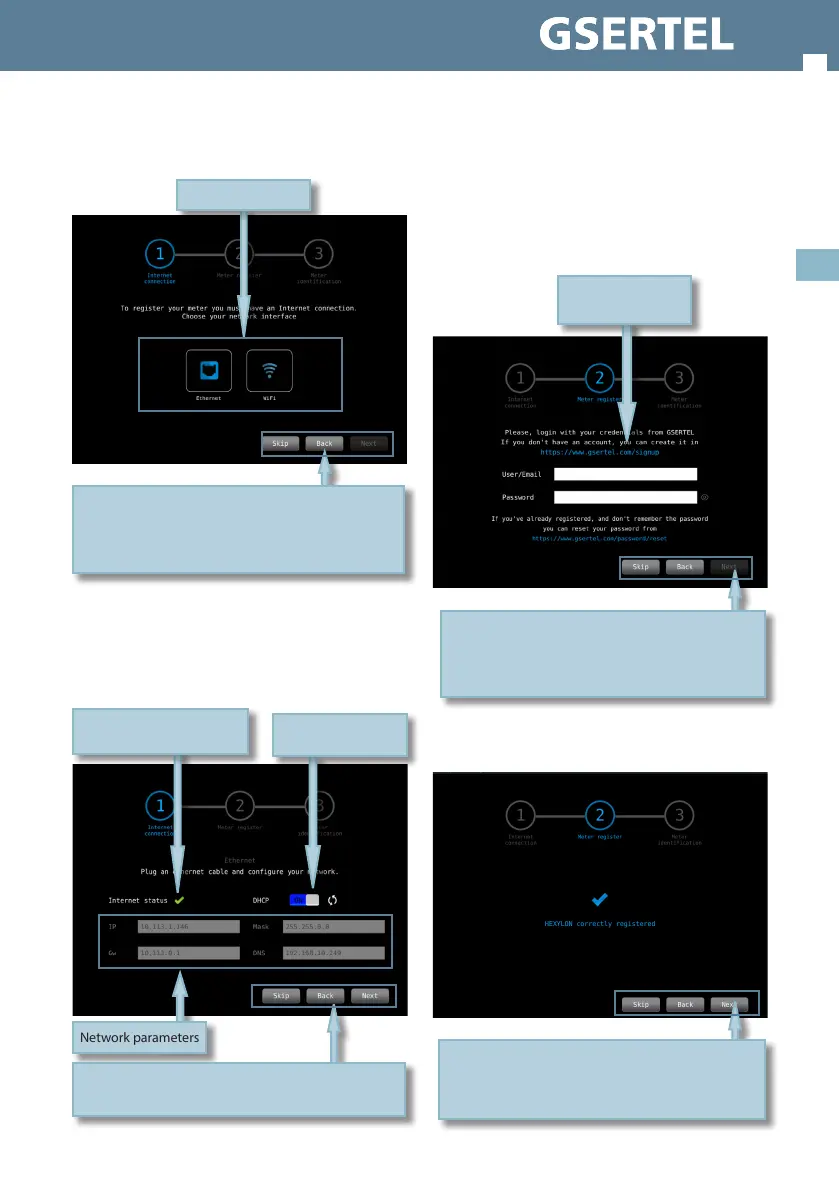
3.- Select the internet connection (Ethernet or Wi-
Fi):
3.1- If you select Ethernet, all the parameters
will appear on the screen: you can enable DHCP
mode (the meter will select all the parameters
automatically), or disable it (then you must enter
all the network parameters)
Tap to select
Skip: cancel the registration. If you skip, you will be
prompted to register your meter each time
you turn it on
Back: back to previous step
Next: goes to the next step
Network parameters
Tap to enable/disable
DHCP mode
Skip: cancel the registration. If you skip, you will be
prompted to register your meter each time you turn it on
Back: back to previous step
Indicates that your internet
connection works well
3.2.- If you select Wi-Fi, a list with all the Wi-Fi
networks will appear on the screen. You must
select one of them to access the internet.
4.- When your Hexylon is connected to the internet,
you have to enter your Gsertel account data (e-mail
and password)
5.- Your Hexylon is registered!:
Skip: cancel the registration. If you skip, you will be
prompted to register your meter each time
you turn it on
Back: back to previous step
Next: goes to the next step
Enter your Gsertel
account data
Skip: cancel the registration. If you skip, you will be
prompted to register your meter each time
you turn it on
Next: goes to the next step


 To Next Page
 Loading...