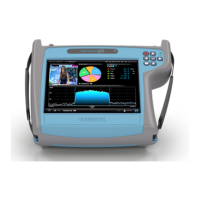
Hexylon High-performance portable meter
16
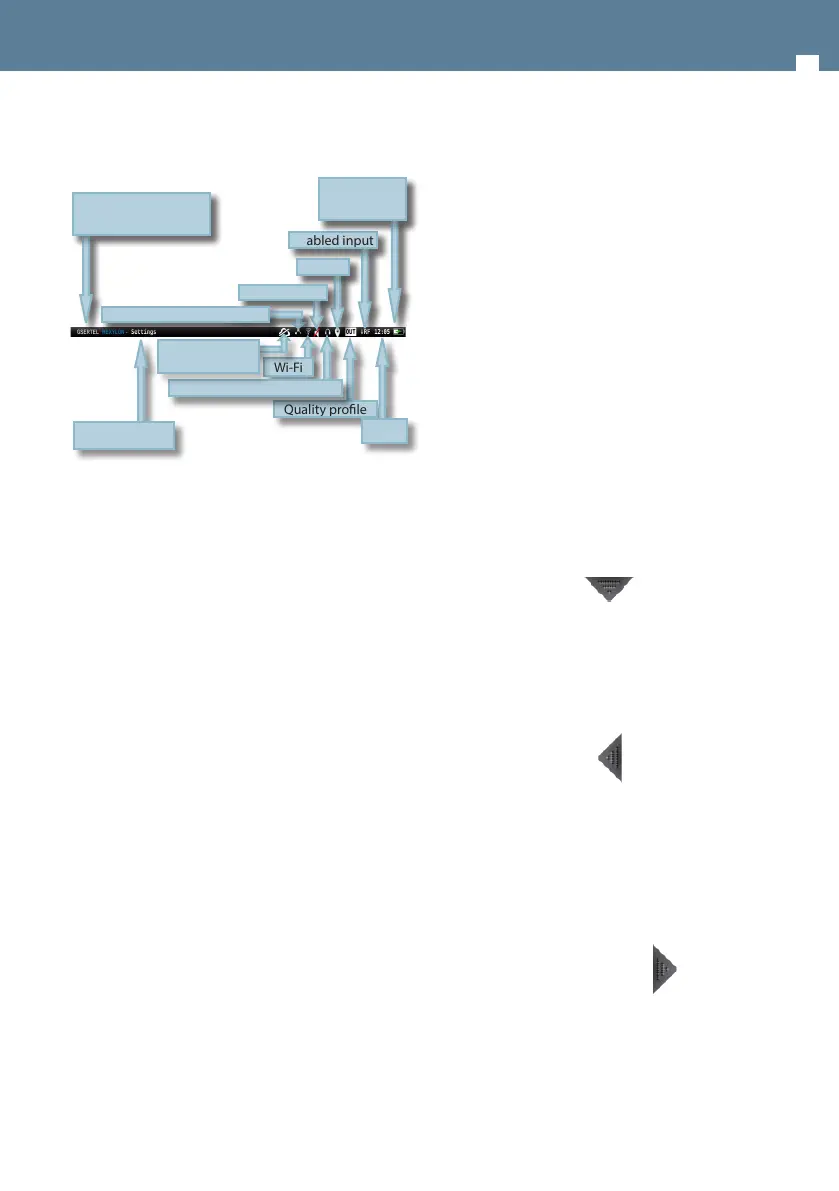
Top bar:
• Conection to the network: indicates that the
meter is connected to the network by Ethernet.
See section Settings-Network in Top Muenu
-No icon->No cable connected
-White icon->Cable connected
-Green icon->Connected to the internet
• Wi-Fi: indicates that the meter is connected to a
Wi-Fi network. See section Settings-Wi-Fi in Top
Menu
- No icon->Wi-Fi disabled
- White blinking icon->Wi-Fi stablishing connection
-White icon->Wi-Fi connected
-Grey icon->Wi-Fi error
-Green icon->Connected to the internet
• GPS: indicates that the GPS is active. While the
satellite data is not received, the icon blinks. See
section Settings-GPS in Top menu. To perform
a Drive-Test the GPS must be active, and then
schedule a MacroLOG (see icons in the Bottom
bar). The results of the Drive Test are shown in the
web application. See section 1.- Measurements in
Web application.
• LNB and DiSEqC information: shows information
about the LNB band (only if real frequency is
selected -see section 1.2.- Measurements of the
menu 1.- Settings-), as well as about DiSEqC if it is
active. See section 2.- User proles
• Quality prole: indicates the selected quality
prole. To select other quality prole, access the
options context menu of the feature. See section
Options context menu in Menus. To add new quality
proles see section 5.- Quality proles in Web
application.
Current feature
Wi-Fi
Quality prole
Time
Headphones output enabled
Equipment model
Enabled input
Battery state
GPS
Mute
Ethernet connected
• Enabled input: See section Inputs/Outputs in Top
menu.
• Time: see section Regional in the feature 1.-
Settings
• Connection to the cloud: See section Before
Starting to register you and your Hexylon, so you
will access to the cloud.
- Crossed out icon->No internet connection or cloud
connection
- White icon->There is connection to the cloud, but
the Hexylon is not registered
-Green icon->Connected to the cloud and Hexylon
registered
Menus
The Hexylon has 3 dierent menus. These menus
will be explained in this section briey, as well as
their locations. All their features will be explained
in the sections below.
Top Menu
To access this menu you must do a short swipe at
the top central part of the screen.
The features of this menu allows us to set up
certains aspects of the meter in a fast way and from
any feature.
Main Menu
To access this menu you must do a short swipe on
the right central part of the screen.
The main menu is a wheel with all the features of
the meter.
Doing long swipe on the wheel, the user can access
every features. To select a feature, you must tap on
the corresponding icon.
Options context menu
Most of the features of the main menu have a menu
with some options that pertain exclusively to that
feature. These options are in a context menu that
appears when the user does short swipe on the left
central part of the screen.
Not connected
to the internet


 To Next Page
 Loading...