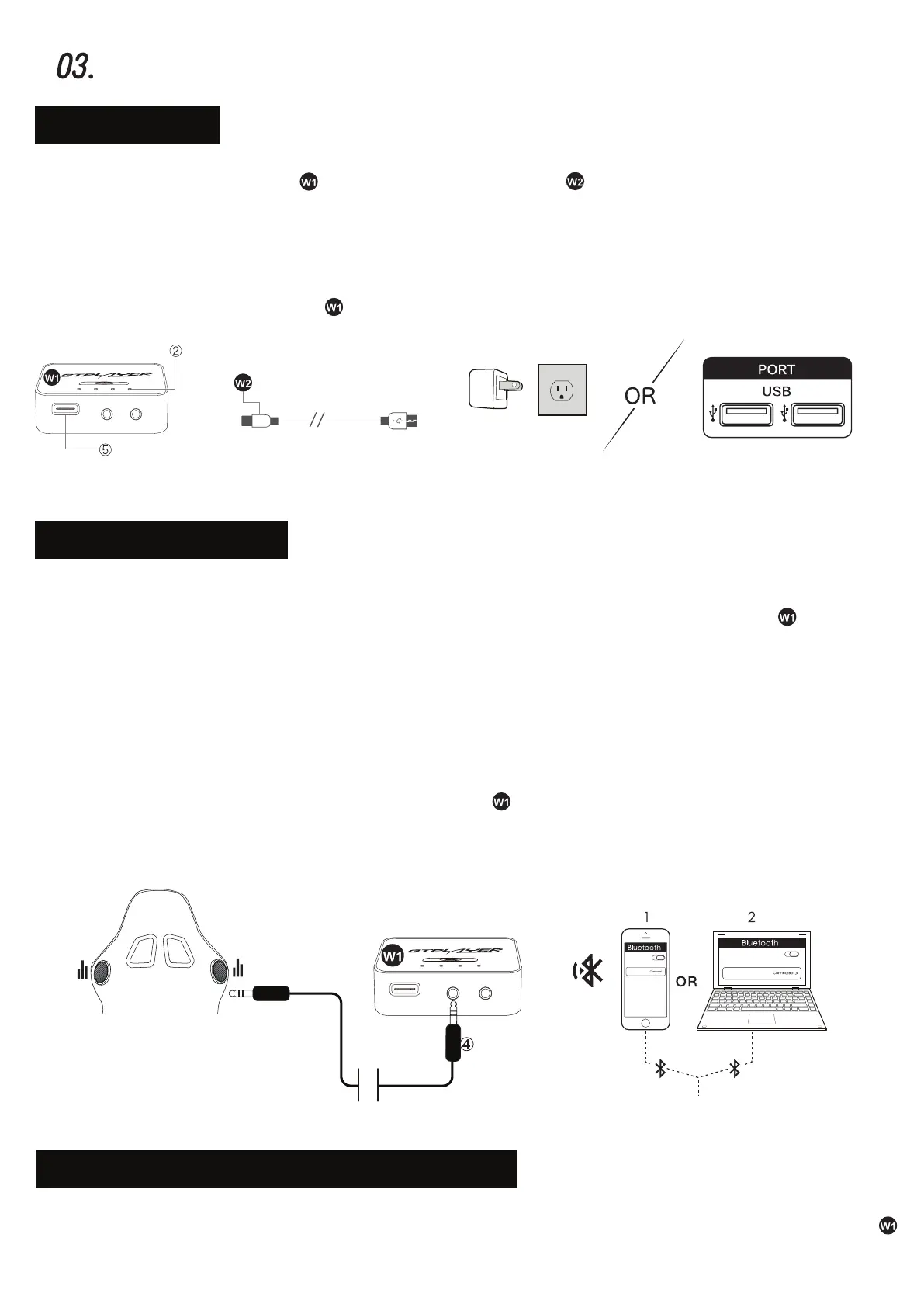
Charge the Bluetooth receiver with Type-C charging cable or battery charger (Not included)
for about 90 min, and it will be fully charged. The LED indicator light ② flashes blue ● when
BASICOPERATION
⑴.Charging
charging, and 4 blue lights ● ● ● ● are always on when fully charged . (There are 4 blue lights
in total, and one blue light represents 25% battery.)
* Note: This Bluetooth receiver cannot be used when it is charging.
4. If the connection is broken, voice will prompt “Disconnected".
5. If there is no connection, the Bluetooth receiver will automatically turn off after 5 min.
6. After connection, the blue light
● will light up. After a period of time, it will enter the energy
-saving mode and only one blue light
● will be on for a long time.
LED Indicator
Type-C
Charging Port
(Not included)
Type-C Charging Cable
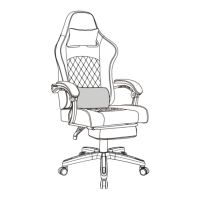
Audio Jack
⑵.PairandConnect
Connecting to smartphones and other devices:
1. Long press the multi-function button ① for 2s to turn on the Bluetooth receiver . The LED
indicator light flashes red and blue
● ● , and the voice will prompt “POWER ON".
2. Activate the Bluetooth function on your phone and search for Bluetooth devices. Pair your
phone to “GTPLAYER".
3. After successful pairing, voice will prompt “Connected".
Bluetooth Speakers
Audio Cable
GTPLAYER
GTPLAYER
GTPLAYER
⑶.InstructionsofMulti-functionButton
1). Power On — Long press the multi-function button ① for 2s to turn on the Bluetooth receiver
and the voice will prompt “POWER ON".


 To Next Page