This document describes the ekey finger scanner, model B-55600-13-4-6, a biometric access control system designed and manufactured in Germany.
Function Description
The ekey finger scanner is a biometric access control system that uses fingerprint recognition to open doors. It consists of two electronic devices: the finger scanner itself and a control unit called SECUREconnect 200. The finger scanner is typically mounted on the exterior of the door. To prevent unauthorized access, the system incorporates several security features:
- Encrypted Data Transmission: The finger scanner is connected to the control unit via a data cable, and all data transmission is encrypted.
- Master Finger for Administration: Recording user fingers and modifying system settings are only possible after a designated "master finger" has been recognized by the system.
- Unique Pairing: The finger scanner and control unit are uniquely paired during initial commissioning.
- Repairing Procedure: If a component (SECUREconnect 200R, SECUREconnect 200F, or the finger scanner) needs to be replaced, a re-pairing procedure must be performed. This involves closing a reset contact on the SECUREconnect board for at least 3 seconds while the power supply is connected. This process resets the finger scanner to its factory settings and initiates a new pairing.
The system can be programmed and administered using two different concepts:
- Open Biometric App: Administration of the Bluetooth finger scanner via a mobile device (smartphone or tablet).
- Master Finger: Administration of the finger scanner directly using a designated master finger.
Important Technical Specifications
- Supply Voltage: 10-24 V DC (max. 30 V)
- Power Consumption: < 1 W
- Environmental Conditions: -20 °C to +70 °C, IP54 rated (protection against dust and splashing water)
- Template Memory: 99 finger templates
- Template Identification Duration: 1-2 seconds
- False Rejection Rate (FRR): 1:100 (meaning 1 out of 100 legitimate attempts might be rejected)
- False Acceptance Rate (FAR): 1:10,000,000 (meaning 1 out of 10 million unauthorized attempts might be accepted)
- Lifetime: Max. 10 million finger scans
- Certifications: CE (certificates available on www.g-u.com)
Usage Features
Operating the Fingerprint Scanner
The finger scanner uses a line sensor to capture and evaluate fingerprint images. It compares the scanned image with stored biometric information. If a match is found, the door opens. For reliable operation, the scanner requires the papillary lines of the distal phalanx (the fingertip) to be drawn smoothly and evenly over the sensor.
Finger Dragging Technique:
- Hold the finger straight and position it centrally between the guide edges. Do not twist the finger.
- Place the joint of the distal phalanx directly on the sensor, ensuring the finger lies flat on the finger guidance.
- Stretch out adjacent fingers.
- Move the finger evenly downwards over the sensor, moving the entire hand with the finger. The movement should take approximately 1 second.
Tips for Good Fingerprint Quality:
- Index, middle, and ring fingers generally provide the best results. Thumb and little finger images are often difficult to analyze.
- If fingers are frequently wet, store the fingerprints in a wet state.
- Fingerprints from children aged 5 years or older can be used.
Finger Touch (for specific functions):
- Briefly and quickly touch the sensor with the finger.
System Commissioning
- Installation: Install devices and wiring according to the provided installation instructions.
- Automatic Pairing: Upon first power-on, the finger scanner and SECUREconnect automatically pair. A blue LED flashes when pairing is complete.
- Operating Concepts: Choose between app-based administration or master finger administration.
Programming with the Open Biometric App
The open biometric app (available for Apple iOS and Google Android) allows for system programming and door opening.
App Download and Initial Pairing:
- Download the "open biometric" app from the App Store or Google Play.
- Start the app and search for available Bluetooth devices.
- Select your ekey Bluetooth finger scanner (identified by the last 4 digits of its serial number).
- Enter the default device coupling code (9999) and app security code (9999) for initial pairing.
- Change the default 6-digit device coupling code for security reasons. This code will be needed for pairing additional mobile devices.
- The mobile device will then be paired with the Bluetooth finger scanner, and the system will enter normal operation.
App-based Functions:
- Changing Security Codes: Modify app security code, admin coupling code, and user coupling code. The app security code can be deactivated if the mobile device has its own secure locking mechanisms (fingerprint, code).
- Storing Fingerprints: Store both master and user fingers. It is recommended to store at least one fingerprint from each hand per access point.
- Disabling Bluetooth: Bluetooth functionality can be deactivated after 15 minutes if no mobile device is connected or at least one finger is stored. Reactivate by dragging any master finger over the sensor.
- Pairing Further Mobile Devices: Pair additional mobile devices using the chosen 6-digit admin or user coupling code.
- Administering Multiple Scanners: To switch between multiple Bluetooth finger scanners, reset the pairing between the current scanner and the mobile device. This deletes stored relay names and user images from the app, but user names and authorizations remain on the scanner.
- Storing User Coupling Code: A user coupling code can be stored and shared, allowing actions like opening the door, activating/deactivating/changing the app security code, and resetting pairing.
- Resetting App Security Code: If the app security code is forgotten, it can be reset to 9999 by entering an incorrect code, confirming, and selecting "RESET COUPLING".
- Protecting Against Mobile Device Loss: If a mobile device is lost, the admin or user coupling code can be changed using a second mobile device, preventing the lost device from connecting.
- Reset System to Factory Settings (App): This deletes all user and master fingers. The pairing between the finger scanner and SECUREconnect 200 is maintained.
Programming with Master Fingers
Master fingers are used exclusively for programming the system. It is recommended to store 4 different master fingers (e.g., two from two different people), with each finger scanned at least 3 times.
Storing Master Fingers:
- When the scanner is in "No fingerprint stored" state, perform 3 finger touches within 5 seconds to activate admin mode.
- Drag the first master finger over the sensor. The system will prompt for repeated scans until the quality is very good.
- The scanner will then be ready to record subsequent master fingers.
- If the scanner restarts in admin mode with fewer than 4 master fingers, all existing master fingers are deleted.
- During scanning, no more than 10 seconds should elapse between individual scans, or the process will be aborted.
Storing User Fingers:
- Perform 3 finger touches within 5 seconds to enter admin mode.
- Drag any master finger over the sensor to activate saving mode.
- Drag the user finger to be stored over the sensor repeatedly until it is successfully stored.
Deleting User Fingers:
- Perform 3 finger touches within 5 seconds to enter admin mode.
- Drag any master finger over the sensor to activate saving mode.
- Wait 5 seconds to enter deletion mode.
- Drag the specific user finger to be deleted over the sensor. This can only be done if the user is present.
Deleting All User Fingers:
- Perform 3 finger touches within 5 seconds to enter admin mode.
- Drag any master finger over the sensor to activate saving mode.
- Wait 5 seconds to enter deletion mode.
- Perform 1 finger touch to confirm deletion of all user fingers. Master fingers remain stored.
Reset Finger Scanner Factory Settings (Master Finger):
- Perform 3 finger touches within 5 seconds to enter admin mode.
- Drag any master finger over the sensor to activate saving mode.
- Wait 5 seconds to enter deletion mode.
- Perform 1 finger touch.
- Scan a different master finger than previously scanned to confirm the factory reset. This deletes all user and master fingers. The pairing between the finger scanner and SECUREconnect 200 is maintained.
Opening the Door
The door can be opened either with the open biometric app or by using the finger scanner.
With the Open Biometric App:
- Start the app and connect to the Bluetooth finger scanner.
- Select "ACCESSES".
- Slide the slider for the desired access to the right. The SECUREconnect sends a control signal to the motor lock, and the door opens.
With the Fingerprint Scanner:
- Drag a stored user or master finger over the sensor.
- If the fingerprint is recognized successfully, the door opens.
Maintenance Features
The system is generally maintenance-free. The sensor surface is largely self-cleaning due to repeated use. If the finger scanner becomes soiled, clean it with a damp (not wet), non-scratching cloth. Suitable cleaning materials include cotton buds, microfibre cloths, and glasses cloths. Avoid cotton fabrics, paper towels, kitchen sponges, and dishcloths. Use clean water without cleaning additives. Exercise caution when cleaning the sensor area.
Disposal
The device must be disposed of as electronic waste at public collection points or recycling centers. Packaging should be disposed of separately.

 Need help?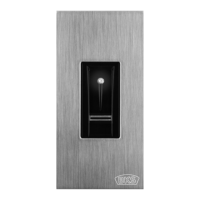

 To Next Page
 General