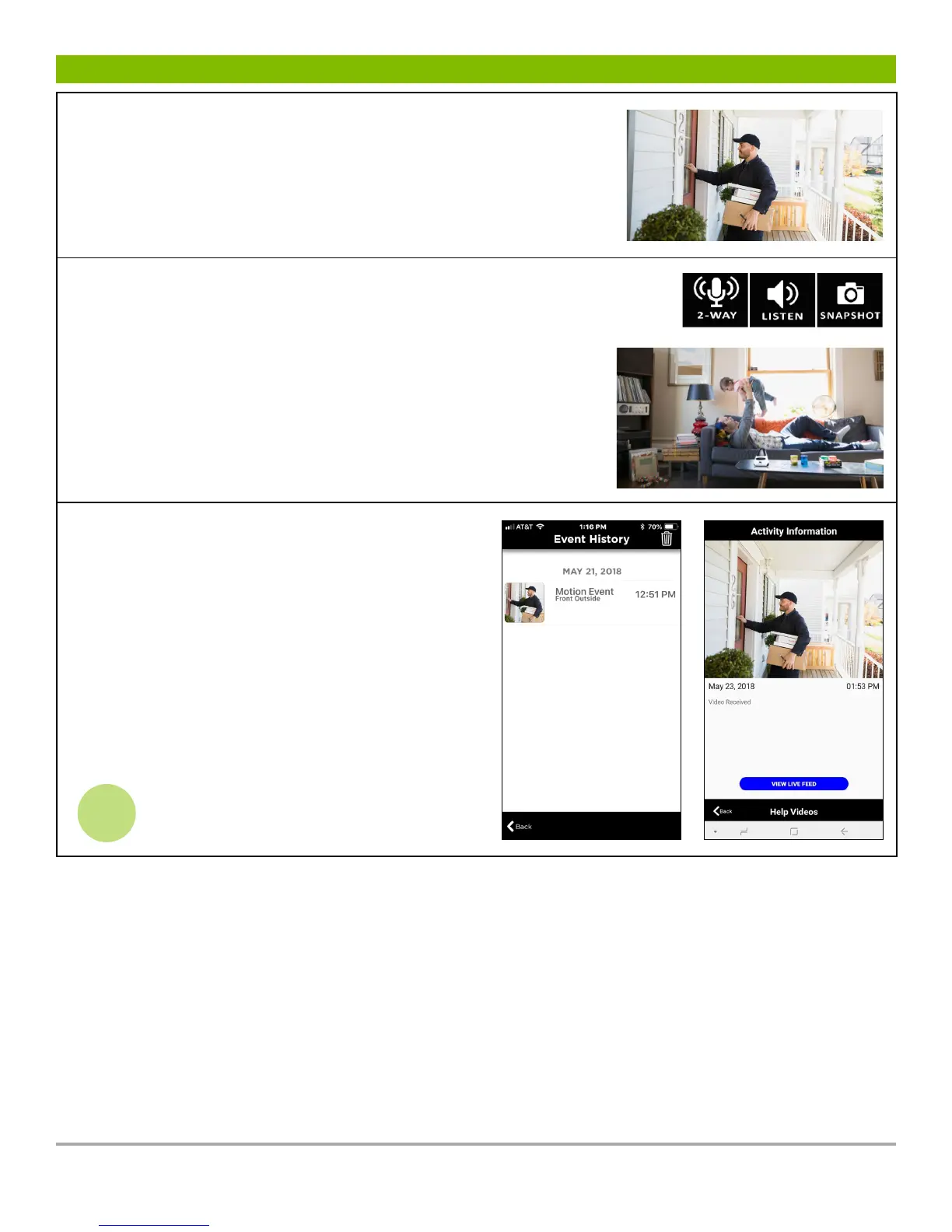
cont’d.
To view 360
o
video:
View the live video feed in the upright mode or turn the phone
horizontally and the image will fill the screen. To view all areas of the
video either: 1) drag a finger across the screen in the desired direction; or
2) move the phone in the desired viewing direction.
cont’d.
Audio & Photos:
Press the 2-WAY microphone icon (it will light up green) to begin a conversation
in the room. Press the LISTEN icon to hear into the room. Press the SNAPSHOT
icon to take an image of the room, which can be viewed in the Event History area
of the app.
NOTE: If your phone is within hearing distance of your camera you may experience
feedback. Turn off the LISTEN and 2-WAY buttons until your phone is out of
hearing range.
About Event History:
The EVENT HISTORY button enables the user to view
all of the events their camera records, such as motion
events (e.g. motion detected), images taken, and
actions (e.g. alarm armed). To view a motion detection
video, press EVENT HISTORY on the homepage, then
press the desired video to view. The Live Feed button
will connect to the camera’s current live video feed.
4
www.guardzilla.com
Guardzilla is a registered trademark of Practecol, LLC



 To Next Page