Introduction
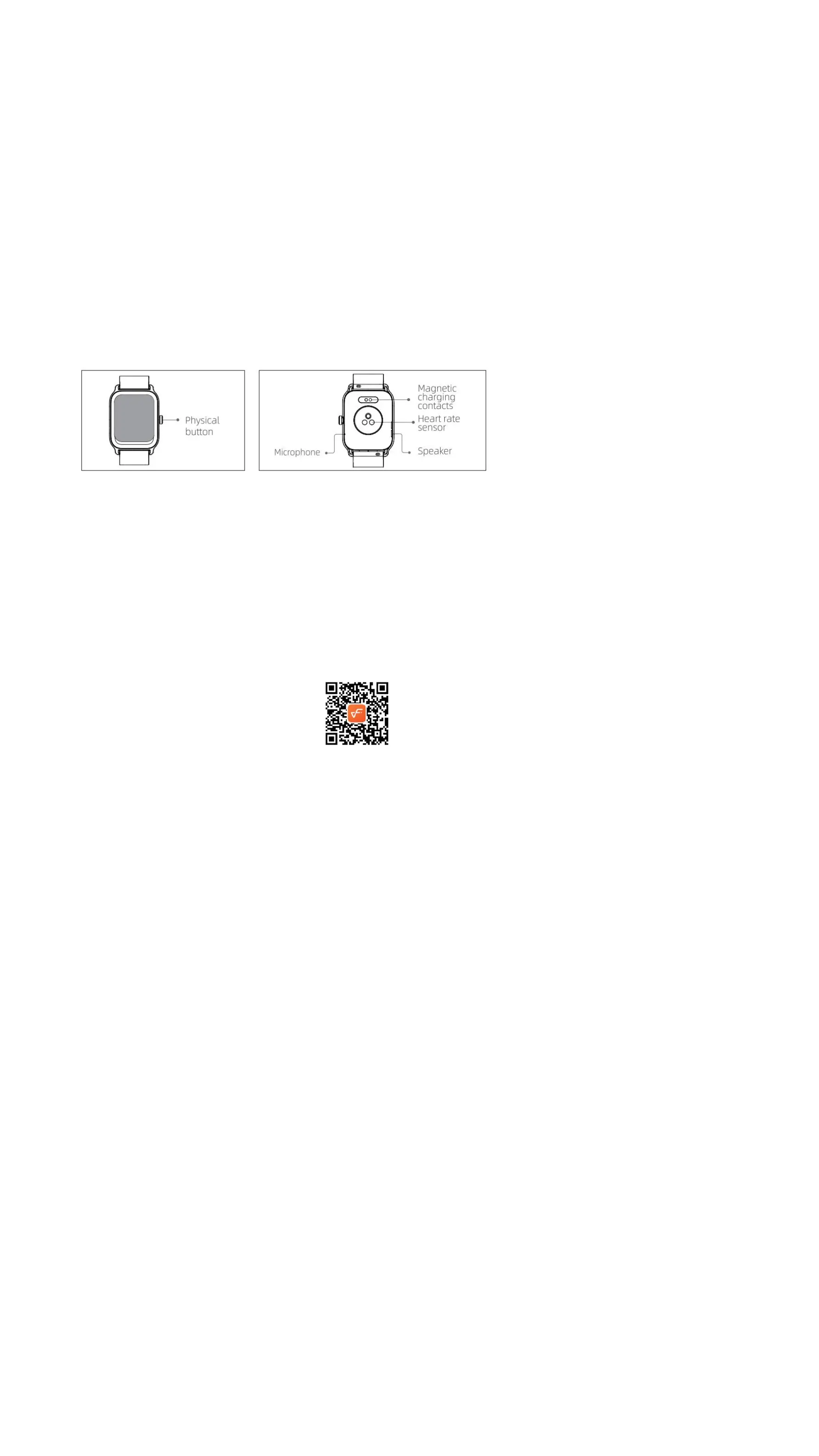
Screen display area
Function button
Pressure relief hole
Heart rate sensor
Microphone
Speaker
Front side
Back side
Getting started
(1) Open the package and check its content.
(2) Delivery content: 1) IDW13 smart watch (with built-in lithium battery); 2) user manual; 3) original charging cable.
(3) Charge the watch to activate and turn it on before first use. To charge, simply connect the magnetic charging cable to the charging contacts located
on the back of the watch.
(4) Search for “veryfit” on the App Store, Google Play or scan the QR code to download and install the app.
(5) Log in to the app and set your personal information, as well as your step and weight goals.
(6) On the “Device” interface, tap the “+” icon in the upper right corner, your phone starts searching. From the device list found, choose your smart
watch name to pair with. You may also link the device directly by scanning the device’s QR code using the scan function.
Health
a) Watch
1. The watch will automatically record your data.
2. You can measure your heart rate, blood oxygen and stress level on the watch, or turn on automatic measurement of heart rate, blood oxygen, stress
level and sleep on the app to track these data the whole day. You can manually or make the watch automatically monitor your health status
continuously.
3. To start an exercise:
1) When the watch face interface is displayed, short press the physical button to access the application list. Tap the Workout icon to access the
icons of different exercise types, then tap the icon of an exercise (such as Outdoor Running) to start the exercise.
2) The watch can display up to 20 exercise types by default. On the app's Multi exercise mode, you can add or delete the exercise types
displayed on the watch or change their order.
b) App
1. Start “veryfit”,enable the Bluetooth feature, and grant the GPS positioning permission;
2. Light up the bracelet screen and bring it close to your phone;
3. Click the “+” icon on the App, and select the smart watch model in the search results to bind;
4. Confirm the binding request on the smart watch;
5. Fill in your information and set your step goal on the App to complete the binding.


 To Next Page