EasyManua.ls Logo

Haier G32 - User Manual

Haier G32
8 pages
Print Icon
To Next Page IconTo Next Page
Loading...
G32 Quick Guide
Your Phone Your Phone Keys Insert SIM Card and Micro-SD Card Home Screen Notification Bar Status of the Icons
Back Cover
Speaker
Back Camera
Flash
Volume Key
Power Key
L-sensor/
Proximity Sensor
Front Camera
4.5 inch Touch
Screen
Receiver
Home Key
Back KeyMenu Key
Charger/
USB Connector
Back -Back to the previous screen or exit
Home-Return to the Home screen
Recent apps key-long-To display the recent app list
Volume -Volume up/down. Continuously press to turn
to silent and vibrate mode. Adjust the call volume.
Adjust the music playback volume.
Power - Press short to turn on/off the screen display.
Press 3S to turn on/off the phone. Press 15S to restart
the phone.
Open the Recent Applications
Press the recent key to open and quick access
the recent applications. Slide left or right in the
list to delete the applications.
Take a Screenshot
Press the power and volume down keys at the
same time to take a quick screenshot for the
current page.
Call Mute
Press the volume key to turn off the ring when
there is a call.
Note
Insert SIM Card
The phone can support dual SIM Card. When you use
two SIM Card, The SIM 1 can support 4G. When you use
one SIM Card, both slot can support 4G.
Insert Memory Card
This phone supports external Micro-SD card (TF card)
and can be extended up to 32GB64GB128GB.The
memory card should be inserted into the card slot
correctly to the position line. Please follow the picture
shown above.
Please power off the phone and pull out the battery
before you are ready to insert the SIM card.If not,
the SIM card might become damaged.
Notification Bar
Application Icons
Shortcut Icons
Slide down the notification bar to read detail notice.
Slide up or press the Back key back to the idle.
Quick Access to Settings
Adjust the brightness
4G network in use
3.5G network in use
3G network in use
2G network in use
Battery level
Vibration mode
Flight mode
Call incoming
Call on hold
Missed calls
New SMS
Connected to computer
Alarm activated
Downloading
New voice mail
Synchronizing
Icons Functions
SIM 1
SIM 2
Micro
SD
Question and Answer IconNeed help?

Do you have a question about the Haier G32 and is the answer not in the manual?

Overview

The Haier G32 is a smartphone designed for everyday use, featuring a 4.5-inch touch screen and support for dual SIM cards, with 4G connectivity on SIM 1. Its design emphasizes ease of use with clearly labeled physical and on-screen controls.

Physical Features and Controls:

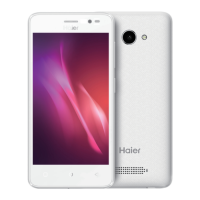
The front of the Haier G32 features a 4.5-inch touch screen, which serves as the primary interface for interacting with the device. Above the screen, you'll find the receiver for calls, the front camera, and the L-sensor/Proximity Sensor, which helps manage screen brightness and turn off the screen during calls. Below the screen are three capacitive keys: the Menu Key, Home Key, and Back Key, providing essential navigation functions. On the left side of the device, there's a Charger/USB Connector for charging and data transfer.

On the back of the phone, the Back Camera is centrally located near the top, accompanied by a Flash for improved low-light photography. The Volume Key and Power Key are positioned on the right side of the device, allowing for easy adjustment of volume and control over the phone's power state. The Back Cover is removable, suggesting access to the battery and SIM/Micro-SD card slots. At the bottom of the back, a Speaker is present for audio output.

Key Functions and Usage:

The Haier G32 offers several key functions accessible through its physical and on-screen controls:

  • Back Key: This key allows users to return to the previous screen or exit an application.
  • Home Key: Pressing this key will always return the user to the Home screen, providing a quick way to navigate back to the main interface.
  • Recent Apps Key (long press): A long press on the recent apps key displays a list of recently used applications, enabling quick switching between them. Users can slide left or right in this list to close or delete applications.
  • Volume Key: This key controls the audio volume. Pressing it continuously can switch the phone to silent and vibrate modes. It also adjusts call volume and music playback volume.
  • Power Key: A short press on the power key turns the screen display on or off. Pressing it for 3 seconds will turn the phone on or off, while a 15-second press will restart the device.

Advanced Usage Features:

  • Open Recent Applications: By pressing the recent key, users can quickly access and manage their recently used applications. Swiping left or right on an app in the list will remove it.
  • Take a Screenshot: To capture the current screen, users can simultaneously press the power and volume down keys.
  • Call Mute: During an incoming call, pressing the volume key will mute the ringtone.

SIM and Memory Card Installation:

The Haier G32 supports dual SIM cards and an external Micro-SD card for expanded storage.

  • SIM Card Installation: It is crucial to power off the phone and remove the battery before inserting the SIM card to prevent damage. The phone supports dual SIM cards. When two SIM cards are used, SIM 1 supports 4G connectivity. If only one SIM card is used, both SIM slots can support 4G.
  • Memory Card Installation: The device supports external Micro-SD (TF) cards with capacities up to 32GB, 64GB, or 128GB. The memory card must be inserted correctly into the designated slot, aligning with the position line indicated in the provided diagram.

Home Screen and Notifications:

The Home screen is the central hub for the Haier G32, displaying key information and providing access to applications.

  • Notification Bar: Located at the top of the screen, the Notification Bar displays system icons, time, and notifications. Users can slide down the notification bar to view detailed notices. Sliding up or pressing the Back key will return to the idle state.
  • Quick Access to Settings: The notification panel also provides quick access to settings, allowing users to adjust various phone functions.
  • Adjust Brightness: Within the notification panel, there's a control to adjust the screen brightness.
  • Application Icons: These icons represent installed applications, allowing users to launch them with a tap.
  • Shortcut Icons: These icons provide quick access to frequently used applications or functions, often customizable by the user.

Status Icons:

The Notification Bar displays various icons to indicate the phone's current status:

  • LTE: 4G network in use.
  • H+: 3.5G network in use.
  • H: 3G network in use.
  • E: 2G network in use.
  • Battery level: Indicates the current battery charge.
  • Vibration mode: The phone is set to vibrate for notifications.
  • Flight mode: All wireless communications are disabled.
  • Call incoming: There is an incoming call.
  • Call on hold: A call is currently on hold.
  • Missed calls: Indicates missed phone calls.
  • New SMS: A new text message has been received.
  • Connected to computer: The phone is connected to a computer via USB.
  • Alarm activated: An alarm has been set and is active.
  • Downloading: A file or data is currently being downloaded.
  • New voice mail: A new voicemail message is available.
  • Synchronizing: Data is currently being synchronized.

The Haier G32 is presented as a user-friendly smartphone with essential features for communication, media consumption, and basic productivity, emphasizing clear controls and straightforward operation.

Haier G32 Specifications

General IconGeneral
BrandHaier
ModelG32
CategoryCell Phone
LanguageEnglish

Related product manuals