This document serves as the user's manual for the HANNspree HO225HTB (HSG1387) LCD Monitor, providing comprehensive instructions for its operation, maintenance, and troubleshooting. It emphasizes safety precautions, setup procedures, and detailed explanations of the monitor's features and settings.
Function Description
The HANNspree HO225HTB is a 54.6cm / 21.5" Wide Screen TFT Color LCD Monitor designed to provide crisp, clear display for Windows operating systems. It functions as a visual output device for computers, capable of displaying images and videos with high definition. The monitor supports both analog (VGA) and digital (HDMI) input sources, offering versatility in connectivity. It also incorporates HDMI™ technology, ensuring high-definition multimedia interface capabilities. The monitor is equipped with built-in speakers, allowing for audio output directly from the device, which can be adjusted via the OSD menu. Its Plug & Play DDC2B feature enables the monitor to communicate its display capabilities to the host system, facilitating automatic configuration.
Usage Features
The monitor is designed with user convenience and ergonomic considerations in mind.
- Display Quality: It offers a crisp and clear display, suitable for various applications, from general computing to multimedia consumption. The LCD screen boasts effective pixels of 99.99% or more, ensuring a high-quality visual experience.
- Connectivity: The HO225HTB provides multiple input options, including VGA, HDMI, and USB, allowing connection to a wide range of devices. An audio input port is also available for connecting to a PC's audio output.
- Control Panel: The front panel features intuitive control buttons: POWER, MENU, UP, DOWN, and AUTO. These buttons allow users to easily turn the monitor on/off, navigate the On-Screen Display (OSD) menu, adjust brightness and volume, and select input sources.
- OSD Menu Settings: The OSD menu offers extensive customization options for the display.
- Brightness/Contrast: Users can adjust brightness and contrast levels to their preference, and an "ACTIVE CONTRAST" option automatically enhances contrast for high-contrast images or videos.
- Preset Mode: Several preset modes (PC, MOVIE, GAME, ECO) are available to optimize display settings for different content types.
- Input Setting: Users can manually select between analog (VGA) or digital (HDMI) input sources. An "AUTO SEARCH" function is available for automatic signal detection, particularly useful for DVI/HDMI inputs.
- Color Setting: Color temperature can be adjusted to WARM, NATURE (6500K), or COOL. A "USER" option allows for fine-tuning of individual Red, Green, and Blue color levels.
- Image Setting:
- "AUTO ADJUST" optimizes H-POSITION, V-POSITION, CLOCK, and PHASE for VGA input.
- "ASPECT RATIO" allows adjustment for distorted screen images, with "FULL" for full screen and "FIT" for scaling to original image proportions.
- "H-POSITION" and "V-POSITION" enable shifting the screen image horizontally or vertically (for VGA input).
- "CLOCK" and "PHASE" reduce vertical and horizontal flicker, respectively (for VGA input).
- "SHARPNESS" adjusts the display's sharpness.
- "VIDEO MODE" allows selection between "VIDEO MODE" and "PC MODE" for video transmission, ensuring complete image display when using HDMI or HDMI to DVI ports.
- "RESPONSE TIME" offers settings like MINIMUM, INTERMEDIATE, and MAXIMUM to adjust the display's response time.
- OSD Setting:
- "LANGUAGE" changes the OSD menu language.
- "H-POSITION" and "V-POSITION" adjust the OSD menu's position.
- "TRANSPARENCY" adjusts the OSD's transparency.
- "OSD TIME-OUT" sets the duration the OSD menu remains visible.
- "OSD COLOR" allows choosing the color combination of the OSD window.
- System Settings:
- "AUDIO INPUT" allows selection between HDMI and PC audio input, crucial for proper sound output when using HDMI.
- "VOLUME" controls the built-in speaker volume.
- "MUTE" toggles audio output on/off.
- "DDC/CI" enables or disables the Display Data Channel/Command Interface function.
- "FACTORY RESET" restores all settings to their default values.
- "INFORMATION" displays horizontal frequency, vertical frequency, and resolution details.
- Wall Mounting: The monitor is VESA compatible (100x100, 4 holes, M4, 10mm, 8kg), allowing for wall mounting with an approved bracket. This feature provides flexibility in placement and helps save desk space.
- Power Management: The monitor features a power indicator (blue for ON, orange for Power Saving mode) and low power consumption in both power saving and off modes, contributing to energy efficiency.
Maintenance Features
The manual provides clear guidelines for maintaining the monitor to ensure its longevity and optimal performance.
- Cleaning: To keep the monitor looking new, it should be periodically cleaned with a soft cloth. Stubborn stains can be removed with a cloth lightly dampened with a mild detergent solution. Users are explicitly warned against using strong solvents such as thinner, benzene, or abrasive cleaners, as these can damage the cabinet. It is crucial to unplug the monitor before cleaning for safety.
- Environmental Considerations: The monitor should not be installed near heat sources (radiators, air ducts), in direct sunlight, or in places subject to excessive dust, mechanical vibration, or shock. Proper ventilation is essential to prevent overheating, and the monitor should not be placed on soft surfaces or near heat registers where openings could be blocked.
- Packaging: Users are advised to save the original shipping box and packing materials. These materials will be useful if the monitor ever needs to be shipped, ensuring maximum protection during transit.
- Troubleshooting: The manual includes a comprehensive "TECHNICAL SUPPORT (FAQ)" section that addresses common problems and provides possible solutions. This empowers users to resolve minor issues independently, such as no power LED, no Plug & Play, display issues (dark/bright, bouncing, color defects), incorrect screen resolution, and no sound output.
- Professional Servicing: For more complex issues, especially those involving internal components or the backlighting, users are strongly advised not to attempt repairs themselves. Instead, they should contact their dealer or a qualified service center. This includes installation of wall mounts, which requires special skill and should only be performed by qualified service personnel.
- Cable Management: The manual emphasizes checking signal cable connections, ensuring they are properly seated and tightened, and inspecting pins for damage to prevent "CABLE NOT CONNECTED" errors.
- Software/Driver Updates: For display problems related to Windows 7/8, the manual recommends ensuring the PC and video card support the OS, and installing the latest video drivers. It also suggests using recommended display resolutions.
The HANNspree HO225HTB LCD Monitor is designed to be a reliable and user-friendly display solution, with features that cater to both performance and ease of use, supported by clear maintenance and troubleshooting guidance.

 Need help?
 General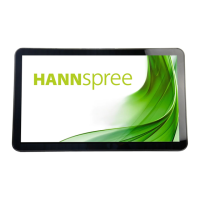



 To Next Page