Color Monitor
6
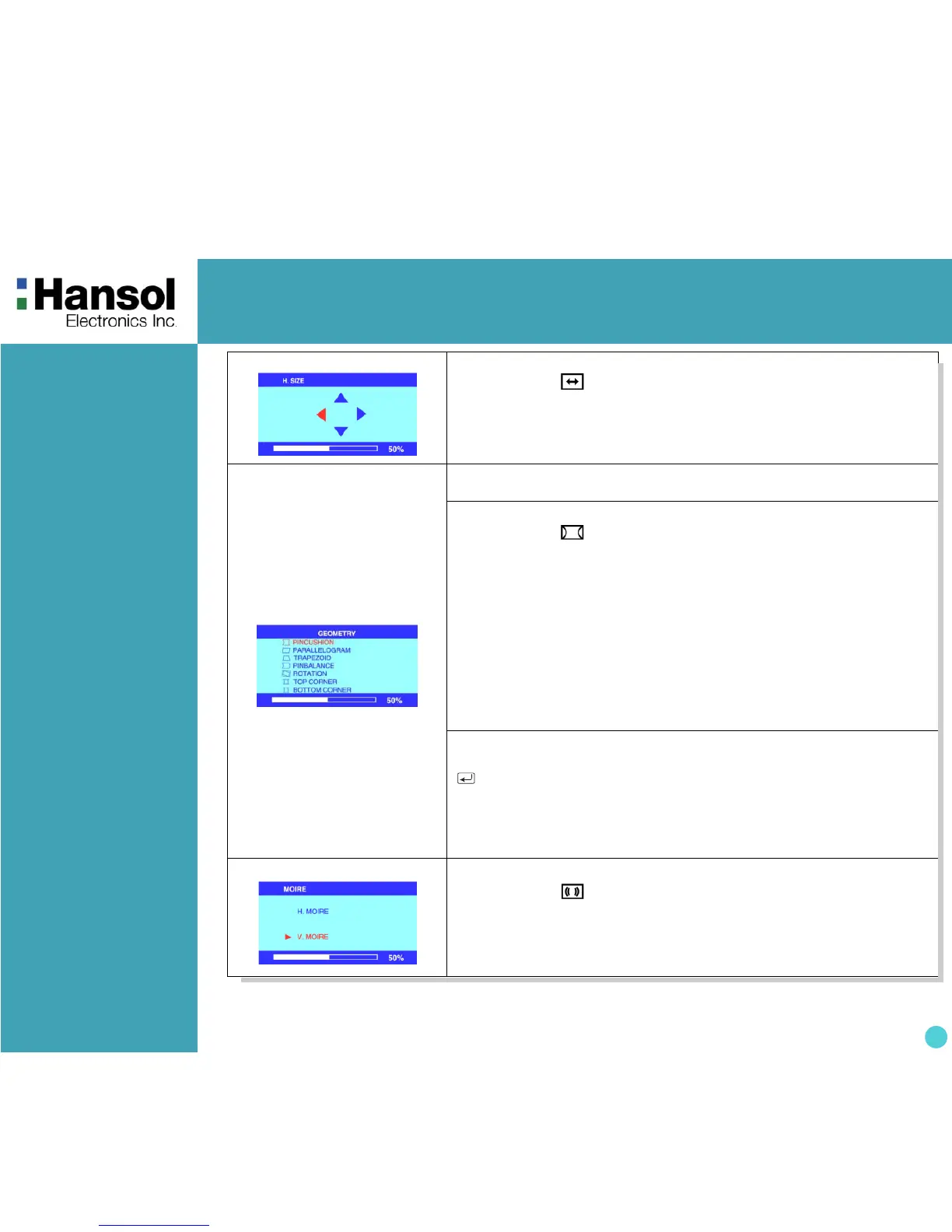
6. H/V-SIZE
• After choosing , push MENU button.
• MEUN : Push this button again & again to change the H/V-size.
•
- : Decrease the Horizontal or Vertical size of the image.
• + : Increase the Horizontal or Vertical size of the image.
7. GEOMETRY
The Geometry controls allow you to adjust the curvature or angle of
displayed image.
• After choosing , push MENU button.
• Pincushion : Increase or decrease the curvature of the sides either inward
or outward.
• Parallelogram : Increase or decrease the tilt of the sides either to the left
or right.
• Trapezoid : Increase or decreases the bottom of the screen to be the same
as the top.
• Pin Balance : Increase or decrease the curvature of the sides.
• Top Corner : Increase or decreases the curvature of the top sides.
• Bottom Corner : Increase or decrease the curvature of the bottom sides.
• Rotation : Rotate the entire display to clockwise or counterclockwise.
Geometry Menu control guide
: Exit to the main menu.
- / + : Move the function to choose.
MENU : Function to choose.
- / + : Increase or decrease the adjustment.
8. MOIRE
• After choosing , push MENU button.
• Select ON or OFF with
- / + key.
• Select H.MOIRE or v.MOIRE with
- / + key.
•
- / + : Adjust the Moire Control.



 To Next Page