HASE
en
5
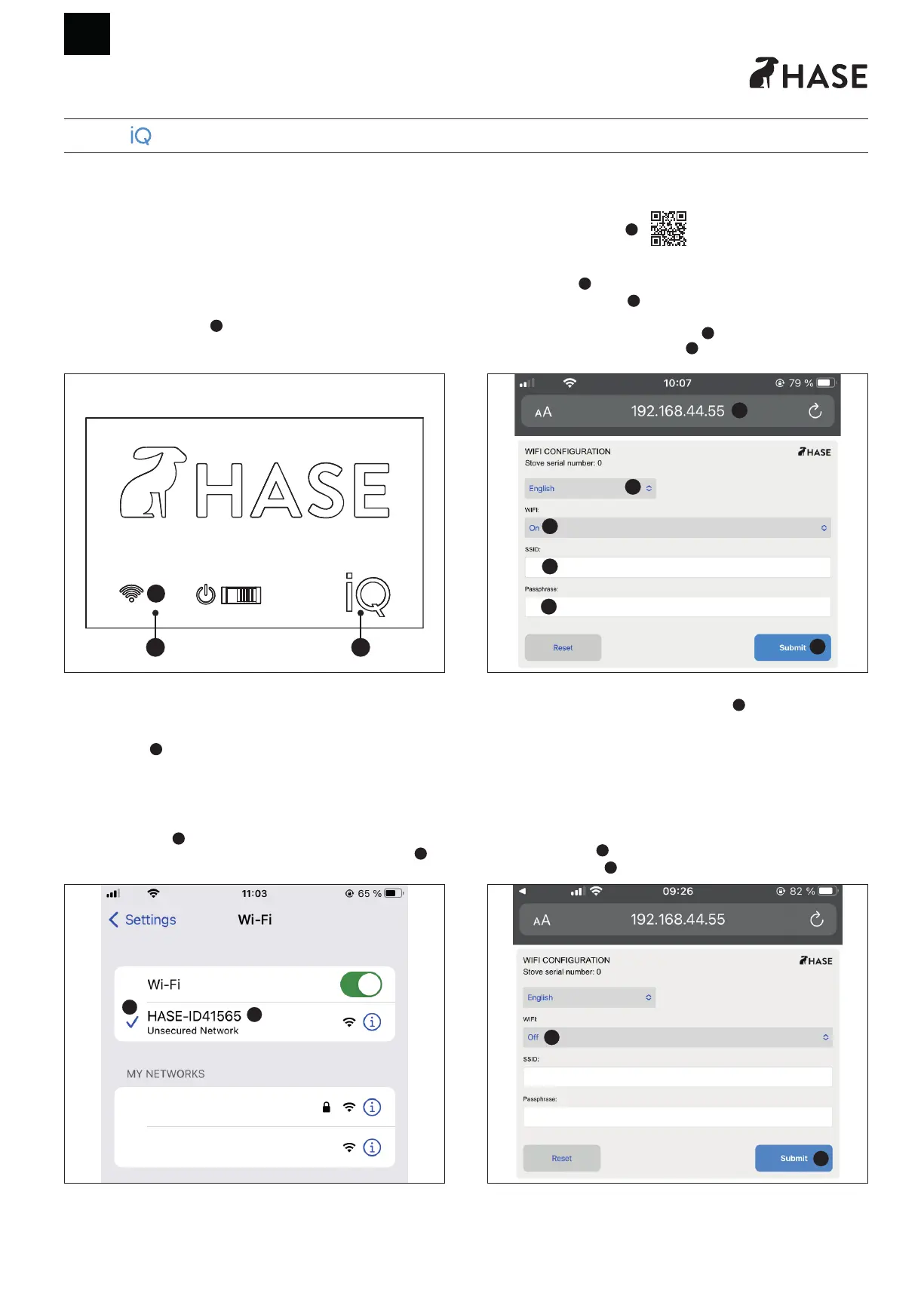
Turn off your mobile data during WiFi conguration.
Once connected, enter the following URL in your browser (Fig. 3):
► http://192.168.44.55/ (
1
).
In the page which opens, select/enter the following data (Fig. 3):
► Language (
2
).
► Activate WiFi*: „On“ (
3
).
► Connection data for your home network:
„SSID“ (Name of your WiFi network) (
4
) + „Network Key“
(Password of your WiFi network) (
5
).
2
4
5
1
6
3
Fig. 3
*WiFi needs to be turned „On“ to make a connection with your home network.
Enter your SSID and the password, then click „Submit“ (
6
).
After entering the correct information the message „The settings were saved and the
conguration mode stopped“ will show up.The hotspot will disappear and HASE iQ
changes to client mode. The status light stops ashing and will light up continuously.
HASE iQ is now permanently connected to your home network. In case of changing
your WiFi network (e.g. replacement of your router) the WiFi Conguration must be
carried out again.
Disable HASE iQ WiFi (Fig. 4):
► Select Flyout (
1
) and set to „Off“.
► Click „Submit“ (
2
).
2
1
Fig. 4
WiFi Conguration for HASE iQ
Activate WiFi
iQ and iQ+ series stoves have a WiFi receiver which can be connected to your home
network.
To connect HASE iQ to your home network:
► Press the WiFi button (
1
) in the control panel of your stove
(Fig. 1).
1 2
Fig. 1
When pressing the WiFi button, HASE iQ will set up a hotspot (approx. 5 min.)
which can be connected to a browser-compatible device (e.g. smartphone, smart TV,
tablet).
The iQ status light (
2
) will ash during this process.
Connect browser-compatible device
Open the interface to display the available WiFi connections on your device to connect
to the HASE iQ hotspot (
1
) (Fig. 2).
The name of the hotspot consists of HASE and the serial number of your stove (
2
)
(Fig. 2).
2
1
Fig. 2
WIFI CONFIGURATION



 To Next Page