66
H4D
4a3a
2a1a
21
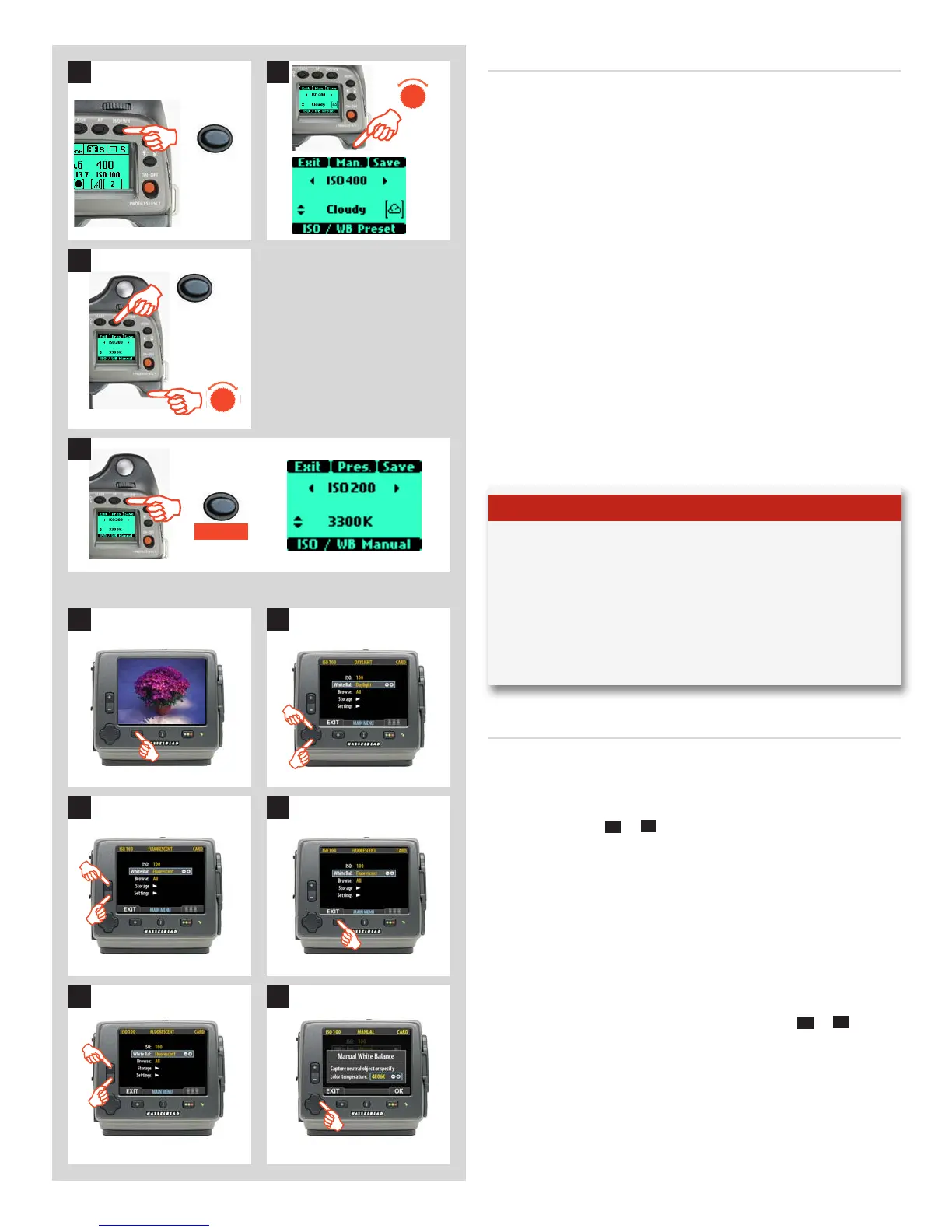
Tosetthewhitebalanceonthegrip
The ISO/WB button provides immediate access to white bal-
ance settings. The rear control wheel is used to make the de-
sired changes. The settings are automatically and simultane-
ously transferred from the camera to the sensor unit. Please note
that the changes are only displayed on the sensor unit when the
settings have been saved.
1) Press the ISO/WB button on the grip.
2) To make a preset White Balance setting, turn the rear
control wheel to choose between:
Daylight, Shade, Cloudy, Flash, Fluorescent and
Tungsten
3) To make a Manual White Balance setting (not a White
balance test exposure), press the Man. (AF) button and
then turn the rear control wheel to choose a color tempera-
ture:
2000 – 10000 K
4) Press SAVE (ISO/WB button) to save the setting.
Tosetthewhitebalanceonthesensorunit
To select a preset white balance:
1a. Press the MENU button on the sensor unit.
2a. Use and to select White Bal:.
3a. Use the zoom(
–
or
+
)
button to step through the available
choices until the one you want is shown.
4a. Press the MENU button to exit the menu system and keep the
setting.
To make a manual white balance setting:
1b. Choose MENU > White Bal > Manual.
2b. Use the button to call up the ‘Manual White Balance’ screen.
Here, you can adjust the color temperature to a specific
numeral setting in degrees K with the zoom (
–
or
+
)
Note
White Balance settings are only approximate color temperature
settings. They are only used for user convenience when viewing.
3F/3FR files are raw format files and therefore contain all the
information required for correction in Phocus and/or other soft-
ware, regardless of the original color temperature at the time of
exposure.
ISO/WB
R
Save
ISO/WB
R
AF
3
4
1b 2b










 To Next Page