92
H4D
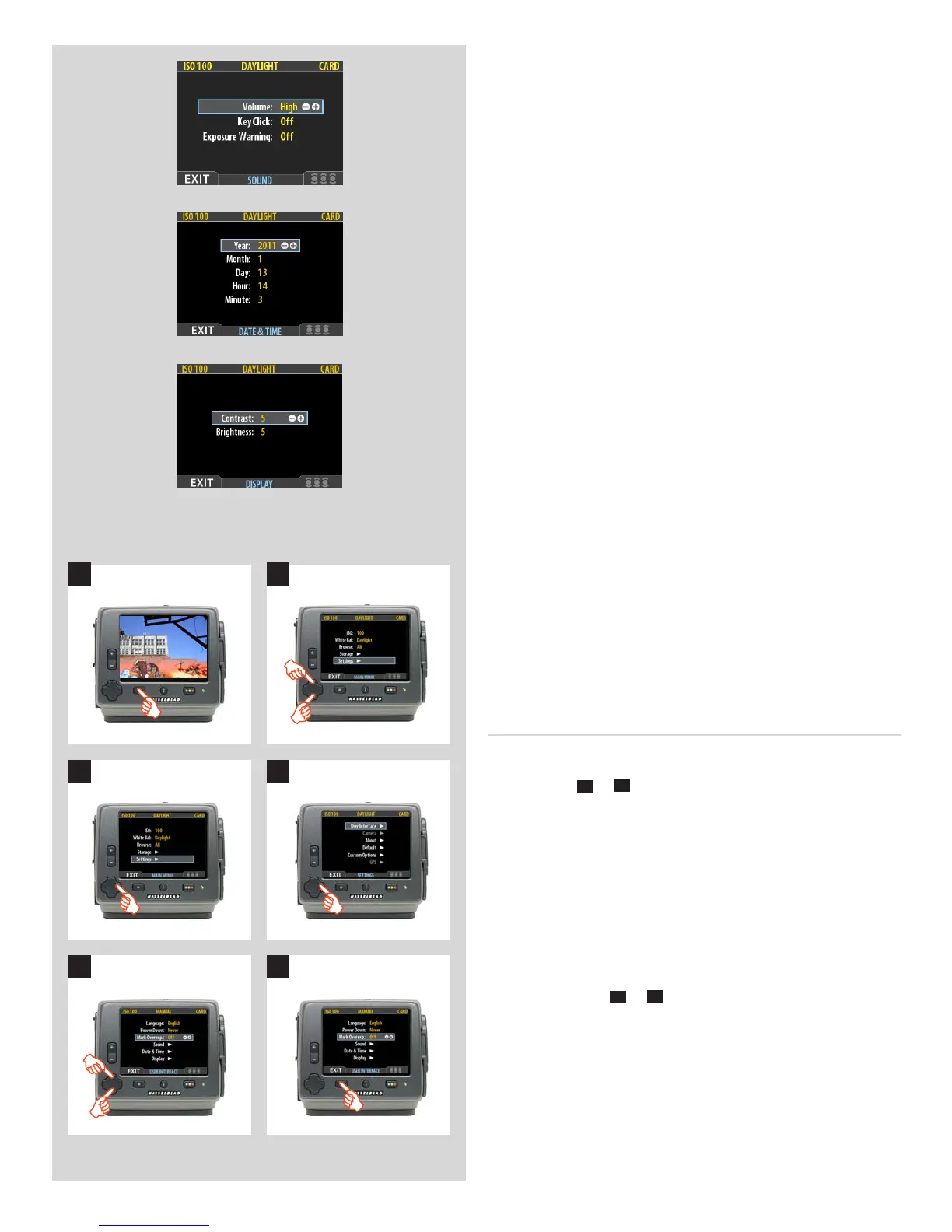
• Sound:
The H4D uses audio feedback to help let you know if each
new image is exposed correctly. This is described in Standard
Instant Approval Workflow.
This menu item has Volume (choose between High, Low and
O), Key Click (choose between OnandO) and Exposure
Warning (choose between OnandO).
• Date & Time:
The H4D has an internal clock that keeps track of the date
and time. This information is used to mark each shot with the
date and time at which it was taken. It is also used to label
batches with the date on which each batch was created. (See
note under General overview of sensor unit about keeping the
internal battery charged to maintain DateandTime settings).
• Display:
This feature also sets the level of Contrast (on a scale of 1-10)
on the display. Usually, you should leave this set to the default
level of 5; however in some viewing environments and/or with
some types of images you may wish to increase or decrease
this value. A value of 10 provides maximum contrast; a value
of 0 provides no contrast (a black screen). You can also help
save battery power by using a low value here.
This feature also sets the Brightness (on a scale of 1-10) on
the display. This sets the brightness shown on the screen.
Usually, you should leave this set to the default level of 5, how-
ever in some viewing environments and/or with some types
of images you may wish to increase or decrease this value.
A value of 10 provides maximum brightness; a value of 0
provides minimal brightness. You can also help save battery
power by using a low value here.
Setting the options under the user interface menu
Each of the above items can be set by similar menu navigation.
Language, Power Down and Mark Overex can be set imme-
diately by the
+
or
–
button while Sound, Date & Time and
Display require another move to sub menu for final choice.
Proceed as follows:
1. Press the menu (MENU) button to open the menu.
2. Use and to select the SETTINGS sub-menu.
3. Press to open the SETTINGS menu.
4. Press to select the USER INTERFACE sub-menu.
5. Use and to select the required item.
Press either the
+
or
–
button to make the new settings in
the case of Language, Power Down and Mark Overex or
press again to access Sound, Date & Time and Display.
6. Press the EXIT button again to save the new settings and
close the menu.
1 2
3 4
5 6











 To Next Page