Vehicle equipment
Please note that this manual contains all
the standard equipment, country-specific
equipment and special equipment for this
model series. Thus, some equipment or
features described in this manual may not
be installed onto your vehicle or are only
available in some markets. For further
configuration information, please refer to
relevant sales information or consult with your
distri but or sel li ng the vehi cl e to you.
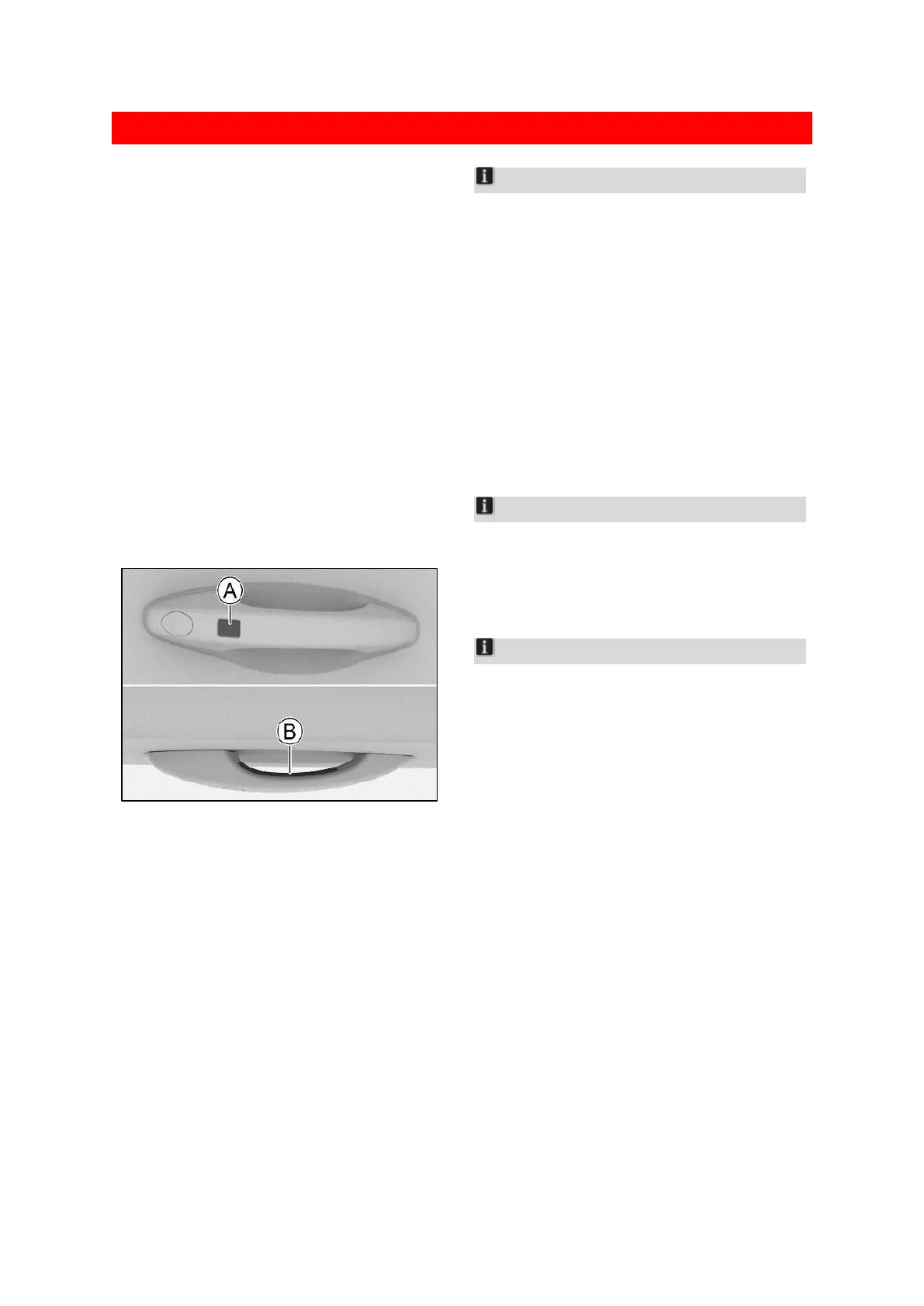
Locking and unlocking through the PEPS
When you carry the smart key with you, you
can use the passive entry and passive start
system (PEPS) to lock and unlock the vehicle
doors.
7CE91F871EC6
(A) Locking sensor
(B) Unlocking sensor
Unlocking
Touch the unlock sensor to unlock all the doors
and tailgate. In this case, the turn signal lamp
will flash twice.
Notice
Unlock mode can be set via [vehicle setting] →
[body] → [door] on the multimedia display screen.
If the unlock mode is set to [driver unlock], when
the unlock button is pressed, only the driver's
door and tailgate will be unlocked. At this time,
if the unlock button is pressed again, all vehicle
doors will be unlocked.
Locking
Touch the lock sensor to lock all the doors and
tailgate. In this case, the turn signal lamp will
flash once.
Notice
If the turn signal lamps do not flash when the
tailgate is locked, check whether all the doors
including the tailgate and the engine hood are
closed fully.
Notice
You can only operate doors which can detect
the smart key.
Please do not lock and unlock the door at the
same time.
If you wear gloves when you operate the
door handle, you may not be able to unlock
or lock the door.
The wireless signal of the intelligent entry
system is relatively weak. When there are
other wireless devices in the vicinity or the
device is covered by an obstruction, the
communication between the smart key and
the vehicle may be affected, leading to the
system not working properly.
Every time the door is successfully locked or
unlocked the smart entry system will stop
working for 3s.
Locking and unlocking with key buttons
See the key button for introduction. (Page 17)


 To Next Page
 Loading...