22
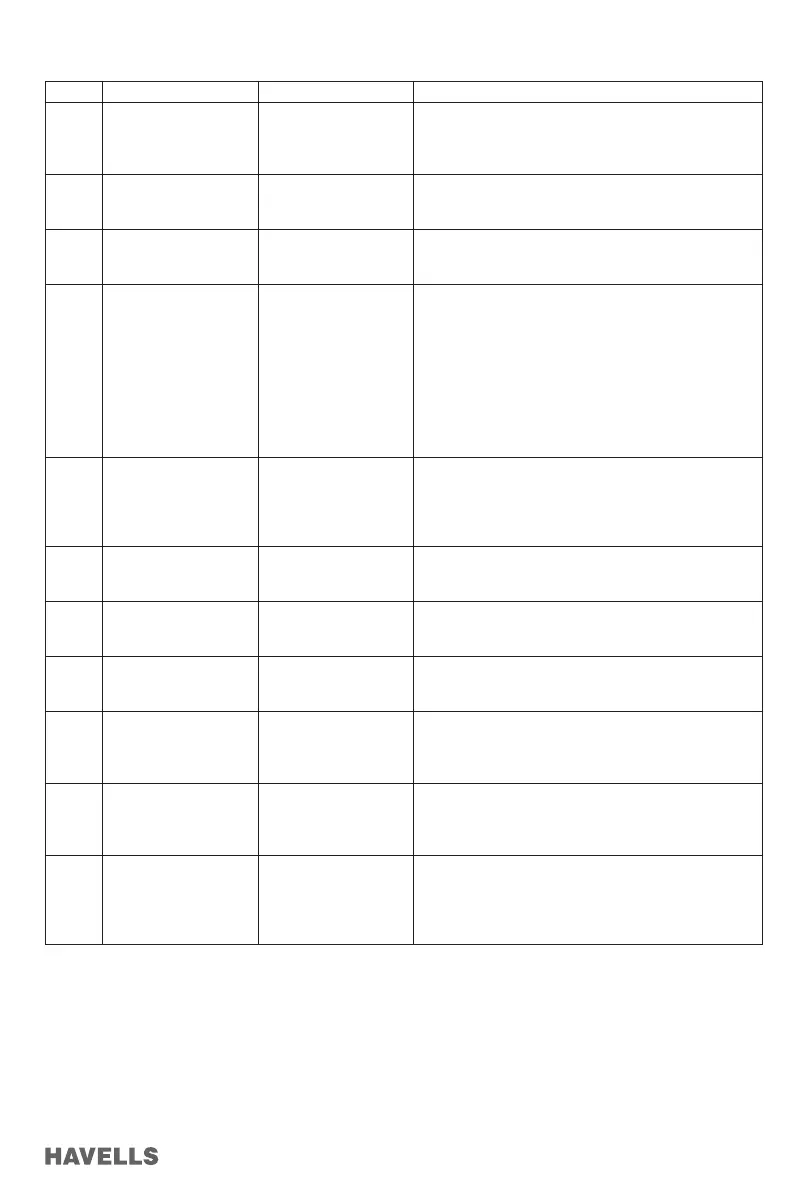
Sl. No. Trouble Possible cause Resolution
1. During registration
OTP not received
There may be server
busy or entered wrong
mobile number.
Wait for 3 minutes - 5 minutes. Even if OTP not
received, check for mobile no. entered during
registration process.
1. Start register process again with correct mobile no.
2. After Press of “Wi-Fi
RESET” button 5 beep
sound not appeared
1.Fan is not power On
2. Remote battery bad/
not installed correctly.
2. Check for Fan power ON
3. Press continuously for 5 s
3. “Wi-Fi RESET” button
pressed by mistake on
IR remote
Required to re-register fan to your APP account.
4 Fan conguration /
Addition to APP unsuc-
cessful
1. Wi-Fi Details
incorrect
2. Internet connectivity
3. Firewall and other
restrictions
4. Check Wi-Fi SSID and Password is correct
5. Fan in Conguration mode and Wi-Fi Symbol is
blinking on the display unit
6. Check any rewall or any other restriction in
Wireless
router.
7. Check the router is working properly.
8. Make sure that Fan is in the range of Wireless
router.
9. Check the internet connectivity in wireless router
5 After Power ON the
Fan, it is showing
Ofine On APP
1. Network problem
2. APP connection
timing.
1. Check for Network stability
2. It takes 2 minutes - 5 minutes to show online
depending on
network speed and server response.
6 If Alexa or google does
not recognize the fan
Possibly in Alexa or
google “Havells SYNC”
skill is not enabled.
You need to enable “Havells Sync” Skills in Alexa or
Google home Follow the procedure in manual.
7 Fan speed level chang-
ing its own
Possibly fan operating
mode set to sleep
mode.
Select normal mode through IR remote or mobile App.
8 Fan speed changing
randomly its own
Possibly fan operating
mode set to Breeze
mode.
Select normal mode through IR remote or mobile App.
9 Applied Sleep Mode
but not activating,
Display icon is not
indicating mode icon
Sleep Mode works
Speed 2 onwards.
Set Speed 2 or above.
(Decrement of speed is as per description in Fan
Feature section)
10 Wanted to deleted
Automation but it is not
deleting
When Automation is
in running condition it
can’t be deleted
1. Wait for Automation to complete then try to delete.
2. Need to delete the device from APP then re
add/congure
11 Edited Automation to
some other timing but
speed selected with
Sleep mode is not
correctly deployed
While editing the
Automation you need
to re select Speed and
Mode also
1. Move and re select the speed selection bar
2. Remove and Mode and reselect and try again.
TROUBLESHOOTING APP INSTALLATION AND OPERATION
1. Picture and procedure used to describe Sync APP, Alexa and Google operations, may slightly differ
with phone models/OS and APP versions.
2. All the App and Voice enabled (Alexa and Google) features are based on Internet speed and Cloud
response, in case any one or both deteriorate, these features temporarily no work properly.
3. Google and Google Home are trademarks of Google LLC.
4. Amazon, Alexa and all related logos are trademarks of Amazon.com, Inc. or its afliates.


 To Next Page
 Loading...