13
FX Racks
Applying FX
On the FX Page, you can assign multiple effects (called FX Racks) at once to an audio input or looper
track. Each FX Rack is made up of multiple effects that can be individually edited and toggled on the
FX Rack Edit page.
To enter the FX Page, press the footswitch labeled FX, or tap the Navigation Menu icon at the top-
left of the touchscreen, and then tap the FX icon.
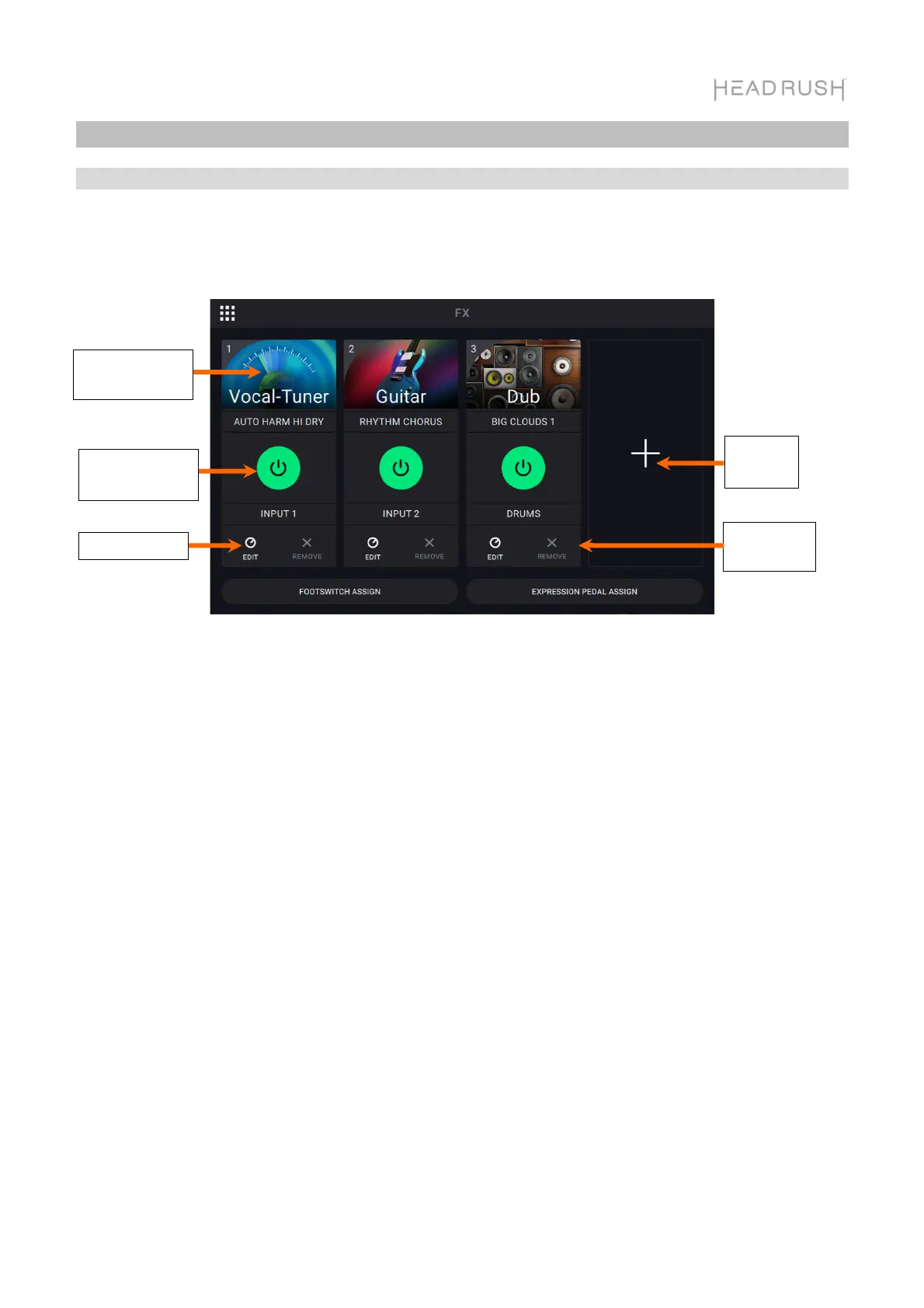
To add an FX Rack, tap the plus sign (+) in an empty slot.
To enable or bypass an FX Rack, tap the footswitches labeled 1–4, or tap the On/Off button on the
touchscreen.
To change the FX Rack type of an existing FX Rack, tap the FX Rack icon on the touchscreen.
This icon looks like a guitar, drums, etc.
To change the settings for the FX Rack, tap the knob icon on the touchscreen.
To remove an FX Rack, tap the X icon on the touchscreen.
To customize the footswitch assignments of the FX Racks, tap the Footswitch Assign button at
the bottom of the touchscreen.
To assign FX parameters to an external expression pedal, tap the Expression Pedal Assign
button at the bottom of the touchscreen.
To exit the FX Page, press the footswitch labeled FX, or tap the Navigation Menu icon in the top-
left corner of the touchscreen.
Add
FX Rack
Change FX
Rack Type
Remove FX
Rack
Edit FX Rack
Enable/Bypass
FX Rack


 To Next Page