HTH01 Instruction 030923 www.hessaire.com
Setting Up WiFi
EVAPORATIVE COOLER CONTROL WiFi INSTRUCTIONS MODEL: HTH01
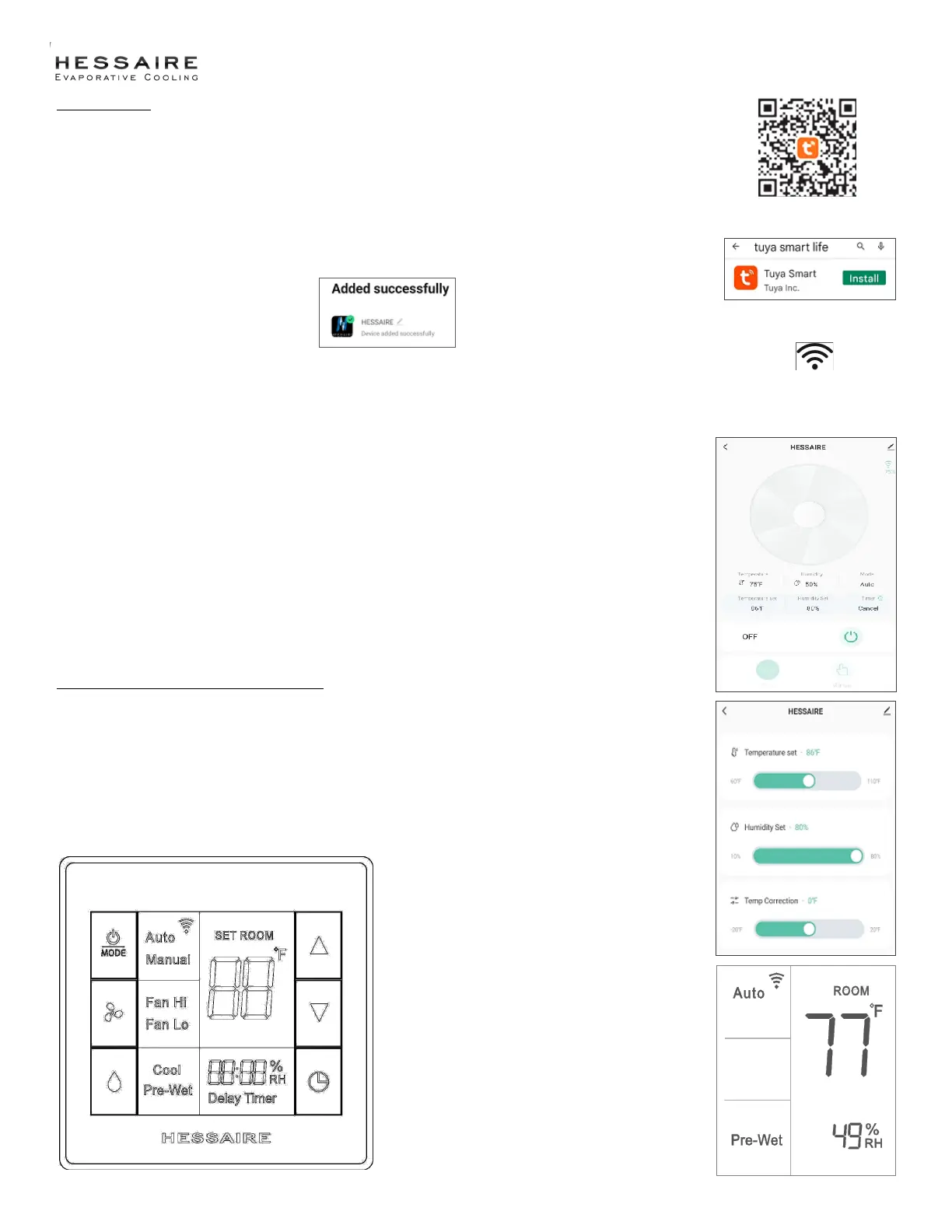
Using your mobile device, log in to your WiFi network and turn on Bluetooth. Install the Tuya Smart App by either
scanning the QC code or downloading the app from your play store.
Create your account. You will receive an email code which you will need to enter to verify.
You will receive a terms agreement and be asked to allow Tuya to access your device’s location.
Make your device discoverable by holding the fan button for 5 seconds. The internet symbol will flash on your controller.
Select the “+” to add a device.
Select the Hessaire logo and you will be asked to re-enter your WiFi passcode.
You will receive a message: “Added Successfully”. Select next.
Wait for your app to configure. Select next to finish.
You will now be able to access the controller functions from your mobile device.
Device Controls:
• ON/OFF/MODE
• Fan (High/Low)
• Pump (Cooling)
• Temperature Increase/Decrease
• Timer (Displays RH)
Auto mode will maintain the desired temperature by turning the pump and fan On or Off based on temperature changes.
Manual mode requires you to manually turn the pump and fan on the lower the temperature.
QR Code
Using Your Thermostat Controller With WiFi
Set the desired temperature. The unit will power on in a pre-wet setting for about 2 minutes to allow the media to saturate.
If you are using the manual setting, there is a timer feature to automatically turn off the pump and fan based on the time
you set.
Each time you start up your device, the controller will retain previous settings.
Note: the humidity display is only a readout, it is not an adjustable control function.
WiFi
Symbol
App


 To Previous Page
 Loading...