13
KRYPTODISK 2 | USER PRIMARY AND DATA RESTORE CARD
3. Partition and format disk
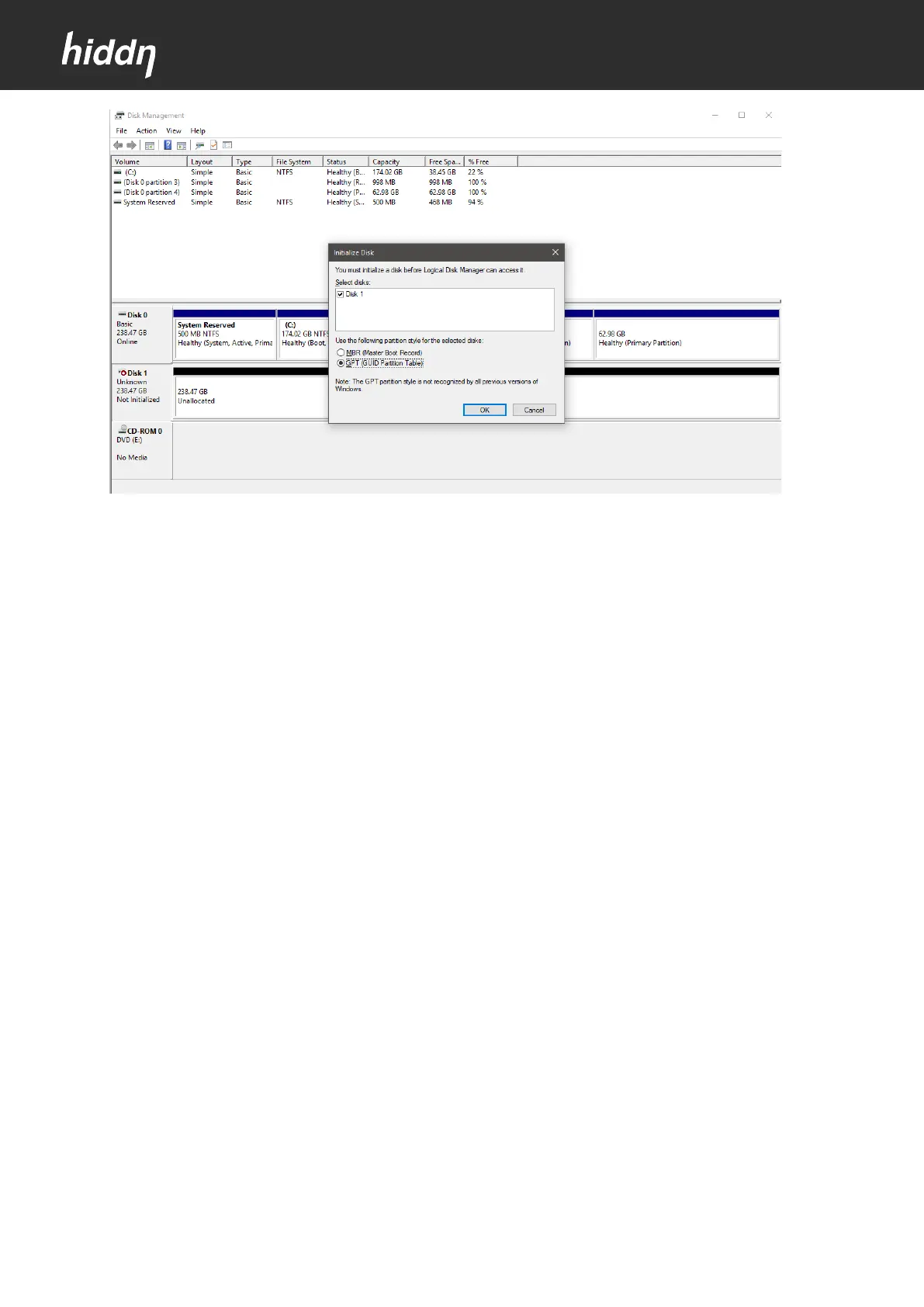
Once Disk Management opens, look for the new drive in the list.
NB: KryptoDisk 2 is a new hard drive that needs to be partitioned before use. In Windows, partitioning needs to
be done before a hard drive can be formatted. The KryptoDisk 2 will probably be on a dedicated row labelled
Disk 1 (or 2, etc.) and will say Unallocated.
Tap-and-hold or right-click anywhere on it and choose New Simple Volume.
Tap or click Next > on the New Simple Volume Wizard window that appears.
Tap or click Next > on the Specify Volume Size step to confirm the size of the drive you're creating.
Tap or click Next > on the Assign Drive Letter or Path step
Windows will now partition the drive, a process that will only take a few seconds on most computers. In
Windows 10, Windows 8, and Windows 7 you will be asked to format the disk.



 To Next Page