15
KRYPTODISK 2 | USER PRIMARY AND DATA RESTORE CARD
Formatting a hard drive on Mac
Launch Disk Utility, located in /Applications/Utilities.
1. Initialise disk
Disk initialisation will most likely pop up automatically. If not please click on the disk icon and a wizard will take
you further.
2. Partition and format disk
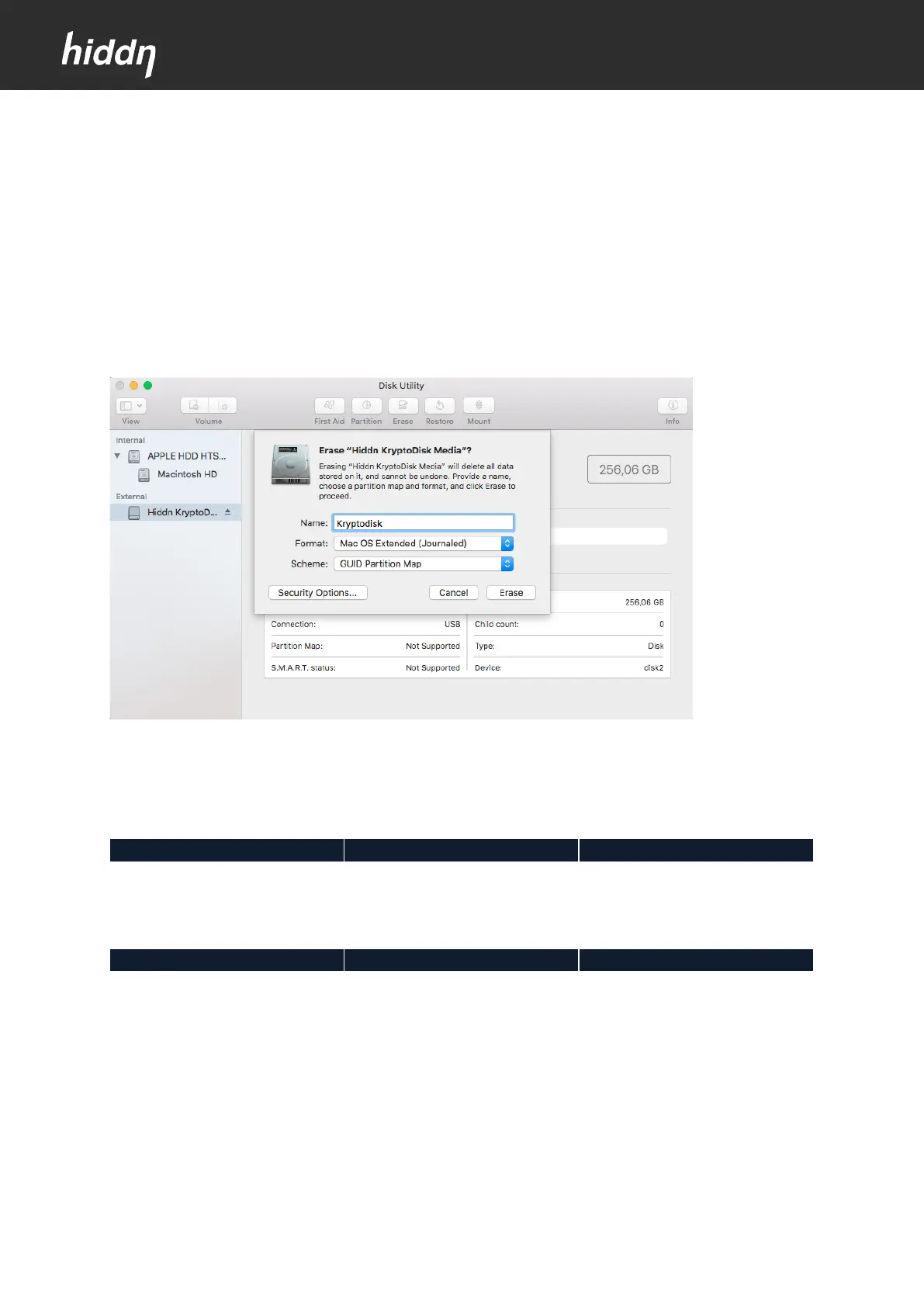
From the left-hand pane, select the drive you wish to format. Click the Erase button at the top of the Disk
Utility window, or select Erase from the Edit menu. A window should pop up resembling the image below.
Mac OS Extended (Journaled) is the default MacOS file system, and is recommended if you only intend to use
your KryptoDisk 2 with Apple computers. If you want to move data between computers with different
operating systems, e.g. Windows or Linux computers, select exFAT.
Our suggested settings for Mac-exclusive use are as follows:
Mac OS Extended (Journaled)
Our suggested settings for inter-platform use are as follows:
When you have configured your settings, click the Erase button.
Disk Utility will erase and format the selected drive, resulting in a single volume being created and mounted on
your Mac’s desktop.
Click the Done button.



 To Next Page