EasyManua.ls Logo

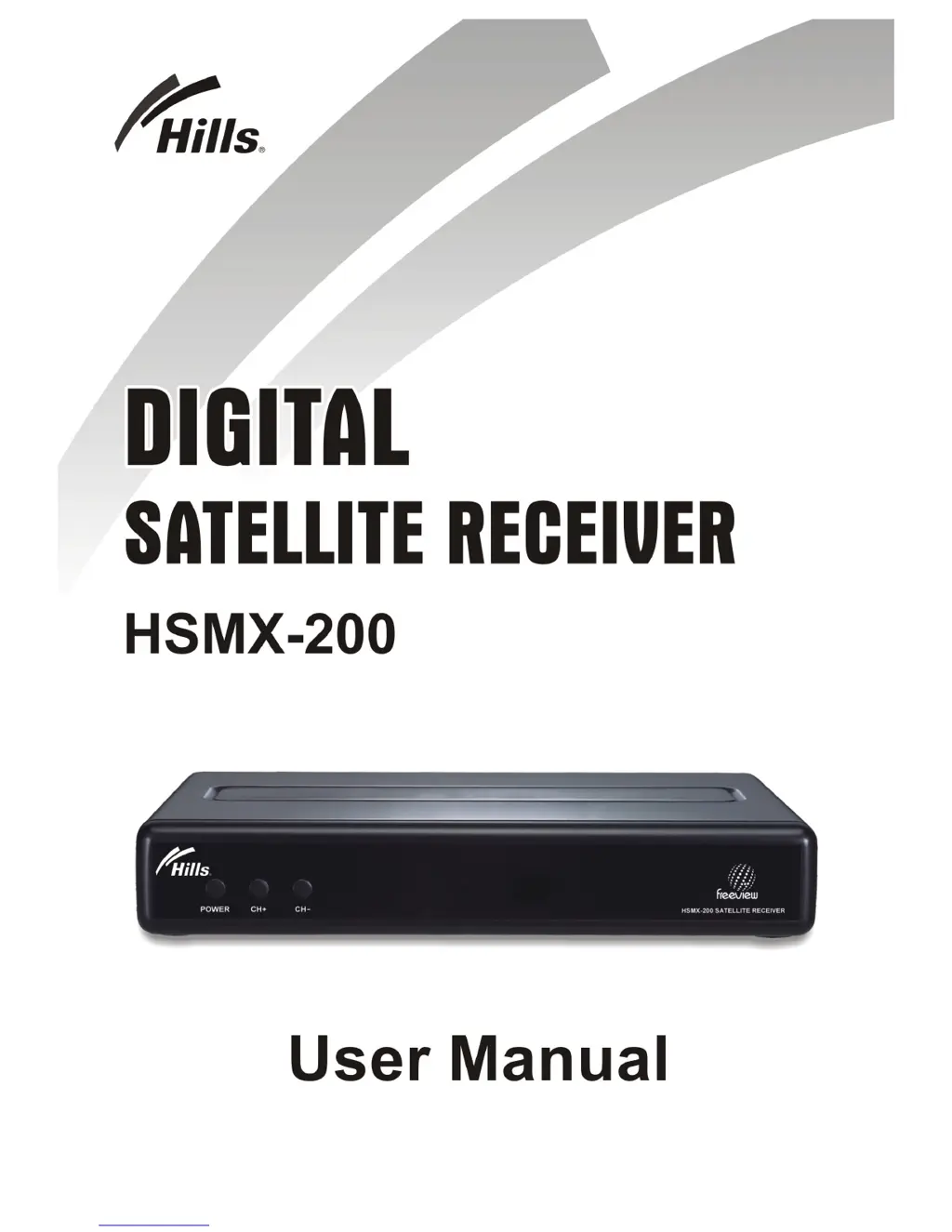
Hills HSMX-200 - User Manual

Hills HSMX-200
45 pages
Print Icon
To Next Page IconTo Next Page
Loading...
- 0 -

Questions and Answers

  • K
    Kristopher GibbsAug 1, 2025
    What to do if there is no audio on my Hills Receiver?
    • N
      Nicholas GreerAug 1, 2025
      If you're experiencing a lack of audio with your Hills Receiver, verify that both the receiver and your TV's volume levels are appropriately adjusted and not muted. Ensure the audio connectors are securely and correctly connected. Also, confirm that the receiver is set to the correct audio mode.
  • R
    Richard PayneAug 5, 2025
    What to do if I see some indication on the front panel but no picture on my Hills TV Receiver?
    • E
      Erin HendersonAug 6, 2025
      If your Hills TV Receiver shows indications on the front panel but no picture appears on your TV screen, check the TV Receiver settings. Ensure that the correct source/input is selected on your TV Receiver (e.g., AV1 or AV2 if the set-top box is directly connected via AV leads). Verify that the connection between the set-top box and your TV matches the mode your TV is set to. Also, confirm that the brightness level of your TV is sufficiently high. As an additional step, connect via the composite video output first and check if the selected video output matches the output connected to your screen.
  • J
    jennifer13Aug 10, 2025
    What to do if the Hills Receiver formatting is still running?
    • G
      Gina MoralesAug 11, 2025
      If the USB drive formatting is taking a long time and your Hills Receiver is unresponsive, press the power button on the front panel and wait for 30 seconds. Then, press the power button again to switch it on. After this, re-run the format; it should complete successfully.
  • B
    Bobby CowanAug 16, 2025
    Why Hills Receiver front panel power indicator doesn't light up?
    • M
      Michael SmithAug 16, 2025
      If the power indicator on your Hills Receiver's front panel isn't lighting up, check the main lead and ensure the power plug is securely plugged into a stable power outlet. Then, press the POWER button on the front panel to see if the green light (power indicator) turns on. Also, check if the digital receiver is in "Standby" mode by pressing STANDBY on the remote control.
  • D
    David JonesAug 20, 2025
    What to do if Hills Receiver cannot lock signal?
    • P
      Patrick MartinAug 20, 2025
      If your Hills Receiver cannot lock onto a signal, ensure your reception systems are correctly installed and connected properly to the receiver. Also, check that the parameters you enter are exactly the center frequency of the desired channel, as some parameters may be changed by operators. Make sure you have the most updated parameters.
  • K
    Katherine EllisAug 26, 2025
    Why is there no Teletext on my Hills Receiver?
    • G
      Gary HarrisAug 26, 2025
      To resolve the issue of no Teletext on your Hills Receiver, make sure the channel you are watching actually carries Teletext information.

Summary

Safety Instruction

Product Overview

Front Panel

Details the components and indicators on the receiver's front panel.

Remote Control

System Installation

Connecting to TV Monitor and Audio & Video Devices

Illustrates how to connect the receiver to display and audio devices.

Switching on for the First Time

Manual Scan; Retune

Recording TV Programmes

Format the USB Storage Drive

Instructions for preparing a USB drive for recording and playback.

Schedule Recording

Starting (Scheduled) Recording

Viewing Recordings

How to access and play recorded programs from the playlist.

Playback Display

Setup

Antenna Setup

Configure satellite reception settings, tuner, and scan parameters.

Software Upgrade

USB Upgrade

Update the receiver's firmware using a USB storage device.

OTA Software Upgrade (SSU Standby Mode - Enable)

Troubleshooting

Hills HSMX-200 Specifications

General IconGeneral
BrandHills
ModelHSMX-200
CategoryReceiver
LanguageEnglish