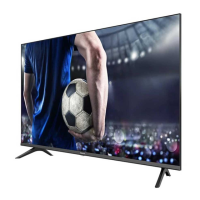
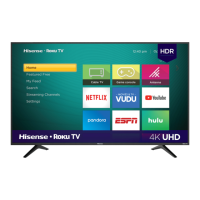
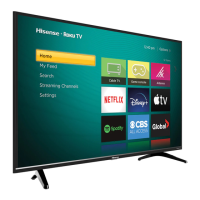
This document is a Quick Setup Guide for Hisense 49K3110PW, 50K3110PW, and 55K3110PW television models. It provides essential information for setting up and using the TV, including accessory lists, stand installation, TV front and rear panel descriptions, connection instructions, remote control functions, and initial setup guidance.
The Hisense TV is designed to provide a comprehensive entertainment experience, offering various connectivity options and user-friendly controls. Before using the TV, it is crucial to read this guide thoroughly and retain it for future reference. For more detailed instructions, users should consult the User Manual.
Safety Precautions
Several safety precautions are highlighted to ensure safe operation and prevent damage to the TV or injury to the user:
- Battery Replacement: Incorrect replacement of batteries may pose a risk, including the use of a similar or same type. Batteries should not be exposed to excessive heat from sources like sun, fire, or similar conditions.
- Liquid Exposure: The device should not be exposed to dripping or spraying liquids and should not be placed under objects filled with liquids.
- Power Disconnect: The main plug serves as the disconnect device and should remain readily operable.
- Hearing Safety: Excessive sound pressure from earphones and headphones can cause hearing loss.
- Stand/Wall-Mount Installation: Always disconnect the A/C power cord before installing the stand or wall-mount brackets. The LED display is extremely fragile; protect it from hard or sharp objects that could scratch or damage it. Avoid exerting pressure on the front of the TV screen, as this could cause it to crack.
- CI+ Module: Before inserting or removing the CI+ module, ensure the TV is switched off. Do not repeatedly insert or remove the Common Access Module, as this can damage the interface and cause malfunctions.
- External Equipment: Do not connect external equipment while the TV's power cord is plugged in, as this may cause electric shock.
- Headphone Use: Ensure that the headphone plugged in does not have a microphone function, as it may not be supported.
- Optical Audio: Before connecting a digital audio system to the Optical jack, decrease the volume of both the TV and the system to prevent a sudden increase in volume.
- USB Devices: If a USB 1.1 or USB 2.0 device requires more than 500mA or 5V, it may not be supported. Exceeding the maximum supported current can result in damage or data loss. For storing video streaming of DTV programs, the USB storage device's transfer rate must be at least 5MB/s.
- Hard Disk/USB Hub: When connecting a hard disk or a USB hub, always connect the mains adapter of the connected device to its power supply.
- TV Power Cycle: It takes several seconds for the TV to power on and load programs. Avoid rapidly turning the TV on and off, as this may cause it to work abnormally.
Usage Features
Installing the Stand
- Carefully place the TV facedown on a soft, flat surface to prevent damage or scratching to the screen.
- Remove the two stands from the accessory bag and insert them into the bottom slots of the TV.
- Secure the base stand to the TV with the four screws provided.
TV Front Panel
The TV front panel includes a remote sensor and a power indicator.
- Remote Sensor: Receives signals from the remote control. Avoid placing anything near the sensor to ensure its proper function.
- Power Indicator: Displays a red light when the TV is in standby mode.
- OK Button: On the TV's bottom panel, the OK button allows users to select different input signal sources, put the TV in standby mode, and turn it on from standby. Pressing the OK button left and right adjusts the volume, while pressing it up and down selects channels.
TV Rear Panel and Connections
The TV's rear panel offers a variety of ports for connecting external devices:
- ANT (Antenna): Connects to an outdoor VHF/UHF antenna or cable for receiving broadcast signals.
- COMMON INTERFACE (CI+): For watching scrambled services like pay-TV or HD channels. Insert the CI+ module and SmartCard according to the service provider's instructions.
- HDMI/COMP/AV: Connects to external AV equipment using HDMI, Component, or AV cables. No sound connection is needed for HDMI-to-HDMI connections. If the signal resolution does not match the TV's specifications, adjust the device settings accordingly. Users can select the input source using the [Input] button on the remote.
- ARC (Audio Return Channel): Connects to an external digital audio system via an HDMI cable. ARC allows the TV to output digital sound directly through the HDMI cable, provided the audio receiver supports ARC. This port cannot be used for signal input simultaneously when functioning as ARC.
- MHL (Mobile High-Definition Link): Connects to MHL-enabled devices, such as cell phones, using an MHL cable (not provided). MHL is only available through HDMI 1(MHL) and only with compatible MHL devices.
- HEADPHONE: Connects headphones for audio output. The built-in speakers are disabled when headphones are connected.
- OPTICAL: Connects to an external digital audio system using an optical cable. This port transmits digital audio signals over a fibre optical cable.
- USB: Connects USB 1.1 or USB 2.0 devices like hard drives, USB sticks, and digital cameras for browsing photos, listening to music, and watching recorded movies. It also supports recording live TV programs (PVR) and updating the TV's firmware by plugging a USB drive with the update files.
- LAN (Wired Setup): Connects the TV to a network using an Ethernet/Cat 5 cable from an external modem or router. It is recommended to use a modem or router that supports Dynamic Host Configuration Protocol (DHCP) for automatic IP address assignment.
- Wireless Setup: The TV has a built-in Wireless LAN Adapter that supports IEEE 802.11 b/g/n communication protocols, allowing wireless connection to a network via a wireless router or modem. For smooth network performance, the distance between the router and TV should be less than 10 meters. The TV supports WPA, WEP, and WPA2 security systems.
Remote Control
The remote control features numerous buttons for various functions:
- Power Standby: Turns the TV on/off or puts it in standby mode.
- INPUT: Selects the input source.
- Number Buttons (0-9): Selects channels or enters numbers.
- T.shift (Timeshift): Initiates Timeshift function.
- Subtitle: Displays subtitles in Live TV.
- Special Function Buttons: Three colored buttons for specific functions.
- Quick Setup: Provides fast access to all applications.
- Navigation Buttons (Up/Down/Left/Right): Navigates menus.
- OK: Confirms selections or displays the on-screen keyboard.
- BACK: Returns to the previous menu.
- EXIT: Exits the menu or application.
- Home Screen Button: Displays the Home screen.
- Live TV Button: Enters the Live TV screen.
- VOL (+/-): Adjusts volume up or down.
- CH (+/-): Changes channels up or down.
- Mute: Mutes or restores sound.
- Media Content Control Buttons: For controlling media playback (play, pause, stop, fast forward, rewind).
- Info: Displays current program information.
- CH.List: Displays the channel list.
- EPG: Displays the Electronic Program Guide (DTV mode).
- APP Buttons: Quick access buttons to applications.
Installing Batteries in the Remote Control
- Slide the back cover to open the battery compartment.
- Insert two AAA size batteries, ensuring the correct polarity (+ and -).
- Close the battery compartment cover.
Remote Control Operation Range
Point the remote control at the TV within 5 meters of the remote control sensor and within a 60° angle in front of the TV. The operating distance may vary based on room brightness.
Turning the TV on for the First Time
- Connect the mains cable to the mains socket after all other connections are complete.
- The first time the TV is turned on, it will enter the Installation Guide. This guide assists in setting up Language, Location, Time Zone, Mode, EULA, Network, and Input.
- Use the navigation buttons [^ / v / < / >] to navigate and change settings, and press [OK] to confirm.
- Language: Select the desired menu display language.
- Location: Select the TV's operating location.
- Time Zone: Select your location's time zone, then press [OK] to proceed.
- Mode: Select "Home Mode." "Store mode" is for retailers demonstrating the TV.
- EULA: Accept the End User License Agreement to enhance the TV user experience.
- Network: If no Ethernet connection is detected, the TV will automatically select "Wireless." Select your network from the displayed list.
- Input: Choose how you receive TV channels (TV, AV, COMPONENT, HDMI). If using an antenna, complete the first-time setup to run a channel scan.
- Complete: Press [OK] to confirm selections or use the back arrow to change them.
FreeviewPlus
FreeviewPlus is a television service delivered via broadband, offering an Electronic Program Guide (EPG) and seamless access to catch-up TV across free-to-air networks by pressing the 'Green' button on the remote. To use FreeviewPlus, ensure the TV is connected to the internet and an antenna system. This service is only available in Australia.
Maintenance Features
- Battery Care: Dispose of batteries in designated areas; do not throw them into fire. Do not mix battery types or combine used batteries with new ones. Remove depleted batteries immediately to prevent acid leakage. If not using the remote for a long time, remove batteries. Do not expose batteries to excessive heat. If battery chemicals touch skin, wash immediately.
- Connection Checks: Regularly check that all connections are tight and secure to prevent image or color problems.
- TV Cleaning: For detailed cleaning instructions, refer to the User Manual.
- Firmware Updates: The TV supports firmware updates via USB.
This comprehensive guide ensures users can set up and operate their Hisense TV effectively and safely, maximizing their viewing experience.

 Need help?
 General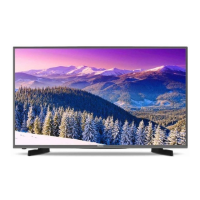

 To Next Page