EasyManua.ls Logo

Hisense E30 - User Manual

Hisense E30
41 pages
Print Icon
To Next Page IconTo Next Page
Loading...
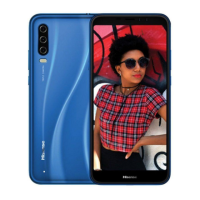
Hisense E30
HLTE220E
User Guide
Before using the device, please read the user guide in
detail.
Notice:Please power off when insert SIM card or
swap SIM card.
Manufactured by Hisense Communications Co., Ltd.

Questions and Answers

  • A
    Ashley AdamsAug 16, 2025
    What to do if my Hisense E30 cannot be switched on?
    • A
      Amanda JonesAug 16, 2025
      If your Hisense Telephone cannot be switched on, make sure to press the Power button for at least two seconds. If that doesn't work, charge the battery and check the charging indicator on the screen.
  • C
    christinadavisAug 19, 2025
    Why does my Hisense E30 battery charge so slowly?
    • R
      Randy BrownAug 19, 2025
      If your Hisense Telephone is charging slowly, several factors could be at play. Ensure the phone is charging at a normal temperature, as extreme temperatures can affect charging. Check the charger and its connection to the phone, and try plugging the charger into a different socket. The charger might be defective, so consider replacing it. Also, use only original accessories. The outside temperature could also be too hot or cold.
  • M
    Mario McdanielAug 22, 2025
    What to do if my Hisense E30 Telephone has no network connection?
    • D
      Donald DanielsAug 22, 2025
      If your Hisense Telephone has no network connection or the network is constantly dropping, the SIM card might be too old, consider changing it at your network provider’s nearest branch. Also, move toward a window or into an open area and check the network provider coverage map. For further assistance, contact your service provider.
  • E
    Elizabeth PenaAug 26, 2025
    What to do if my Hisense E30 Telephone has no sound?
    • D
      Danielle SimmonsAug 26, 2025
      If your Hisense Telephone has no sound, check the settings status in the sound menu to ensure that the phone is not in vibration or silent mode.
  • M
    markgrayAug 28, 2025
    What to do if my Hisense E30 Telephone calls are not available?
    • C
      Christopher MillerAug 28, 2025
      If calls are not available on your Hisense Telephone, ensure that there is no dialing error and that the new network is authorized. If a new SIM card was inserted, check for any new restrictions. It is also possible that your prepaid charge has reached its limit.
  • R
    Ryan SmithAug 31, 2025
    Why does my Hisense Telephone SIM card has error?
    • J
      Julia PotterAug 31, 2025
      Ensure that the SIM card is correctly inserted in your Hisense Telephone.
  • A
    Amy GardnerSep 3, 2025
    Why can't I install an app on my Hisense Telephone?
    • S
      suzanne46Sep 3, 2025
      An app may not install on your Hisense Telephone if your phone has insufficient storage; try deleting some messages. It may also be because the app is not supported by your service provider or requires registration, in that case you should contact your service provider.
  • L
    larry76Sep 6, 2025
    Why does my Hisense E30 display contacts doubly?
    • F
      frank93Sep 6, 2025
      If your Hisense Telephone displays contacts doubly, it might be because contacts are saved both on the phone and on the SIM card. Check where your contacts are saved.
  • A
    Austin HartSep 9, 2025
    Why are my Hisense E30 Telephone call logs not saved?
    • B
      Bailey HicksSep 10, 2025
      If call logs are not being saved on your Hisense Telephone, ensure that the time is not wrongly set. Check the time setting.
  • M
    Megan SchwartzSep 12, 2025
    What to do if Files cannot be opened on Hisense Telephone?
    • V
      Victoria McknightSep 12, 2025
      Check the supported file formats for your Hisense Telephone.

Summary

Safety Precautions

General Safety Information

General guidelines for safe operation, including avoiding damage and hazards.

Medical Device

Pacemaker Interference

Guidance on potential interference with pacemakers and other medical devices.

Road Safety

Driving Precautions

Important rules and advice for using the phone safely while operating a vehicle.

Power Supply & Charging

Charging Guidelines

Instructions and precautions for charging the device using the provided power adapter and cable.

Hearing Protection

Volume and Listening Advice

Advice to prevent hearing damage from prolonged exposure to high volume levels.

Emergency Call

Making Emergency Calls

Information on making emergency calls and network availability limitations.

Unboxing your Phone

Inserting and Removing Cards

Guidance on correctly inserting and removing SIM and microSD cards into the device.

Turning your Phone On;Off

Steps to power the phone on, power it off, and force a restart.

Charging the Battery

Charging Process

Step-by-step instructions for charging the device's battery using the provided accessories.

Screen and Display

Basic Operation

Power Button Functions

Detailed explanation of the power button's functions for turning on, off, and restarting the device.

Touchscreen Gestures

Lock the phone

Screen Lock Methods

Steps to secure the phone by setting up a screen lock (Pattern, PIN, Password).

Calls and Contacts

Making Calls

Step-by-step guide on how to make phone calls using the dial pad or contacts.

Calls and Contacts

Messages

Camera and Photos

Taking Photos

Guide on how to operate the camera to capture still photographs.

Recording Videos

Instructions for using the camera to record video clips.

Play Music

Chrome

Clock

Managing Alarms

Instructions for adding, enabling, disabling, and configuring alarm settings.

Sound Recorder

Appendix

Troubleshooting

SIM Card Errors

Troubleshooting steps for common SIM card errors and recognition issues.

Network Connection Issues

Solutions for problems related to network connectivity and dropped calls.

Power and Charging Issues

Troubleshooting steps for issues related to powering on the device and charging errors.

Medical Devices

Pacemaker Interference Warning

Specific warning for implanted medical devices like pacemakers regarding potential interference.

FCC Compliance

FCC Compliance

RF Exposure Compliance

Details on compliance with FCC radiation exposure limits and specific operating instructions.

Specification

Device Specifications

Detailed technical specifications of the Hisense E30 HLTE220E device.

Hisense E30 Specifications

General IconGeneral
BrandHisense
ModelE30
CategoryTelephone
LanguageEnglish